

YouTube Embed Code Generator – Responsive Iframe Code in 3 Easy Steps
Use this free YouTube embed code generator to create clean, responsive iframe code for any YouTube video in seconds.
Quick answer
Paste a YouTube link (watch, youtu.be, Shorts, live or embed URL), choose your options and click Generate Embed Code. This YouTube embed code generator builds an <iframe> with parameters such as autoplay=1, mute=1, loop=1&playlist=ID, controls=0, rel=0 and start=30. Tick Make Responsive for a 16:9 player that fits every screen. Note: autoplay only works reliably when the video is muted.
Table of Contents
YouTube’s own Share → Embed button gives you a basic fixed-size iframe. As soon as you want the video to start at a certain second, loop, play muted in the background or scale nicely on phones, you have to edit the code by hand.
Our free YouTube embed code generator does that for you. Choose the settings with checkboxes, see a live preview and copy ready-to-paste HTML for WordPress, Shopify, Wix, Webflow or any website.
YouTube Embed Parameters Explained
| Option | Parameter | What it does |
|---|---|---|
| Autoplay | autoplay=1 | Starts playing on page load (needs mute in most browsers) |
| Mute | mute=1 | Starts with sound off |
| Loop | loop=1&playlist=VIDEO_ID | Repeats the video – the playlist value is required |
| Hide controls | controls=0 | Removes the player control bar |
| Related videos | rel=0 | Limits suggestions to your own channel |
| Start time | start=30 | Begins at 30 seconds |
| End time | end=90 | Stops at 90 seconds |
Supported link formats
- youtube.com/watch?v=VIDEO_ID
- youtu.be/VIDEO_ID
- youtube.com/shorts/VIDEO_ID
- youtube.com/live/VIDEO_ID
- youtube.com/embed/VIDEO_ID
- Or just the 11-character video ID
How to Use the YouTube Embed Code Generator
Create your embed code in three steps.
Step 1: Paste the Video and Pick Your Settings
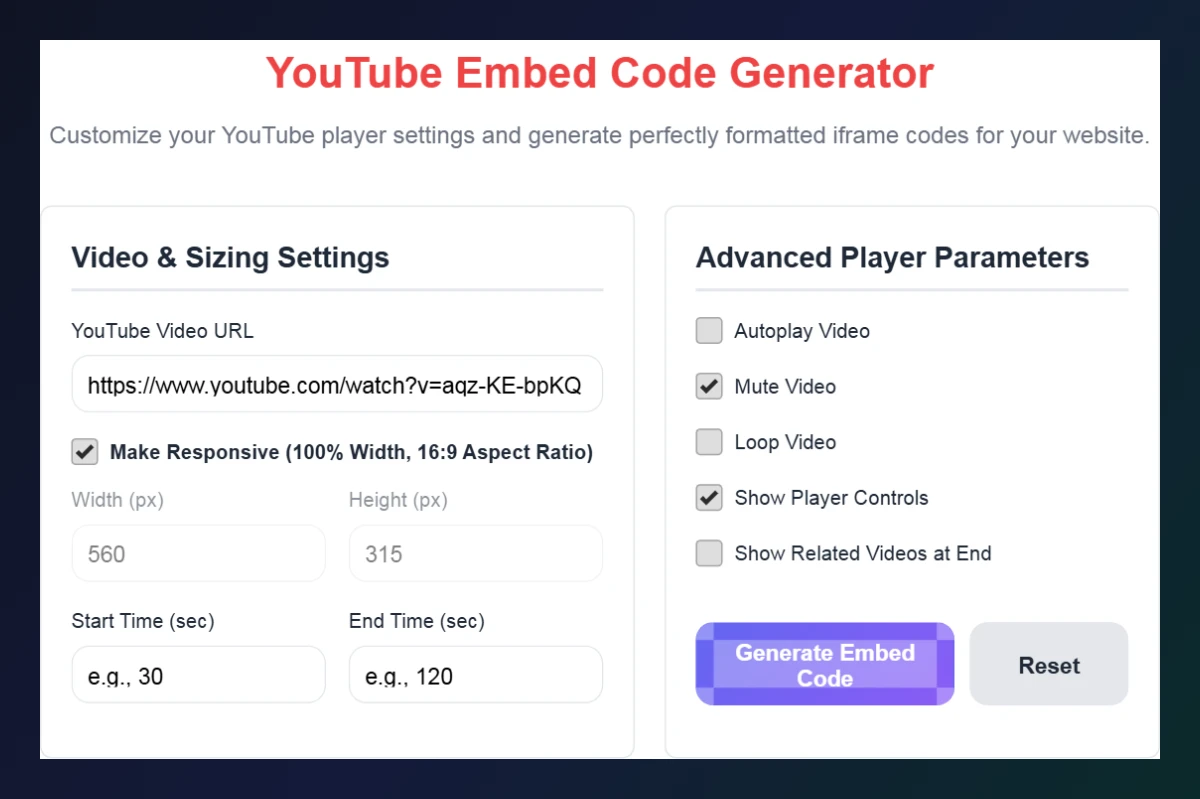
Paste the video link into YouTube Video URL. Keep Make Responsive ticked for a 16:9 player, or untick it to set width and height in pixels. Add a start or end time if needed, then choose Autoplay, Mute, Loop, Show Player Controls and Show Related Videos.
Step 2: Generate and Copy the Code
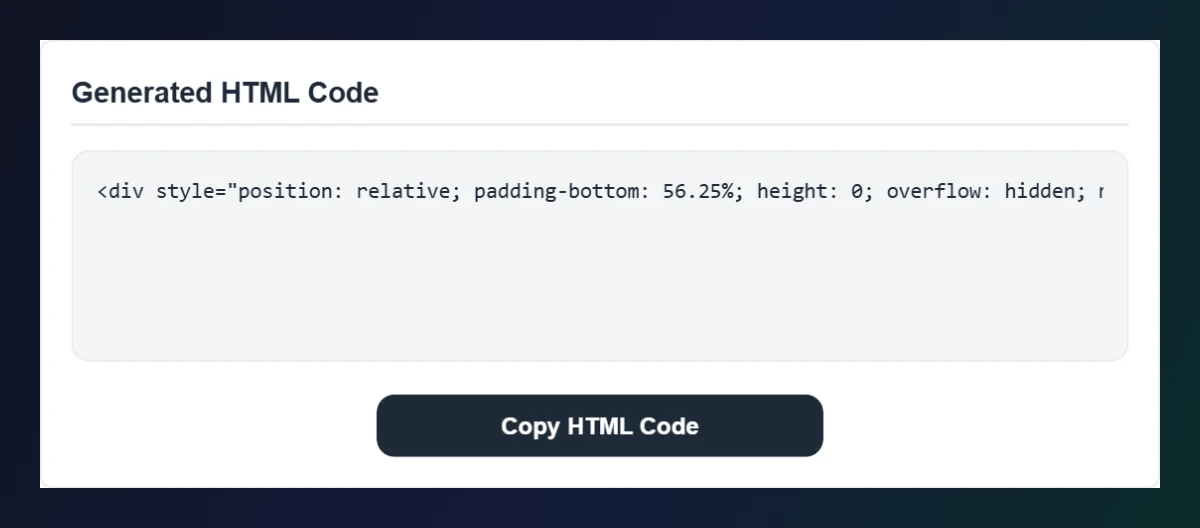
Click Generate Embed Code. The Generated HTML Code box shows the iframe (wrapped in a responsive container if selected) and the live preview loads below. Click Copy HTML Code.
Step 3: Paste It Into Your Website
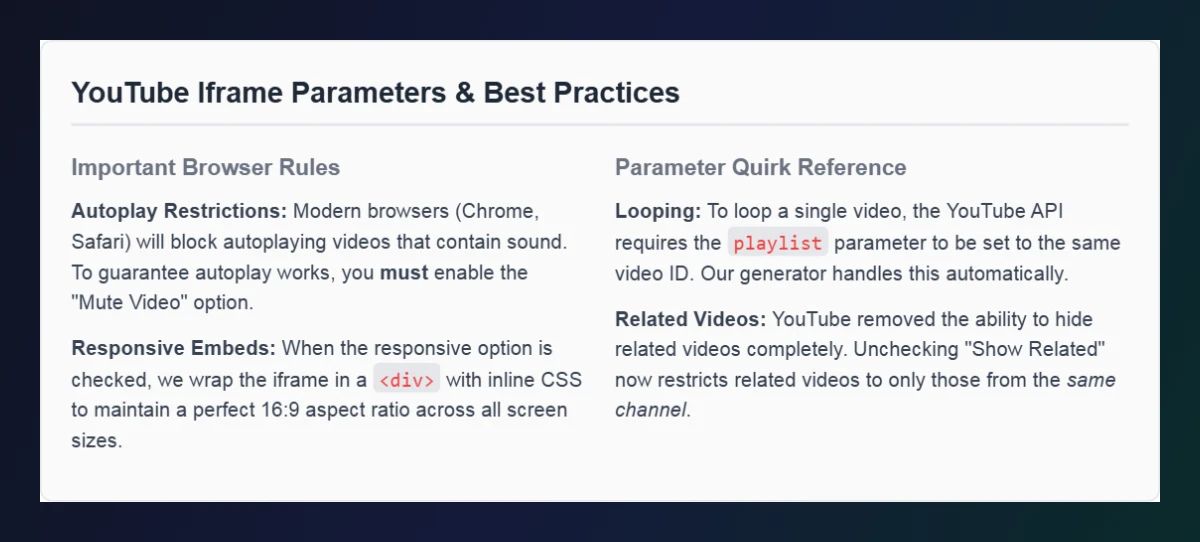
In WordPress, add a Custom HTML block and paste the code. On Shopify or Wix, use the HTML / embed element. Check the parameters and best practices section if autoplay or looping does not behave as expected.
Tips for Embedding YouTube Videos
- Use responsive mode so videos do not overflow on mobile.
- Autoplay + mute for background or hero videos; browsers block autoplay with sound.
- Lazy loading: add
loading="lazy"to the iframe on long pages to keep them fast. - Start at the key moment with a start time instead of making visitors scrub.
- Check embedding permissions – some videos have embedding disabled by the owner.
Is Embedding YouTube Videos Good for SEO?
Embedding a relevant video can keep visitors on your page longer and make content more helpful. Add a short summary or transcript around the video so search engines understand the topic, and avoid loading many videos at the top of one page, which can slow it down.
Need a link that jumps to a moment instead? Use the YouTube Timestamp Link Maker.
Frequently Asked Questions
How do I embed a YouTube video on my website?
Paste the video link into the generator, choose your settings, copy the HTML code and paste it into an HTML block on your site.
Why does my embedded video not autoplay?
Browsers block autoplay with sound. Enable both Autoplay and Mute and it will usually start automatically.
How do I make a YouTube video loop?
Use loop=1 together with playlist set to the same video ID. The generator adds both automatically.
Can I hide related videos completely?
No. rel=0 now only limits suggestions to videos from the same channel.
Does it work with YouTube Shorts and youtu.be links?
Yes. Watch, youtu.be, Shorts, live and embed links, or a plain 11-character video ID, are all supported.
Is the YouTube embed code generator free?
Yes. It is free, runs in your browser and needs no sign-up.