

WordPress Read More Tag Inserter – Add the More Tag in 3 Easy Steps
WordPress Read More Tag Inserter
Use this WordPress read more tag inserter to automatically inject the <!--more--> tag into your article formatting based on paragraph or word count limits.
Use this free WordPress read more tag inserter to place the <!--more--> tag in your post at exactly the right spot. Paste your article as HTML or plain text, choose to split after a number of paragraphs or roughly a number of words, and copy the finished code into the WordPress editor.
Quick answer
The WordPress read more tag (<!--more-->) tells your theme where to cut a post on the blog page, home page and archives, and shows a "Read more" link. Place it after the first one to three paragraphs, usually 50 to 150 words. This tool always inserts it between paragraphs, never in the middle of a sentence.
Table of Contents
Long posts on a blog home page make visitors scroll forever and slow the page down. The read more tag fixes this by showing a short teaser for each post with a link to the full article.
Adding the tag by hand across many drafts is fiddly, especially in HTML. This WordPress read more tag inserter does it in one paste and removes any old more tags first, so you never end up with duplicates.
What the Read More Tag Does
- Shows only the content above the tag on the blog index, home page, category and tag archives.
- Adds a "Continue reading" or "Read more" link that opens the full post.
- Has no effect on the single post page, where the full article is always shown.
- Works with classic themes that use the_content(). Block themes use the More block or an excerpt setting instead.
Paragraphs vs Word Count Mode
| Mode | How it works | Best for |
|---|---|---|
| Paragraphs | Inserts the tag after the number of paragraphs you choose. | Posts with a clear intro of one or two paragraphs. |
| Words (approx) | Adds up words paragraph by paragraph and inserts the tag after the paragraph where your limit is reached. | Keeping teasers a similar length across many posts. |
The tool recognises paragraphs in two formats: HTML blocks such as <p>, headings, lists and blockquotes, and plain text separated by blank lines.
How to Use the WordPress Read More Tag Inserter
Step 1: Paste Content and Insert After Paragraphs
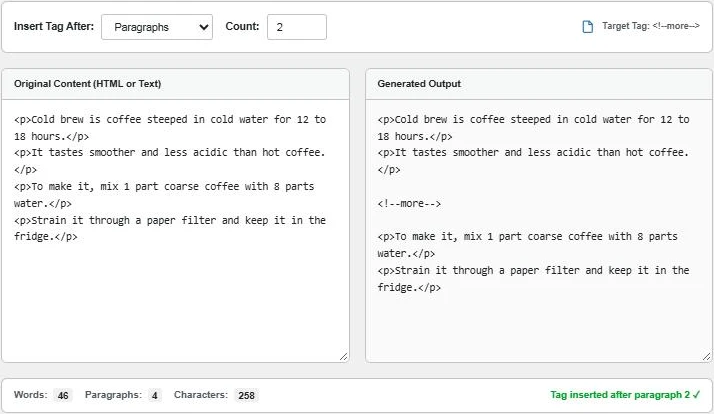
Paste your post into Original Content. Keep Insert Tag After on Paragraphs and set Count to 2. In our HTML example the tool adds <!--more--> after the second </p> and the status reads "Tag inserted after paragraph 2".
Step 2: Use Word Count Mode for Even Teasers
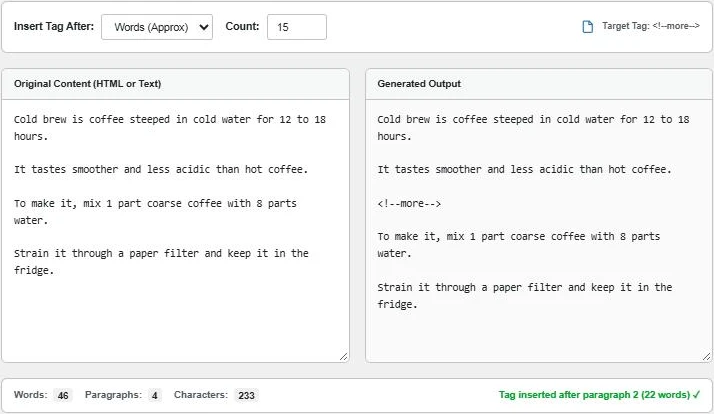
Switch to Words (Approx) and enter a limit, such as 15. The first paragraph has 13 words, so the limit is reached in the second paragraph, and the tag goes after it at 22 words. The live counter shows the post has 46 words and 4 paragraphs.
Step 3: Copy the Code Into WordPress
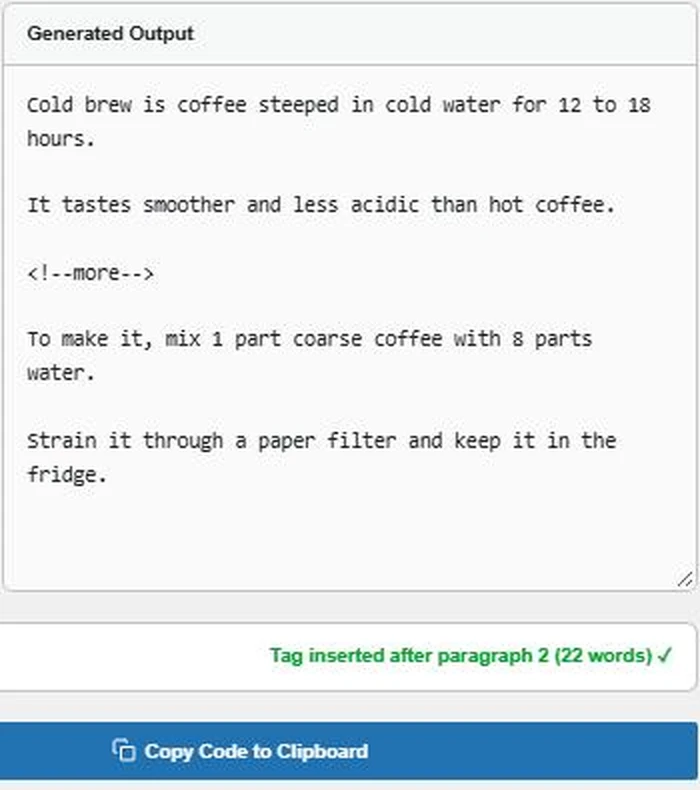
Press Copy Code to Clipboard. In the Classic Editor, paste into the Text tab. In the block editor, open the three-dot menu, choose Code editor, paste, and switch back to the visual editor, where the tag appears as a More block.
Read More Tag vs Excerpt
The read more tag cuts the real post content at a chosen point. An excerpt is a separate summary written in the Excerpt box. Many themes show the excerpt on archive pages if one exists, so check your theme settings if the tag does not seem to work.
Tips for a Good Teaser
- End the teaser after a hook or a question so readers want to click.
- Keep it short, about 50 to 150 words, so the blog page stays easy to scan.
- Do not place the tag inside a list, table or image caption.
- Use one tag per post. WordPress only uses the first one.
- Change the link text with a custom label, such as the more tag followed by your own words, if your theme supports it.
More WordPress and content helpers: the HTML Code Stripper, the Text to HTML Paragraph Converter and the Reading Time Calculator.
Frequently Asked Questions
What is the WordPress read more tag?
It is the HTML comment <!--more-->. WordPress shows only the content above it on blog and archive pages, followed by a read more link.
Where should I place the read more tag?
After the introduction, usually one to three paragraphs or about 50 to 150 words into the post.
Does the read more tag affect SEO?
No. Search engines still see the full post on its own URL. It only changes how posts are shown on list pages.
Why is my read more tag not working?
Your theme may show excerpts instead of full content on archive pages, or you may be using a block theme that uses the Post Excerpt block. Check theme settings.
Will the tool split a paragraph in half?
No. In both modes the tag is placed between paragraphs, even when you choose a word count.
Is my content uploaded?
No. The WordPress read more tag inserter runs in your browser and nothing is stored.