

Pomodoro Timer – Free Online Focus Timer with Breaks
Pomodoro Timer
Quick answer
A pomodoro timer splits work into 25-minute focus sessions separated by 5-minute short breaks, with a longer 15 to 30 minute break after every four sessions. Set your lengths, name your task, press Start and work until the chime, then rest. This free timer runs the whole cycle for you, plays an alert, and counts your sessions and focus minutes for the day.
Our free pomodoro timer online is made for students, writers, developers and anyone who sits down to work and finds an hour has gone with little to show for it. It runs in your browser with no sign-up, keeps going in a background tab and remembers your settings for the next visit.
What Is the Pomodoro Technique?
The Pomodoro Technique is a time management method created by Francesco Cirillo in the late 1980s. He used a tomato-shaped kitchen timer, and pomodoro is Italian for tomato. The idea is simple: you commit to one task for a short, fixed block of time, then take a real break before the next block. Short deadlines make it easier to start, and regular breaks stop you from burning out halfway through the day.
One focus block is called a pomodoro. Four pomodoros with their breaks make one set, which takes a little over two hours with the default settings. The table below shows how the timer runs one full set.
| Round | Type | Default length | What to do |
|---|---|---|---|
| 1 | Focus | 25 min | Work on one task only |
| - | Short break | 5 min | Step away from the screen |
| 2 and 3 | Focus + short break | 25 + 5 min each | Same pattern |
| 4 | Focus | 25 min | Last block of the set |
| - | Long break | 15 min | Rest properly, then start a new set |
| Total | 130 min | 100 min of focus, 30 min of rest | |
How to Use the Pomodoro Timer
Step 1: Set Your Focus and Break Lengths
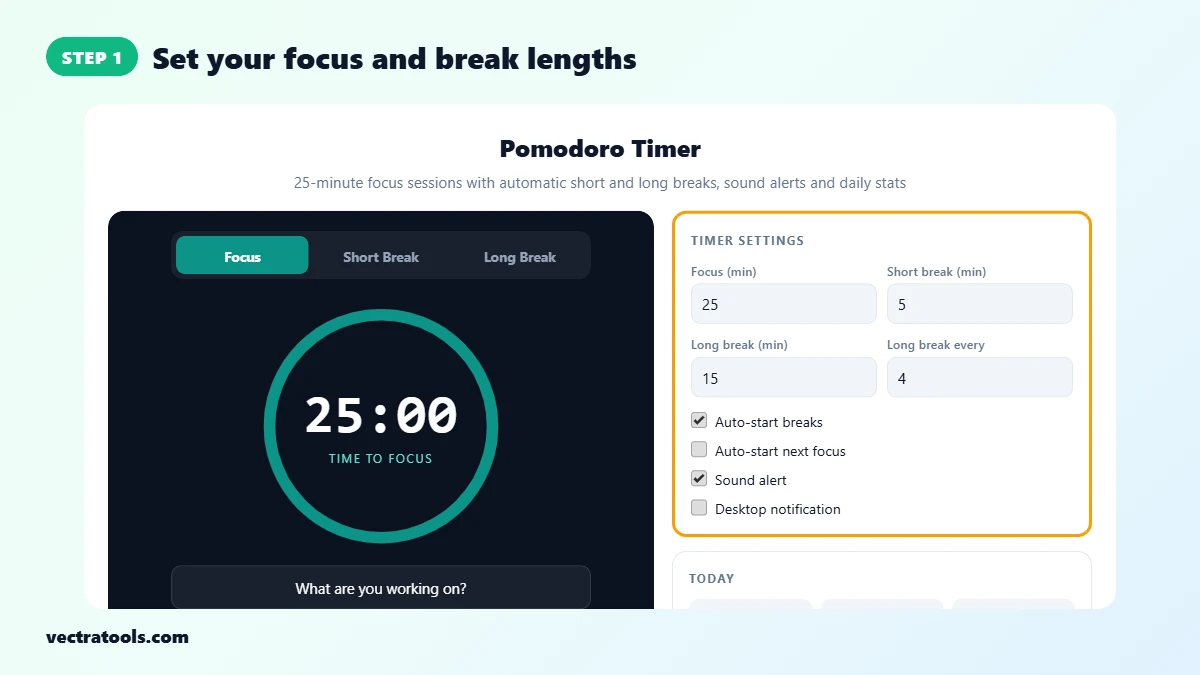
Open the pomodoro timer. Under Timer settings the defaults are the classic 25 minutes of focus, a 5 minute short break and a 15 minute long break after every 4 sessions. Change any number to suit your work, and choose whether breaks and the next focus session start on their own.
Step 2: Name Your Task and Press Start
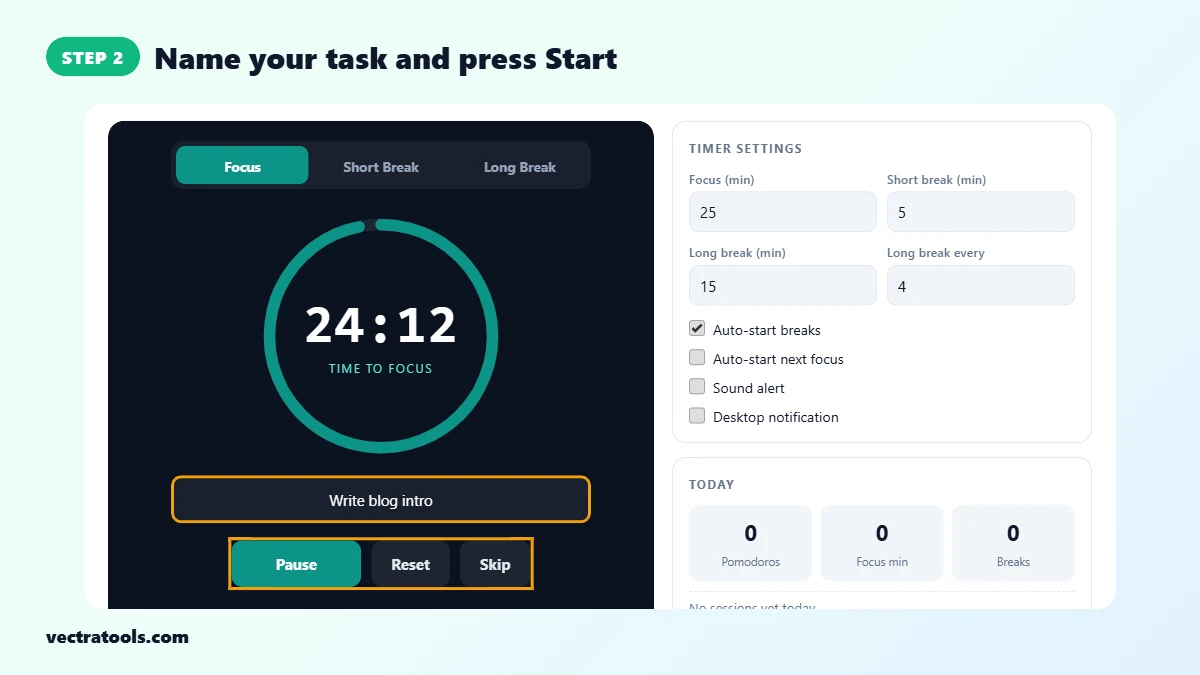
Type what you are working on, for example Write blog intro, then click Start or press the Space bar. The ring empties as time runs down and the browser tab shows the time left, so you can keep it in a background tab.
Step 3: Take the Break When the Alarm Rings
When the focus session ends you hear a short chime, the session is logged and the timer switches to Short Break. The dots under the buttons show how many sessions are left before the long break. Stand up, stretch or get water, then start the next focus round.

Step 4: Track Your Sessions for the Day
The Today card counts finished pomodoros, total focus minutes and breaks, and lists each session with its task name and finish time. Use Pause to stop the clock, Reset to restart the current round and Skip to move straight to the next one.

Pomodoro Timer Features
- Three modes: Focus, Short Break and Long Break, each with its own colour so you can tell at a glance which one is running.
- Custom lengths: set focus from 1 to 180 minutes, breaks up to 60 or 90 minutes, and a long break after 2 to 12 sessions.
- Auto-start: let breaks and the next focus session begin on their own, or start each one yourself.
- Alerts: a three-note chime plays when time is up, and you can turn on desktop notifications as well.
- Accurate in background tabs: the countdown is based on the clock time when you pressed Start, so it does not drift when the browser slows down hidden tabs.
- Daily stats: pomodoros, focus minutes and breaks for today, plus a log of each session and its task.
- Keyboard control: press Space to start or pause while the timer is on screen.
Choosing the Right Session Length
25 and 5 is a starting point, not a rule. If you keep getting pulled out of deep work just as you settle in, try 50 minutes of focus with a 10 minute break. If you struggle to start at all, drop to 15 minutes; finishing a short block is better than abandoning a long one. For revision and memorising, many students use 30 minutes of study with a 5 minute break. Whatever you pick, keep it the same for a week so you can judge it fairly.
The long break matters more than it looks. After four rounds your attention is lower even if you do not feel it, and 15 to 30 minutes away from the desk resets it. Use the long break for a walk, a meal or a chat, not for checking messages.
Pomodoro Timer Tips
- Write the task before you press Start. A clear task such as Draft section 2 works better than Work on report.
- If a thought or errand pops up mid-session, note it on paper and get back to the task. Deal with it in the break.
- If you are interrupted for more than a minute or two, press Reset and start the round again rather than counting a broken session.
- Group small jobs such as emails or invoices into one pomodoro instead of letting them spread across the day.
- Look at the Today card at the end of the day. Counting pomodoros shows you how long tasks really take, which makes planning tomorrow easier.
Everything runs in your browser. Your task names and stats are saved only on your own device, nothing is uploaded, and the pomodoro timer is free with no account needed.
Frequently Asked Questions
What is a pomodoro timer?
It is a timer built for the Pomodoro Technique. It runs a focus session, usually 25 minutes, then a short break, and gives a longer break after every four focus sessions.
How long is one pomodoro?
The classic pomodoro is 25 minutes of focus followed by a 5 minute break. After four pomodoros you take a long break of 15 to 30 minutes.
Can I change the 25 minute focus time?
Yes. Set focus from 1 to 180 minutes and each break to any length you like. Popular options are 50/10 for deep work and 15/3 for hard-to-start tasks.
Does the timer keep running in another tab?
Yes. The countdown is based on the real clock, so it stays accurate in a background tab, and the time left is shown in the tab title. The chime plays when time is up.
Why is there no sound when the timer ends?
Check that Sound alert is ticked and your device is not muted. Some browsers block audio until you have clicked on the page at least once, so press Start yourself the first time.
Are my stats saved?
Your settings and today’s stats are stored in your own browser, so they are still there if you reload the page. They reset at the start of a new day, and you can clear them at any time.
Is this pomodoro timer free?
Yes. It is free, needs no sign-up or download, and works on phones, tablets and computers.