

Countdown Timer Online – Free Timer with Alarm and Presets
Countdown Timer Online
Set strategic intervals durations, apply productivity presets slots, and trigger loud melody trackings instantly
Quick answer
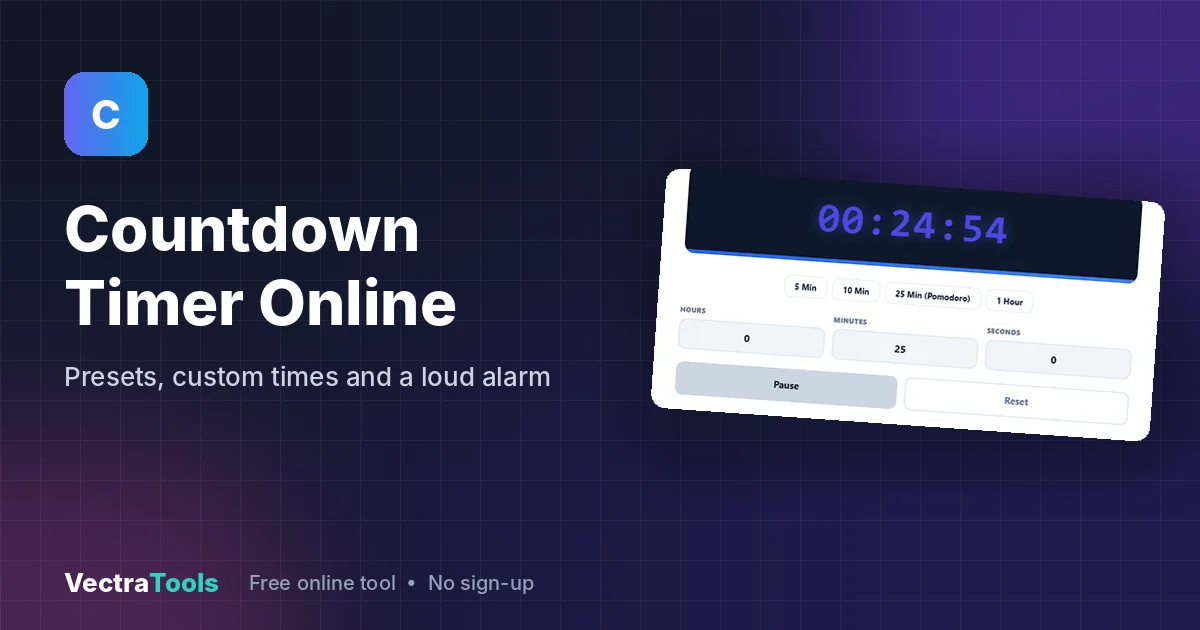
This countdown timer counts down from any time you set and plays an alarm when it reaches zero. Click a preset (5 min, 10 min, 25 min Pomodoro or 1 hour) or type hours, minutes and seconds, then press Start Timer. You can pause or reset at any time, and the alarm keeps playing until you click Stop Alarm.
Our free online countdown timer works in any browser with no app to install. It has a large digital display that is easy to read from across a room, a progress bar that shrinks as time runs out, and a loud built-in alarm, which makes it handy for cooking, workouts, exams, meetings, presentations and focused study sessions.
Countdown Timer Features
The countdown timer is designed to be set up in one or two clicks. Presets cover the most common durations, while the custom fields let you set anything from a few seconds to several hours. The display always shows time in HH:MM:SS format.
| Control | What it does |
|---|---|
| 5 Min / 10 Min / 25 Min (Pomodoro) / 1 Hour | Loads that duration instantly and stops any alarm that is playing |
| Hours, Minutes, Seconds fields | Set a custom time; the display updates as you type |
| Start Timer / Pause | Starts the countdown; the button switches to Pause while it runs |
| Reset | Stops the countdown and returns to the time in the fields |
| Stop Alarm | Silences the alarm melody that plays when time is up |
How to Use the Countdown Timer
Step 1: Pick a Preset
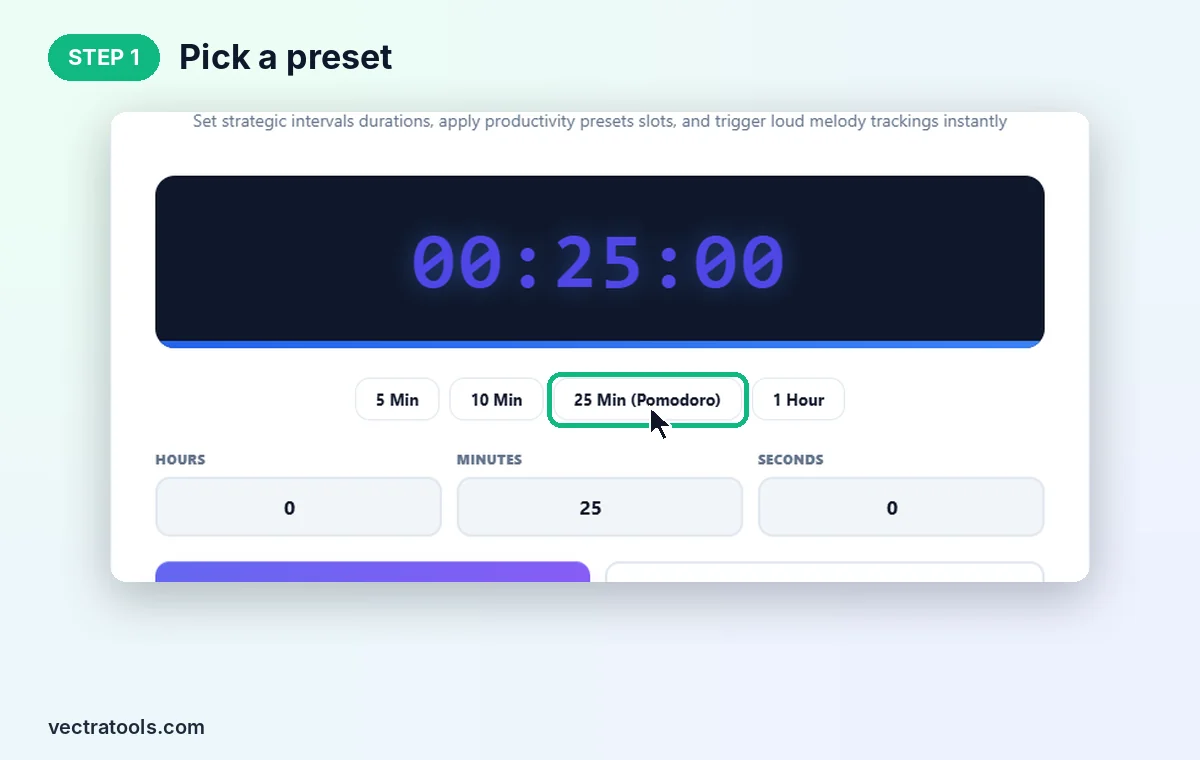
Open the countdown timer and click a preset button. We click 25 Min (Pomodoro) and the display changes to 00:25:00.
Step 2: Or Set a Custom Time
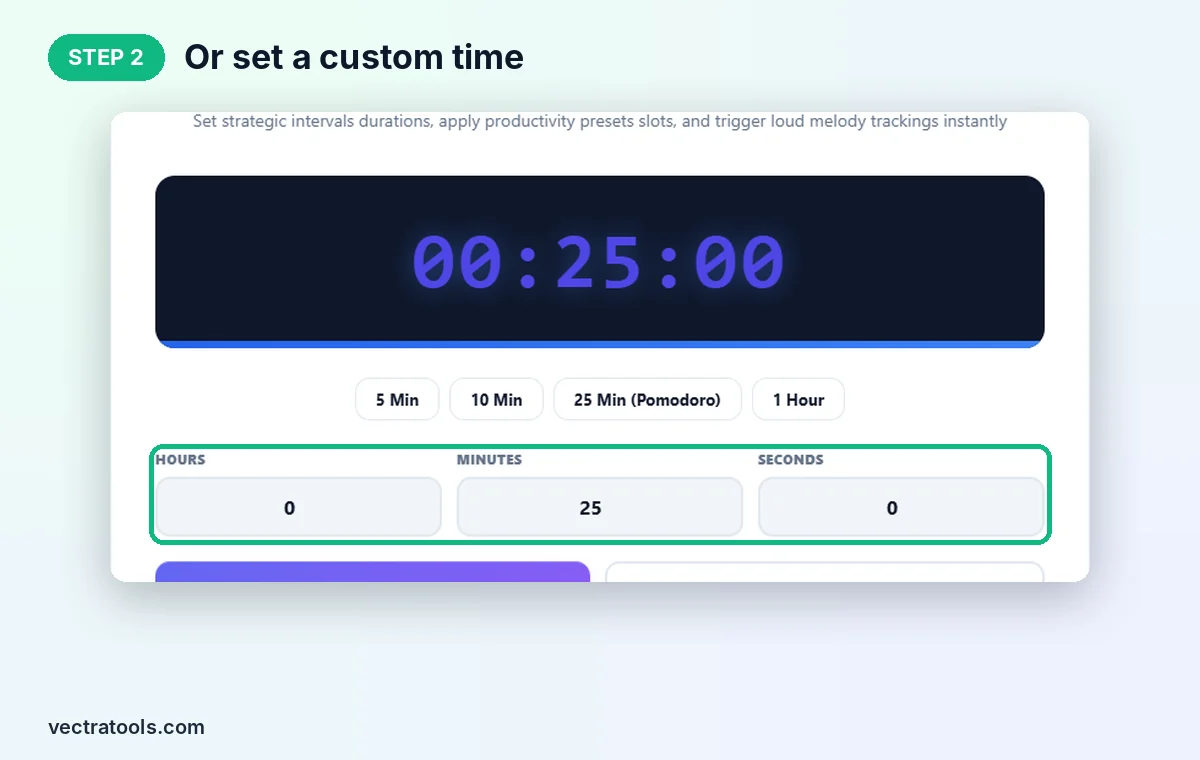
For any other length, type values into Hours, Minutes and Seconds. For a 1 minute 30 second timer, enter 0, 1 and 30.
Step 3: Start, Pause or Reset
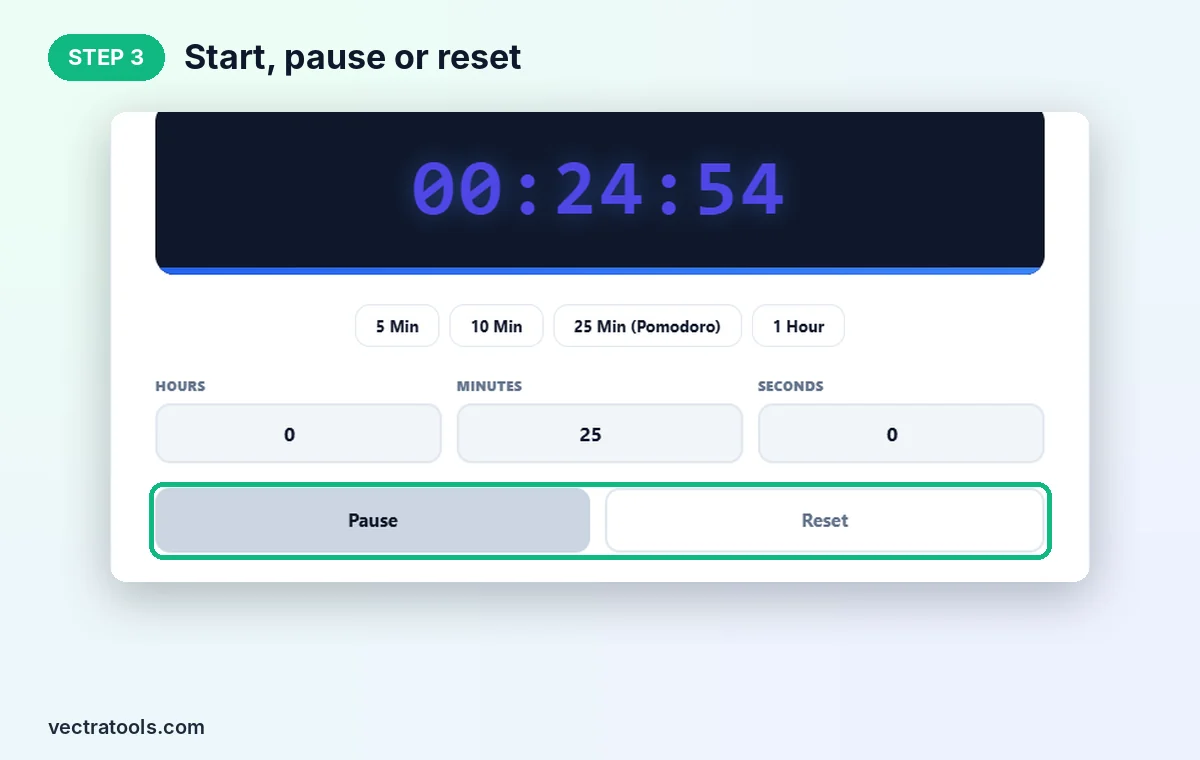
Click Start Timer. The display counts down every second, for example to 00:24:54, and the button changes to Pause. Click Reset to go back to the full time.
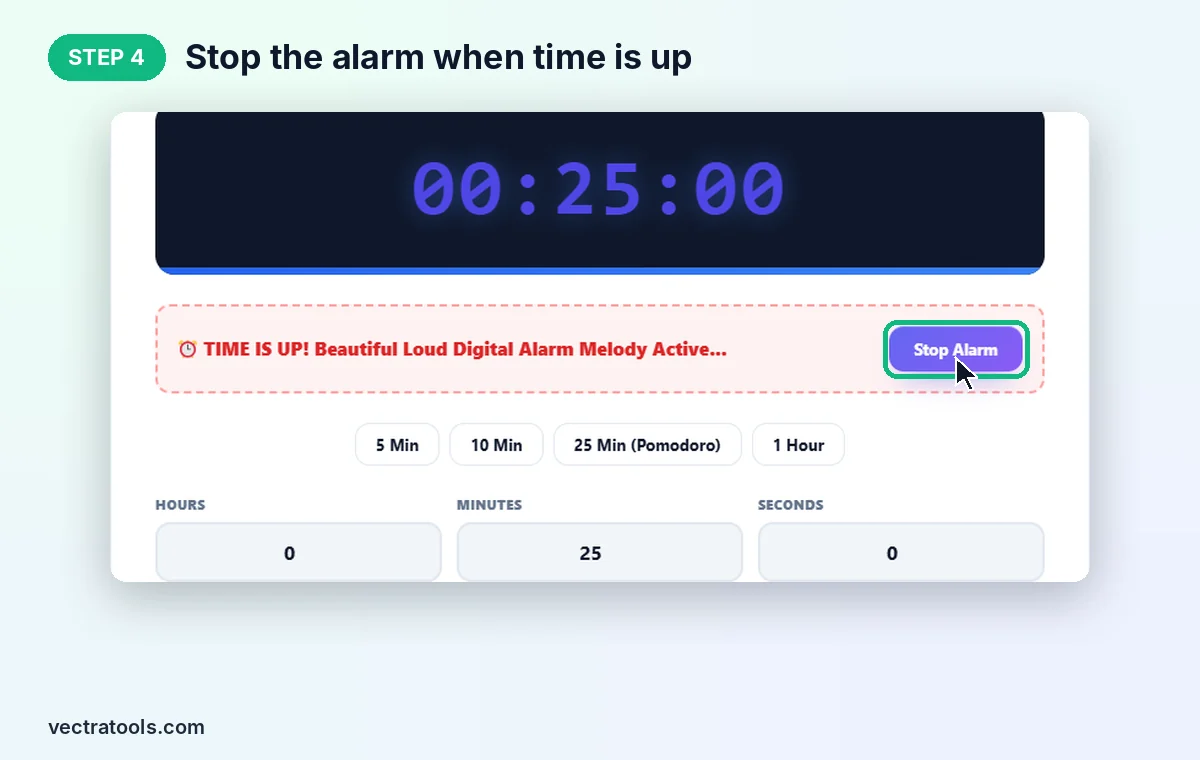
Step 4: Stop the Alarm When Time Is Up
At zero a red TIME IS UP! banner appears and a digital alarm melody plays on repeat. Click Stop Alarm to silence it.
Ways to Use an Online Countdown Timer
- Study and focus: work in 25-minute Pomodoro blocks with short breaks between them.
- Kitchen: time pasta, eggs, baking and resting dough.
- Workouts: plank holds, rest periods and HIIT rounds.
- Classrooms and exams: project a large timer for tests, quizzes and group activities.
- Meetings and talks: keep presentations, stand-ups and speeches on schedule.
Countdown Timer Tips
- Keep the tab open until the timer ends. Closing the tab or the browser stops the countdown.
- Turn up your device volume and check it is not muted, or you will only see the banner.
- Browsers may slow timers in background tabs, so keep the timer tab visible for exact timing.
- For a full Pomodoro routine with automatic breaks, use a dedicated Pomodoro timer.
The countdown timer is free, needs no sign-up and runs fully in your browser on desktop, tablet and phone.
Frequently Asked Questions
How do I set a countdown timer online?
Click a preset or type hours, minutes and seconds, then click Start Timer. The display counts down to zero and an alarm plays.
Does the countdown timer have sound?
Yes. When the time is up, a digital alarm melody repeats until you click Stop Alarm.
Can I pause the timer?
Yes. While it runs, the Start Timer button becomes Pause. Click Start Timer again to continue from where you stopped.
What is the 25 minute preset for?
It is the classic Pomodoro work session: 25 minutes of focused work followed by a short break.
Will the timer keep running if I switch tabs?
Yes, as long as the tab stays open, but some browsers slow background timers, so keep it visible for exact timing.
Is this countdown timer free?
Yes. It is free, needs no sign-up, and runs entirely in your browser.