

Drawing Pad Online – Sketch with Pen and Eraser, Save as PNG
Drawing Pad Online
A simple and fast digital whiteboard. Sketch your ideas, take notes, or create art natively in your browser and save it instantly.
Active Tool
Properties

Quick answer
Choose the Pen, pick a brush colour and set the thickness from 1 to 50px, then draw on the canvas with your mouse, finger or stylus. Switch to Eraser to rub out mistakes and change Canvas Color to give your sketch a background. Press Save as PNG to download the picture. This drawing pad online is free, needs no sign-up and keeps your drawing in your browser.
Sometimes you just need a blank surface to sketch an idea, explain a layout, sign your name or doodle with a child. Opening a full design program for that is overkill. A drawing pad online opens in a second and gives you a pen, an eraser and a canvas, with nothing to install.
It works with a mouse on a computer and with touch on phones and tablets. Page scrolling is blocked while you draw on the canvas, so your strokes stay smooth on mobile.
Drawing Pad Controls
| Control | What it does |
|---|---|
| Pen | Draws smooth lines with round ends; a single click places a dot |
| Eraser | Paints over strokes with the current canvas colour |
| Brush Color | Any colour from the colour picker |
| Canvas Color | Changes the background behind your drawing |
| Brush Thickness | Slider from 1px to 50px (default 5px), used by both pen and eraser |
| Save as PNG | Downloads the drawing with its background |
| Clear Canvas | Erases everything after you confirm |
How to Use the Drawing Pad Online
The pad opens with a white canvas, a dark navy pen and a 5px brush, so you can start drawing straight away.
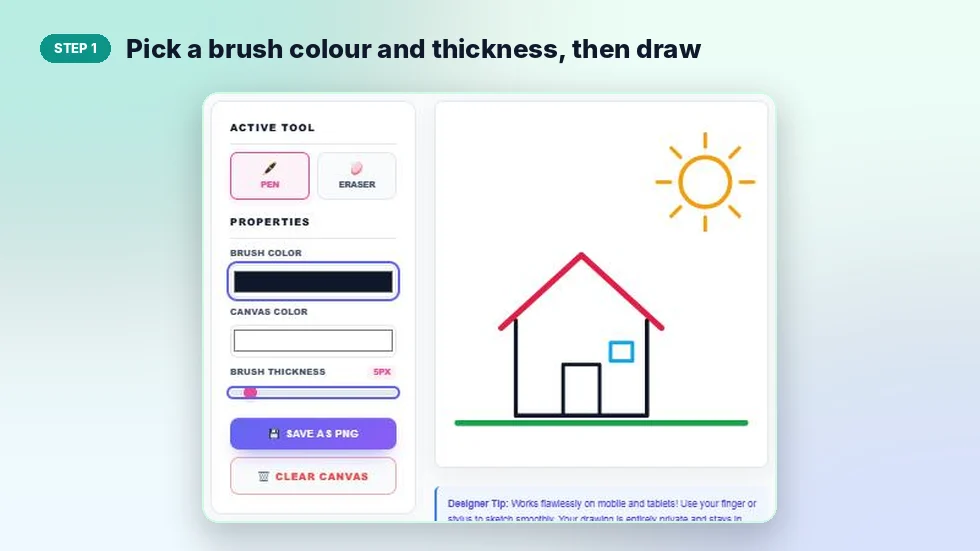
Step 1: Pick a brush colour and thickness, then draw
Click Brush Color to choose a colour and move the Brush Thickness slider to set the line width. Press and drag on the canvas to draw. Change the colour between strokes to add detail, like the red roof and yellow sun in the example.
Step 2: Change the canvas colour at any time
Click Canvas Color and pick a new background. The background changes behind your strokes, so you can try different colours even after you have finished drawing. Use the Eraser to clean up any stray lines.

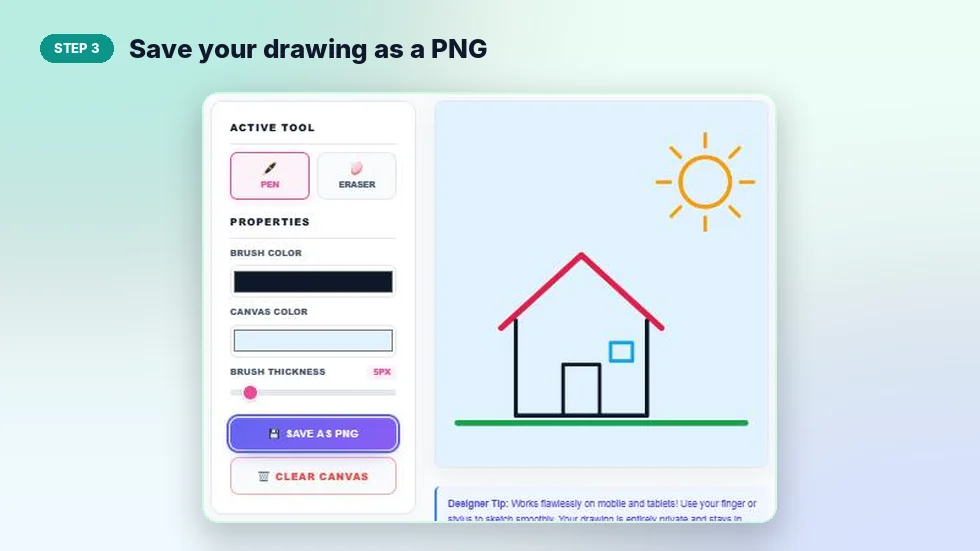
Step 3: Save your drawing as a PNG
Press Save as PNG. The image downloads with your strokes and the canvas colour, named like vectratools-drawing followed by a number. Clear Canvas starts a fresh page when you are done.
What People Use a Drawing Pad For
- Quick sketches. Rough out a logo idea, a room layout or a website wireframe before opening a proper design tool.
- Explaining things. Draw a diagram or arrow-based explanation and share the PNG in a chat or email.
- Teaching and homework. Sketch shapes, maths problems or labelled diagrams.
- Handwritten signatures. Use a thin dark brush, sign with a finger or stylus and save the image.
- Kids' doodling. Big brushes and bright colours on a tablet make an easy, mess-free drawing activity.
Tips for Cleaner Drawings
- Draw outlines with 4 to 8px and fine details with 1 to 3px.
- Use short strokes instead of one long line. They are easier to control and easier to erase.
- Set a thick eraser to clear large areas quickly, then a thin one for edges.
- A stylus on a tablet gives much smoother curves than a mouse.
- Save often. The drawing is not stored after you close or reload the page.
Privacy and the Saved Image
Everything you draw stays in your browser. Nothing is uploaded to a server. The PNG matches the size of the canvas on your screen, so drawing on a larger screen gives a larger image. If you need pixel-perfect blocky art for games or icons, the pixel art maker is a better fit than this drawing pad online.
Frequently Asked Questions
Is this drawing pad online free?
Yes. It is free with no account, no watermark and no limits.
Can I draw with my finger on a phone?
Yes. The canvas supports touch, and page scrolling is paused while you draw on it.
How thick can the brush be?
The Brush Thickness slider goes from 1px to 50px. The eraser uses the same size.
Can I change the background after drawing?
Yes. Pick a new Canvas Color and the background changes behind your strokes.
What format does Save as PNG use?
A standard PNG image that includes your drawing and the canvas colour.
Is my drawing uploaded anywhere?
No. It stays in your browser and disappears when you close the page, so save it first.