

Random Color Generator – Get a New Colour with HEX, RGB and HSL Codes
Random Color Generator
Discover beautiful new shades instantly. Press the button or hit Spacebar to generate random colors and copy their HEX, RGB, or HSL codes.
Quick answer
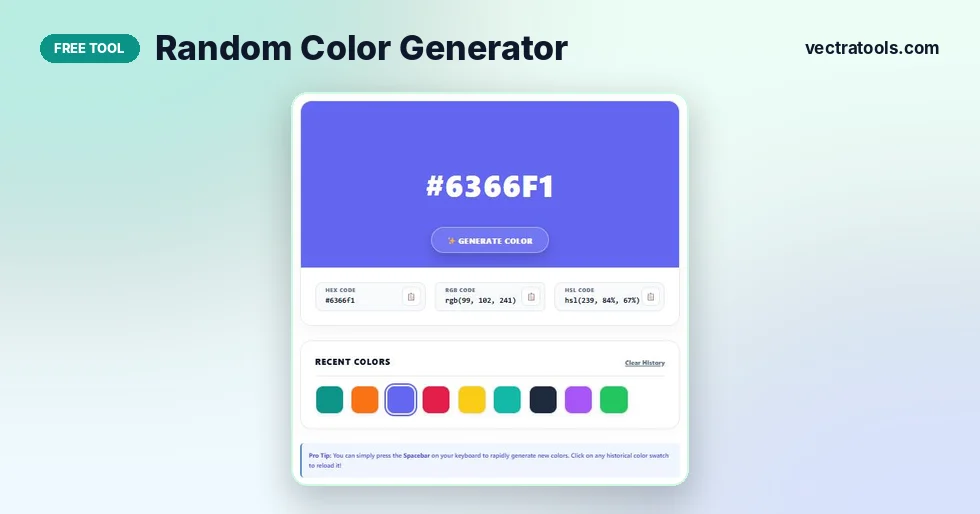
Press Generate Color or tap the spacebar and the random color generator picks a new colour from over 16.7 million possible HEX values. It shows the colour full size with its HEX, RGB and HSL codes, and each code has a copy button. Your last 18 colours appear under Recent Colors, so you can click one to bring it back.
Sometimes you do not need a full palette. You need one fresh colour to break a creative block, test a button, or pick a background for a social post. A random color generator gives you that in one click, without scrolling through colour pickers or swatch books.
Each click creates a random six-digit HEX code. The tool then converts it to RGB and HSL, so the same colour is ready for CSS, design apps or code. The text on the colour switches between dark and light automatically, so the code stays readable on any shade.
What the Random Color Generator Shows
| Format | Example | Where it is used |
|---|---|---|
| HEX | #0D9488 | CSS, HTML, Figma, Canva, WordPress themes |
| RGB | rgb(13, 148, 136) | CSS, Photoshop, screen design, coding libraries |
| HSL | hsl(175, 84%, 32%) | CSS, building lighter or darker versions of a colour |
All three codes describe the same colour. HEX is the most common on the web. RGB shows how much red, green and blue light makes up the colour, from 0 to 255. HSL describes hue (the position on the colour wheel), saturation and lightness, which makes it easy to adjust a colour by hand.
How to Use the Random Color Generator
A colour appears as soon as the page loads. From there it takes three simple actions.
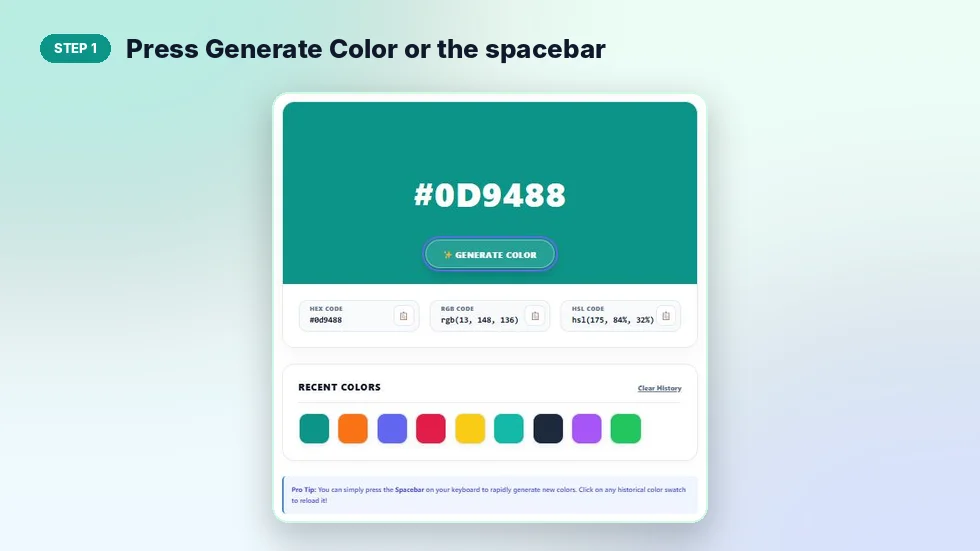
Step 1: Press Generate Color or the spacebar
Click Generate Color in the middle of the colour panel, or press the spacebar when you are not typing in a text box. The panel fills with a new colour and its HEX code.
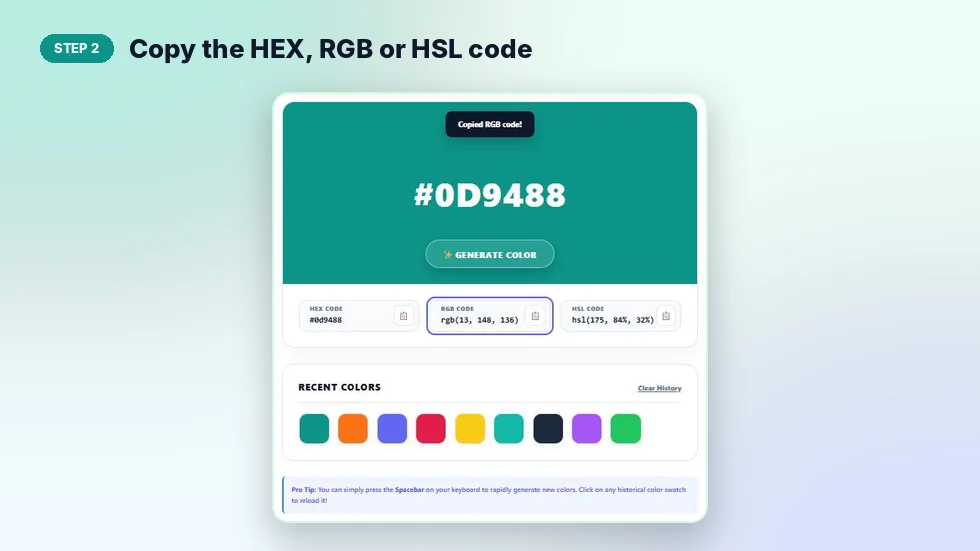
Step 2: Copy the HEX, RGB or HSL code
Below the colour you will see three boxes: HEX Code, RGB Code and HSL Code. Click the clipboard icon in any box and that code is copied. A short message at the top confirms it.
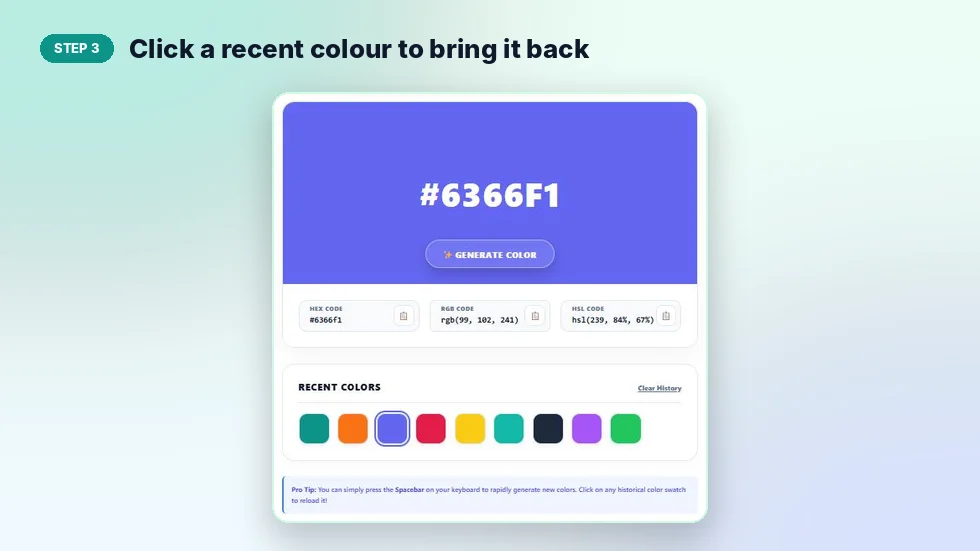
Step 3: Click a recent colour to bring it back
Every colour you generate is added to Recent Colors, newest first. Click any swatch to load it again with all its codes. Clear History empties the list after you confirm.
Ways to Use Random Colours
- Beat a creative block. Generate until a colour surprises you, then use it as the starting point for a design.
- Test interface states. Developers use random colours to check how buttons, badges and charts look with different backgrounds.
- Pick colours for games and classroom activities. Teams, avatars or quiz cards each get their own colour.
- Practise colour matching. Art students generate a colour and try to mix it with paint, then compare.
- Find an accent colour. Keep a fixed brand colour and look for a random shade that adds contrast.
How Random Colours Are Made
A HEX colour has six characters after the # sign. Each character is one of 16 values, from 0 to 9 and A to F. The random color generator picks each of the six characters at random, which gives 16 to the power of 6, or 16,777,216 possible colours. Every one of them has the same chance of appearing.
That is why some results look muddy or very dark. True randomness does not favour pretty colours. If you get a dull shade, press the spacebar again; good colours come up often enough that a few presses is usually all it takes.
Tips for Using a Random Colour in a Design
- Use bright random colours as small accents, not as the main background.
- Check that text is readable. If the tool shows dark text on your colour, use dark text on it in your design too.
- Use the HSL code to make a lighter version by raising the last value, the lightness.
- Once you like a colour, take it to the color scheme generator to build matching colours around it.
Frequently Asked Questions
Is this random color generator free?
Yes. It is free with no sign-up.
How many colours can it generate?
It can produce any of 16,777,216 HEX colours, from #000000 to #FFFFFF.
Which colour codes does it give?
HEX, RGB and HSL for every colour, each with its own copy button.
Can I use the spacebar to generate colours?
Yes. Press the spacebar anywhere on the page, except while typing in a text field.
Where is my colour history stored?
Your last 18 colours are saved in your own browser on this device. Nothing is uploaded, and you can clear the list at any time.
Why is the text sometimes dark and sometimes white?
The tool measures the brightness of each colour and picks dark or white text so the code is always easy to read.