

Tint and Shade Generator – Lighter and Darker Versions of Any HEX Colour
Tint & Shade Generator
Perfect for creating UI states (hover, active, disabled). Enter a base color to generate mathematically precise lighter and darker variations.

Quick answer
Type a HEX code such as #0D9488 or choose a colour with the picker. The tint shade generator instantly shows nine tints (the colour mixed with 10% to 90% white) and nine shades (mixed with 10% to 90% black), with the base colour in each row. Click any swatch to copy its HEX code. It is free and works in your browser.
One brand colour is rarely enough for a full design. You need a pale version for backgrounds, a slightly lighter one for hover effects and a darker one for borders, pressed buttons and text. Working these out by hand in a design app takes time and the steps are often uneven.
This tint shade generator does it in one go. It mixes your colour with white and black in equal 10% steps, so every lighter and darker version belongs to the same family and the jumps between them are even.
Tints vs Shades: What Is the Difference?
| Term | How it is made | Effect | Common use |
|---|---|---|---|
| Tint | Base colour mixed with white | Lighter and softer | Backgrounds, cards, hover states, badges |
| Shade | Base colour mixed with black | Darker and deeper | Borders, pressed buttons, headings, dark mode |
| Tone | Base colour mixed with grey | Duller, less saturated | Muted interfaces (not generated by this tool) |
How to Use the Tint Shade Generator
The tool loads with an example colour. Replace it with your own and the results update straight away.
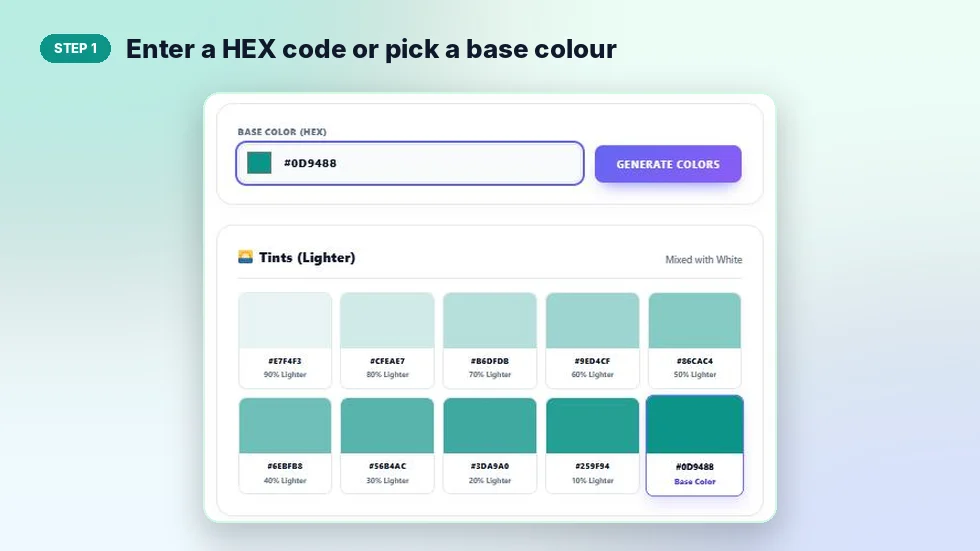
Step 1: Enter a HEX code or pick a base colour
Type a HEX code in Base Color (HEX). Six-digit codes like #0D9488 and three-digit shorthand like #0A9 both work, with or without the # sign. You can also click the colour square to use the picker. The tints and shades refresh as you type, and Generate Colors refreshes them manually.
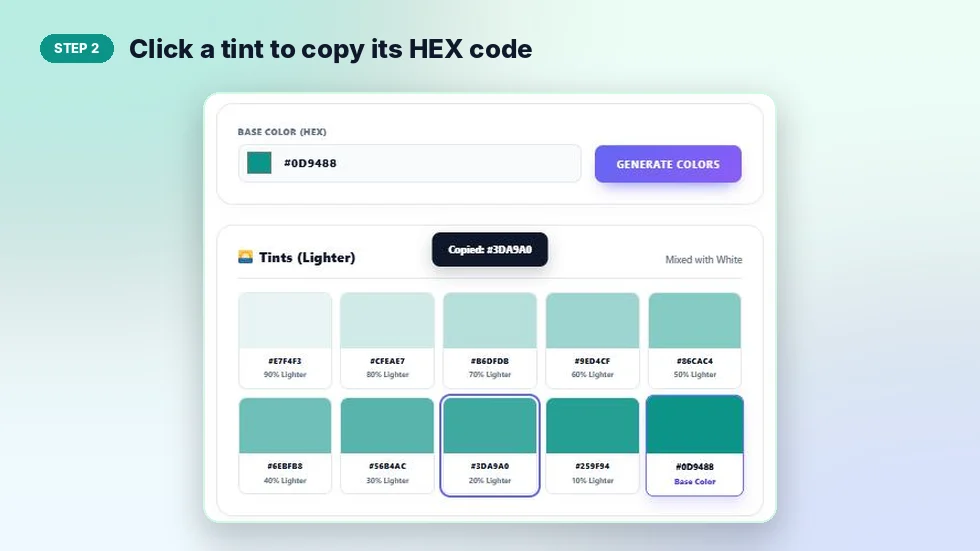
Step 2: Click a tint to copy its HEX code
The Tints (Lighter) section runs from 90% lighter down to 10% lighter, ending with your base colour. Each card shows the HEX code and how much white was added. Click a card and the code is copied, with a short confirmation message.
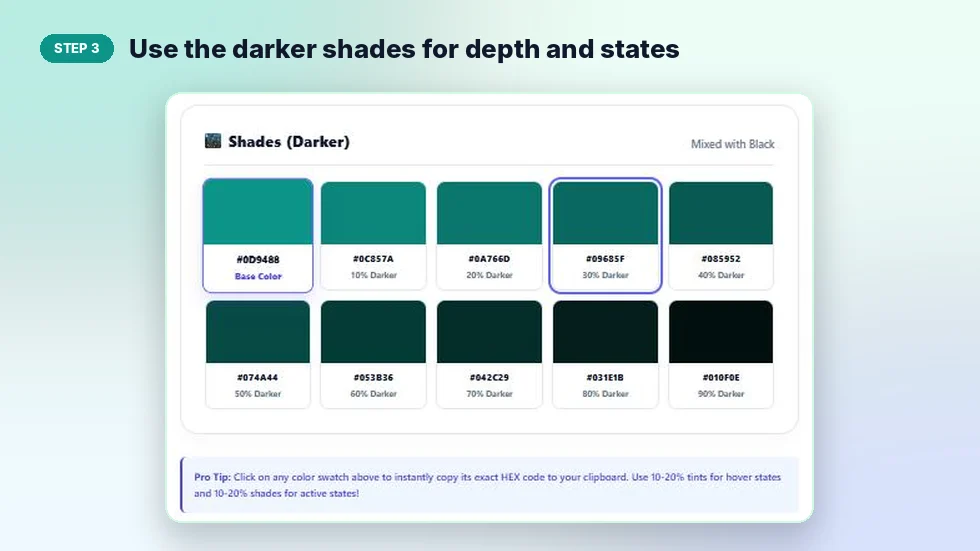
Step 3: Use the darker shades for depth and states
The Shades (Darker) section starts with your base colour and goes from 10% to 90% darker. Click any shade to copy it, just like the tints.
Example: Tints and Shades of #0D9488
Here are the results from the screenshots above for a teal base colour, #0D9488.
| Step | Tint (lighter) | Shade (darker) |
|---|---|---|
| 10% | #259F94 | #0C857A |
| 20% | #3DA9A0 | #0A766D |
| 30% | #56B4AC | #09685F |
| 40% | #6EBFB8 | #085952 |
| 50% | #86CAC4 | #074A44 |
| 60% | #9ED4CF | #053B36 |
| 70% | #B6DFDB | #042C29 |
| 80% | #CFEAE7 | #031E1B |
| 90% | #E7F4F3 | #010F0E |
How the Colours Are Calculated
The tool splits your HEX code into red, green and blue values from 0 to 255. For a tint, each value moves towards 255 (white) by the chosen percentage. For a shade, each value moves towards 0 (black). The result is rounded and turned back into a HEX code.
For example, the red value of #0D9488 is 13. A 90% tint gives 13 × 0.1 + 255 × 0.9 = 237, which is ED in HEX. Do the same for green and blue and you get #E7F4F3.
Where to Use Each Step in a Design
- 80% to 90% tints: page sections, card backgrounds and table stripes.
- 10% to 20% tints: hover states for buttons and links.
- 10% to 20% shades: pressed or active buttons and focus outlines.
- 60% to 90% shades: headings, body text and dark mode backgrounds that keep a hint of your brand colour.
Using a tint shade generator this way gives you a small, consistent colour scale. Many design systems use the same idea with names such as teal-50 to teal-900.
Tips for Better Results
- Start from a mid-tone colour. Very light or very dark base colours leave little room in one direction.
- Check text contrast on light tints. Dark shades of the same colour usually read well on them.
- Mixing with black can make some colours look a little dull. If a shade feels muddy, try a slightly more saturated base colour.
Frequently Asked Questions
Is this tint shade generator free?
Yes. It is free with no sign-up, and everything runs in your browser.
What is a tint of a colour?
A tint is a colour mixed with white. It looks lighter and softer than the original.
What is a shade of a colour?
A shade is a colour mixed with black. It looks darker and deeper than the original.
How many tints and shades does it create?
Nine tints and nine shades in 10% steps, plus your base colour in each row.
Can I enter a three-digit HEX code?
Yes. Shorthand codes like #0A9 are expanded to six digits automatically.
How do I copy a colour?
Click any swatch. Its HEX code is copied to your clipboard and a message confirms it.