

Color Scheme Generator – Free 5-Colour Palette Maker with Lock and Copy

Quick answer
Press Generate or tap the spacebar and the color scheme generator fills five columns with new colours. Click the padlock under any colour to keep it, then generate again until the rest of the palette fits. Click a HEX code such as #0D9488 to copy it to your clipboard. It is free, needs no sign-up and runs in your browser.
Picking colours one by one is slow. You change one shade and suddenly the other four look wrong. A color scheme generator speeds this up by showing you a full five-colour palette at once, so you judge the colours together, the way they will appear in a real design.
This tool works on a simple loop: generate, keep what you like, generate again. Locked colours stay fixed while the unlocked ones change. After a few rounds you end up with a palette built around the colours you actually chose, not a random set you have to accept as it is.
What the Color Scheme Generator Does
| Control | What it does | Tip |
|---|---|---|
| Generate button | Replaces every unlocked colour with a new one | Click it several times; good matches often appear within a few rounds |
| Spacebar | Same as Generate, without reaching for the mouse | It does nothing while you are typing in a text box, so the site search still works |
| Padlock icon | Locks or unlocks a column | Lock your brand colour first, then build around it |
| HEX code | Copies the code to your clipboard | A short message confirms the copy |
| Text colour | Switches between dark and light automatically | Based on the brightness of each colour, so codes stay readable |
How to Use the Color Scheme Generator
You only need three actions. The palette starts with five random colours the moment the page loads.
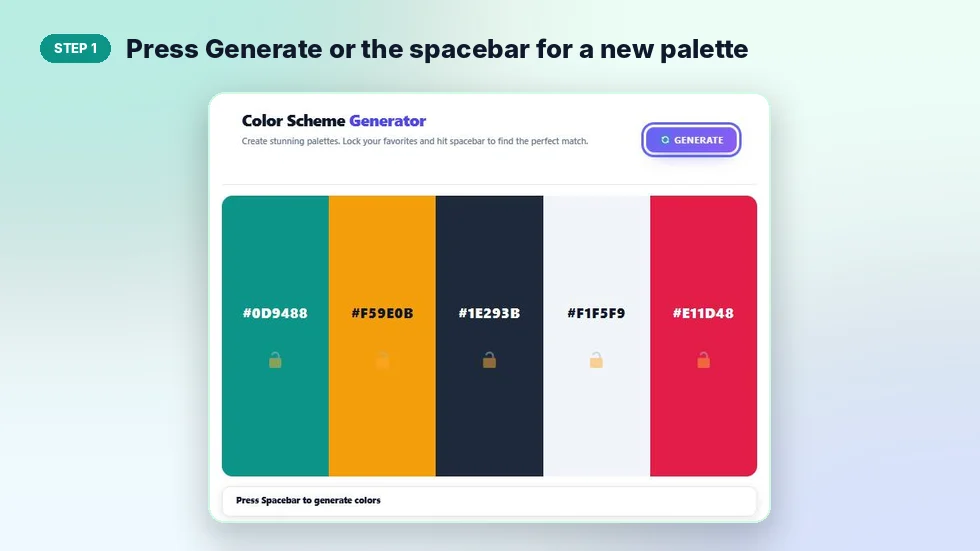
Step 1: Press Generate or the spacebar for a new palette
Click the Generate button at the top right, or press the spacebar anywhere on the page outside a text field. All five columns refresh with new colours.
Step 2: Lock the colours you want to keep
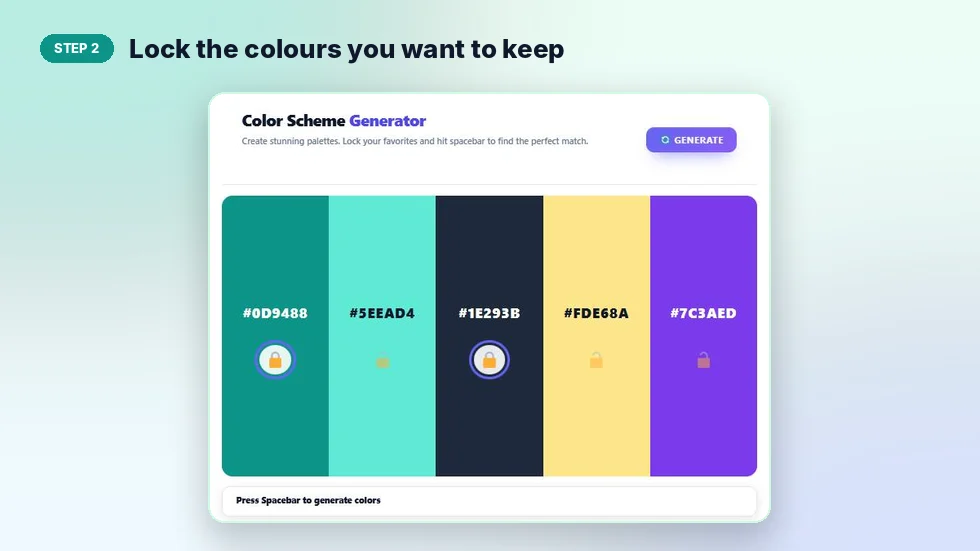
Click the open padlock under a colour you like. It closes and turns solid, and that column will not change the next time you generate. In the example, teal #0D9488 and dark slate #1E293B are locked while the other three keep changing. Click the padlock again to unlock it.
Step 3: Click a HEX code to copy it
When the palette looks right, click any HEX code. The code is copied and a small message at the bottom confirms it. Paste it into Figma, Canva, your CSS file or a theme setting.

How to Build a Better Palette
Random colours are a starting point. A few simple habits turn them into a palette you can actually ship.
- Start with one fixed colour. If you already have a brand or logo colour, generate until a column lands close to it, lock it, and build the rest around it.
- Keep one dark and one light colour. Most layouts need a near-black for text and a near-white for backgrounds. Lock those early.
- Limit the bright colours. One or two saturated colours are enough. Use them for buttons, links and highlights.
- Follow the 60-30-10 rule. Use the main colour on about 60% of the design, a second colour on 30% and an accent on 10%.
- Check text contrast. Light text on a pale colour is hard to read. If the tool shows dark text on a column, that colour works better as a background for dark text.
Example Palette and Where Each Colour Goes
Here is the palette from the screenshots above and one way to use it on a website.
| HEX code | Colour | Suggested use |
|---|---|---|
| #0D9488 | Teal | Primary brand colour, header, main buttons |
| #5EEAD4 | Light aqua | Hover states, tags, soft highlights |
| #1E293B | Dark slate | Body text and footer background |
| #FDE68A | Pale yellow | Notice boxes and callouts |
| #7C3AED | Violet | Accent for links or one key button |
Who Uses a Color Scheme Generator
Web designers use it to test palettes before building a style guide. Small business owners use it to choose colours for a logo, a shop banner or social media posts. Students use it for slides and school projects, and developers use it to pick a theme for a dashboard or an app. Anyone who needs five colours that sit well together can save time with a color scheme generator instead of guessing in a design app.
Common Mistakes When Choosing Colours
- Using all five colours at equal strength, which makes a design look busy.
- Choosing only bright colours with no neutral for text or backgrounds.
- Judging a colour on its own instead of next to the others in the palette.
- Forgetting to save the HEX codes, then losing the palette when you generate again.
That last one is easy to avoid. Copy each HEX code into a note before you leave the page, because the palette is not saved between visits.
Frequently Asked Questions
Is this color scheme generator free?
Yes. It is free to use, with no account or sign-up.
How many colours does each palette have?
Each palette has five colours, shown side by side in columns.
How do I keep a colour I like?
Click the padlock under that colour. Locked colours stay the same when you press Generate or the spacebar.
How do I copy a colour code?
Click the HEX code in any column. It is copied to your clipboard and a message confirms it.
Are the colours completely random?
Yes. Each unlocked column gets a random HEX colour. Locking colours lets you steer the palette towards the look you want.
Does the spacebar work on mobile?
On phones and tablets, use the Generate button instead. The columns stack vertically on small screens.
Is my palette saved?
No. Nothing is stored or uploaded. Copy the HEX codes you want before leaving the page.