

CSS Box Model Visualizer – See and Generate Margin, Border and Padding CSS in 2 Easy Steps
CSS Box Model Visualizer
Interact with the box model layers to generate precise margin, border, and padding CSS.
| Box Layer | Functionality | Affects Total Size? |
|---|---|---|
| Margin | The outermost layer. Clears an area outside the border. It is completely transparent. | Yes (in document flow) |
| Border | A border that goes around the padding and content. Inherits background color of the element. | Yes (unless box-sizing: border-box) |
| Padding | Clears an area around the content. Inherits the background color of the element. | Yes (unless box-sizing: border-box) |
| Content | The core content of the box, where text and images appear. | Base Size |
Use this free CSS box model visualizer to see exactly how margin, border and padding wrap your content, and copy the CSS in one click.
Quick answer
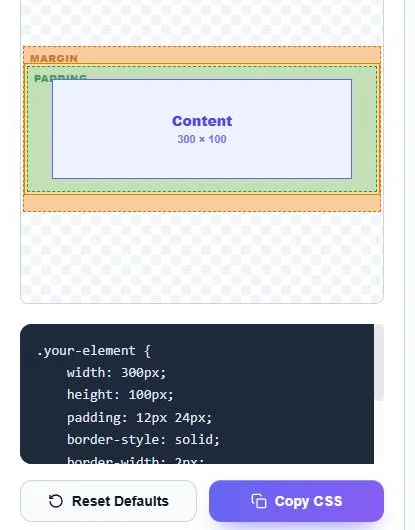
Every HTML element is a box made of four layers: content, padding around it, a border, and margin outside. With the default box-sizing: content-box, the visible width is width + left and right padding + left and right border. Example: width 300px, padding 12px 24px and a 2px border give a box 352px wide and 128px tall, with 16px of margin above and below. Enter values for each side and the tool draws the layers and writes the CSS.
Table of Contents
Spacing problems are among the most common CSS bugs: a card that is wider than expected, buttons that do not line up, or margins that seem to disappear. They almost always come down to how the box model adds the layers together.
This CSS box model visualizer makes those layers visible. Change any side of the margin, border, padding or content size and the colour-coded diagram and CSS update instantly.
The Four Layers
| Layer | What it is | Background shows? |
|---|---|---|
| Content | Text, images and child elements | Yes |
| Padding | Space between content and border | Yes, element background |
| Border | Line around the padding | Border colour |
| Margin | Space outside the border, between elements | No, always transparent |
How to Calculate Total Size
Total width  = width + padding-left + padding-right + border-left + border-right
Total height = height + padding-top + padding-bottom + border-top + border-bottom
Space taken  = total size + margins
Example: 300 + 24 + 24 + 2 + 2 = 352px wide, and 100 + 12 + 12 + 2 + 2 = 128px tall. Adding 16px margin top and bottom, the element takes 160px of vertical space.
How to Use the CSS Box Model Visualizer
Step 1: Set the Box Values
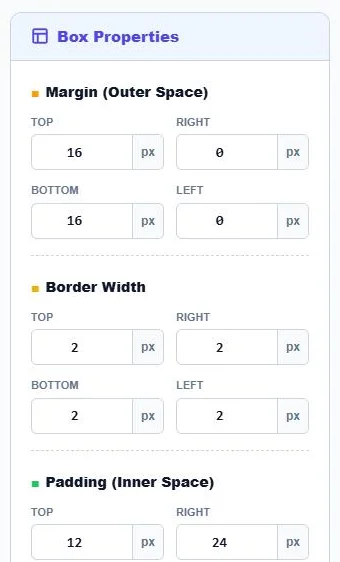
Under Box Properties, enter Margin, Border Width and Padding in pixels for the top, right, bottom and left sides, then set the Content Dimensions width and height (minimum 50px).
Step 2: Check the Preview and Copy the CSS
Live Visualizer & Code shows the margin (orange), border, padding (green) and content layers with the content size. The CSS below uses shorthand where possible. Click Copy CSS, or Reset Defaults to start again.
content-box vs border-box
| box-sizing | width means | 300px width with 24px padding and 2px border |
|---|---|---|
| content-box (default) | Content only | 352px total |
| border-box | Content + padding + border | 300px total, content shrinks to 248px |
Many developers set *, *::before, *::after { box-sizing: border-box; } so widths behave predictably. The generated code uses content-box, so the numbers in the visualizer match the CSS exactly; switch it to border-box in your stylesheet if you prefer.
CSS Shorthand Explained
- One value (padding: 20px): all four sides.
- Two values (padding: 12px 24px): top and bottom, then left and right.
- Three values (margin: 10px 20px 30px): top, left and right, bottom.
- Four values (margin: 1px 2px 3px 4px): top, right, bottom, left (clockwise).
Common Box Model Gotchas
- Margin collapse: vertical margins between block elements combine into the larger of the two instead of adding up.
- Inline elements: vertical margin and padding on spans do not push surrounding lines away.
- Percentage padding: is based on the parent’s width, even for top and bottom.
- Overflow: a box with fixed width plus padding can overflow its container in content-box mode.
Frequently Asked Questions
What is the CSS box model?
It is the way browsers size every element: content, surrounded by padding, then a border, then margin.
Does padding add to width?
Yes, with the default box-sizing: content-box. With border-box, padding and border are included inside the width.
What is the difference between margin and padding?
Padding is space inside the border and shows the element’s background. Margin is space outside the border and is always transparent.
Why does the CSS use shorthand?
Shorthand such as padding: 12px 24px is shorter and easier to read than four separate properties.
Can I use values larger than the preview?
Yes. The CSS keeps your exact values; only the visual preview is scaled to stay on screen.
Is the CSS box model visualizer free?
Yes. It is free, runs in your browser and needs no sign-up.