

Text to HTML Ratio Calculator – Check a Page’s Text vs Code Balance in 2 Easy Steps
Text-to-HTML Ratio Calculator
Analyze your webpage's source code to evaluate text density, detect code bloat, and improve SEO performance.
| Ratio Threshold | SEO Status | Recommendation / Impact |
|---|---|---|
| 15% and Above | Excellent | High text density. Great for search engine crawlers to understand page context easily. |
| 10% to 14.99% | Average | Acceptable, but could be improved. Consider writing more content or minifying HTML/CSS. |
| Below 10% | Poor (Code Bloat) | Warning: Page is heavily bloated with inline styles, heavy scripts, or lacks substantial readable content. |
Use this free text to HTML ratio calculator to see how much of a web page is readable content and how much is code.
Quick answer
Text to HTML ratio is the size of a page’s visible text divided by the size of its full HTML source: ratio = text bytes ÷ HTML bytes × 100. Paste the page source (Ctrl+U, select all, copy) and click Analyze Ratio. Example: a 570-byte page with 277 bytes of readable text has a ratio of 48.60%. The tool rates 15% and above as excellent, 10–15% as average and below 10% as code-heavy.
Table of Contents
Modern themes, page builders and plugins can add a lot of markup, inline styles and scripts around a small amount of content. A low text to HTML ratio is a quick sign that a page is heavy, slow or thin on useful text.
This calculator gives you the ratio, the total HTML size and the plain-text size in one click, so you can compare templates, spot bloated pages and check the effect of minifying or cleaning up code.
How the Ratio Is Calculated
- The tool measures the full size of the pasted HTML in bytes.
- It removes scripts, styles and tags to leave the readable text.
- It divides the text size by the HTML size and multiplies by 100.
| Ratio | Rating in the tool | What it usually means |
|---|---|---|
| 15% and above | Excellent | Plenty of content compared with code |
| 10% – 14.99% | Average | Typical for many CMS pages |
| Below 10% | Poor (code-heavy) | Large scripts, inline CSS, builder markup or little text |
Worked Example
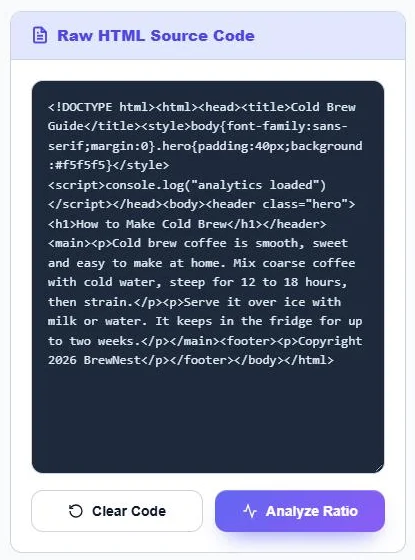
A small “How to Make Cold Brew” page with a title, a short style block, one script line, an H1, two paragraphs and a footer is 570 bytes in total. After the code is stripped, 277 bytes of readable text remain, so the ratio is 277 ÷ 570 = 48.60%, rated excellent. Real pages with full themes and tracking scripts are usually much lower.
How to Use the Text to HTML Ratio Calculator
Step 1: Paste the Page Source
Open the page, press Ctrl+U (Cmd+Option+U on Mac) to view the source, select all and copy. Paste it into Raw HTML Source Code and click Analyze Ratio. Use Clear Code to start again.
Step 2: Read the Ratio and Sizes
SEO Density Results shows the text to HTML ratio with a health label, the HTML size and the extracted plain text size in bytes, and a short recommendation. Click Copy Report to save the result.

Does Text to HTML Ratio Affect SEO?
Google has said that text to HTML ratio is not a ranking factor. Treat it as a diagnostic, not a target. A very low ratio can point to real issues that do matter:
- Slow pages: heavy HTML, inline CSS and scripts increase download and render time, which affects Core Web Vitals.
- Thin content: a page with little text may not answer the searcher’s question.
- Hidden bloat: unused page-builder sections, duplicated menus or large inline SVGs.
How to Improve a Low Ratio
- Add useful content: answers, examples, steps and FAQs that help the reader.
- Move inline CSS and JavaScript into external, cached files.
- Minify HTML, CSS and JavaScript.
- Remove unused plugins, widgets and page-builder sections.
- Replace large inline SVGs or base64 images with image files.
Tips
- Compare similar pages, such as two product templates, rather than chasing a fixed number.
- Pages built mainly with JavaScript may show little text in View Source; copy the rendered HTML from the browser’s developer tools (Elements panel) instead.
- Your code is analysed in your browser and is not uploaded.
Frequently Asked Questions
What is a text to HTML ratio?
It is the percentage of a page’s HTML source that is visible text, found by dividing the text size by the total HTML size.
What is a good text to HTML ratio?
This tool rates 15% or more as excellent and 10–15% as average, but there is no official target.
Is text to HTML ratio a Google ranking factor?
No. Google does not use it directly, but a very low ratio can point to slow pages or thin content.
How do I get a page’s HTML source?
Open the page and press Ctrl+U (Cmd+Option+U on Mac), then select all and copy.
Are scripts and styles counted as text?
No. Script and style content is removed before the readable text is measured.
Is the calculator free?
Yes. It is free, runs in your browser and needs no sign-up.