

URL Canonical Tag Checker – Validate rel=canonical in 3 Easy Steps
URL Canonical Tag Checker
Use this URL canonical tag checker to audit your page source for rel="canonical" tags. Detect missing, multiple, or relative URL errors instantly.
Use this free URL canonical tag checker to audit the rel="canonical" tag in any page source. Paste the HTML, add the URL you expect the page to have, and the tool finds every canonical tag, shows the canonical URL and flags missing tags, duplicates, relative URLs, tags placed in the body and canonicals that point to a different page.
Quick answer
A correct canonical tag sits in the <head>, appears only once, uses a full absolute URL such as https://www.example.com/page/, and usually points to the page itself (self-referencing). Two or more canonical tags, or a canonical in the <body>, can make Google ignore the hint completely.
Table of Contents
Canonical tags tell search engines which version of a page is the main one when several URLs show the same or very similar content, such as tracking parameters, print versions or HTTP and HTTPS copies.
A broken canonical is easy to miss because nothing looks wrong on the page. This URL canonical tag checker reads the source the way a crawler does and explains each problem in plain words.
What the Canonical Checker Tests
| Check | Result | Why it matters |
|---|---|---|
| Canonical tag present | FAIL if missing | Without it, Google picks the main URL on its own. |
| Exactly one tag | FAIL if 2 or more | Conflicting canonicals are usually ignored. |
| Placed in the head | FAIL if in the body | Google only reads rel=canonical in the head. |
| href not empty | FAIL if empty | An empty canonical is useless. |
| Absolute URL | WARN if relative | Relative URLs work but break easily on staging or copied pages. |
| HTTPS | WARN if HTTP | Canonicals should match the secure version. |
| Matches expected URL | WARN if different | Fine for intentional cross-page canonicals, otherwise a mistake. |
How to Use the URL Canonical Tag Checker
Step 1: Paste the HTML and Expected URL
Open the page, view its source and copy everything into Raw HTML Source Code. Type the address the page should have in Expected Page URL. This field is optional, but it lets the tool confirm a self-referencing canonical.

Step 2: Read the Canonical Audit Report
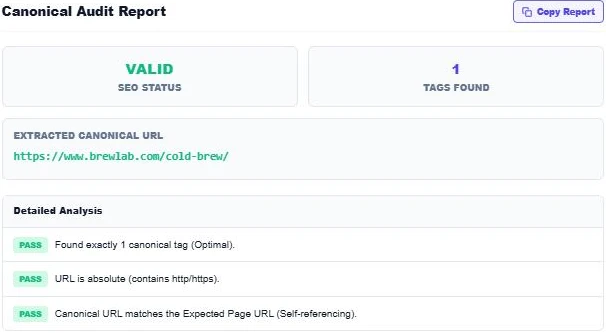
Press Audit Canonical Tags. For our clean example the status shows VALID with 1 tag found, the extracted canonical is https://www.brewlab.com/cold-brew/, and all three checks pass: one tag, an absolute URL and a match with the expected URL.
Step 3: Fix Errors and Warnings
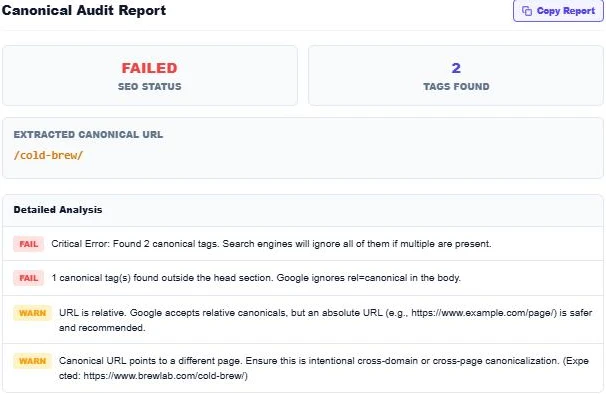
Now paste a broken page with one relative canonical in the head and a second one in the body. The status turns FAILED with 2 tags found. The report flags the duplicate tags, the canonical outside the head section, the relative URL and the mismatch with the expected page. Fix the template and run the audit again.
Canonical Tag Example
<head>
  <link rel="canonical" href="https://www.example.com/cold-brew/">
</head>
Put this once in the head of every indexable page, with the page’s own preferred URL. Pages with URL parameters, sorting options or session IDs should point to the clean version.
Common Canonical Mistakes
- Two plugins (for example an SEO plugin and a theme) each adding a canonical tag.
- Every page pointing to the home page as its canonical.
- Canonical URLs using HTTP or the wrong subdomain after a migration.
- Paginated pages all pointing to page 1, which hides deeper content.
- A canonical pointing to a URL that redirects or returns 404.
Canonical vs Redirect vs Noindex
- Canonical: keeps both URLs live but tells Google which one to index. It is a strong hint, not a command.
- 301 redirect: sends users and bots to the new URL. Use it when the old page should not be visited at all.
- Noindex: keeps the page out of search results but does not merge signals into another URL.
When to Run a Canonical Check
- After installing or switching SEO plugins.
- After moving to HTTPS or changing domains.
- When Search Console shows "Duplicate, Google chose different canonical than user".
- Before launching new templates for products, categories or blog posts.
Checking Canonicals in WordPress
Most SEO plugins add a self-referencing canonical automatically. Run the URL canonical tag checker on a post, a category and a product page to confirm only one tag appears on each, especially if your theme also prints SEO tags.
More technical SEO tools: the URL Redirect Chain Tracer, the Hreflang Tags Generator and the XML Sitemap Validator.
Frequently Asked Questions
What does a canonical tag do?
It tells search engines which URL is the main version of a page when duplicates or near-duplicates exist.
Should every page have a self-referencing canonical?
It is recommended. A self-referencing canonical protects the page from parameter and tracking URL duplicates.
Can a canonical URL be relative?
Google accepts relative URLs, but absolute URLs are safer and are the recommended format.
What happens if a page has two canonical tags?
Google may ignore both and choose the canonical itself. Keep exactly one.
Does Google always follow the canonical tag?
No. It is a strong hint. Google may choose a different URL if redirects, internal links or sitemaps point elsewhere.
Is my HTML uploaded?
No. The URL canonical tag checker parses your code in the browser and nothing is stored.