

Simple Expense Tracker Online – Log Daily Spending in 4 Easy Steps
Simple Expense Tracker
A fast, frictionless expense tracker online to log your daily spending. No categories, no complex charts. Just enter the amount and go.
Quick answer
Type what you bought and the amount, then press Add Expense. The expense tracker online adds the entry to Recent Expenses with the date and time and updates the Total Spent figure at the top. Delete a single entry with × or start over with Clear History. Everything stays in your browser.
Table of Contents
Most spending leaks come from small, everyday purchases: coffee, snacks, taxis, app subscriptions. You only notice them when you write them down.
This simple expense tracker online is built for speed. There are no categories or charts to slow you down: just what you bought, how much it cost, and a running total. It takes about five seconds to log a purchase.
Worked Example
| Expense | Amount |
|---|---|
| Coffee | $4.50 |
| Lunch with team | $18.75 |
| Bus ticket | $2.80 |
| Phone charger | $15.00 |
| Groceries | $42.30 |
| Total spent | $83.35 |
Each entry is stamped with the date and time it was added, and the newest appears at the top of the list.
How to Use the Simple Expense Tracker
Log purchases as soon as you make them; it only takes a few seconds.
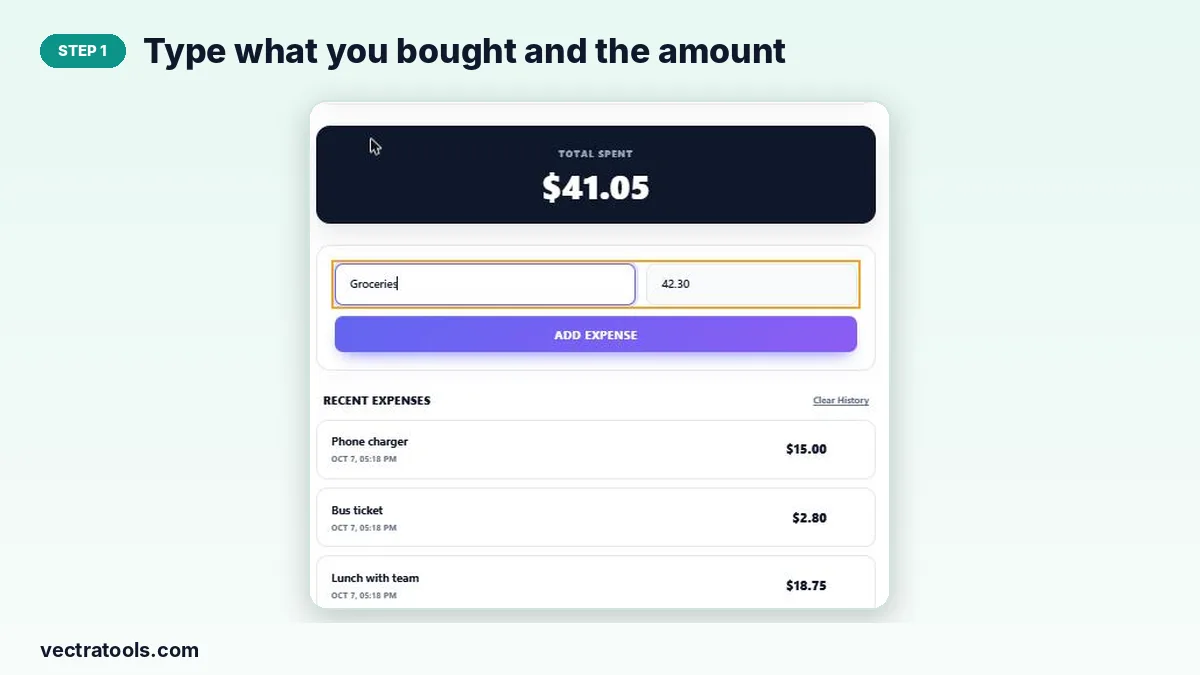
Step 1: Type what you bought and the amount
Write a short description in “What did you buy?” and the price in Amount ($). Decimals such as 42.30 are fine.
Step 2: Press Add Expense
Click Add Expense. The purchase appears at the top of Recent Expenses with today’s date and time, and the fields clear for the next one.

Step 3: Check your running total
Total Spent at the top adds up every expense in the list, so you always know how much you have spent.

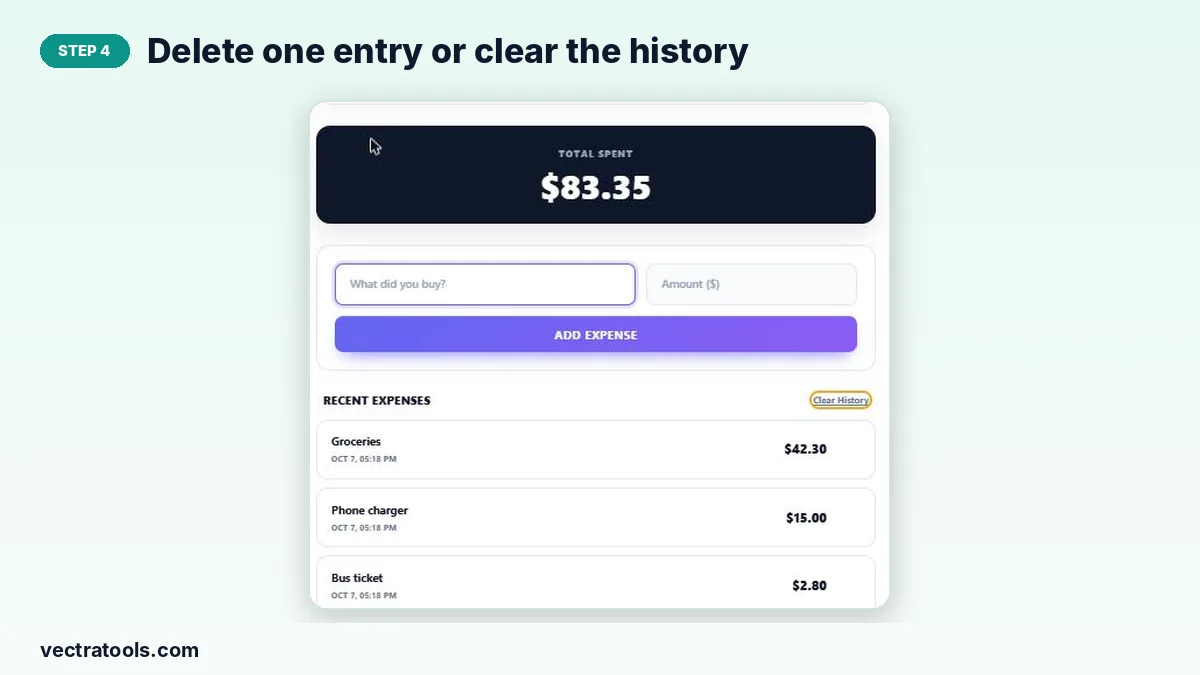
Step 4: Delete one entry or clear the history
Hover an entry and click × to remove a mistake. Clear History empties the list and resets the total, which is handy at the start of a new week or month.
How to Use It for a Spending Challenge
- Clear History on the first day of the month.
- Log every purchase, however small, for 30 days.
- At the end of the month, scan the list for repeated small costs.
- Pick one to cut next month and compare the totals.
Expense Tracker vs Budget Planner
Use this expense tracker when you just want a fast log and a total. If you also want to record income, see your net balance and split spending into categories, use the Budget Planner instead.
Why Use an Expense Tracker Online
An expense tracker online is quicker than a spreadsheet and more private than a banking app. Open the page, type the purchase and you are done. Because this expense tracker online keeps a running total, you can see at a glance whether you are on track for the week, and the timestamps show exactly when the money went.
Frequently Asked Questions
Is this expense tracker online free?
Yes. It is free with no account and no limit on entries.
Where is my data stored?
Only in your browser’s local storage. Nothing is uploaded, and the list reloads when you return on the same device.
Can I add categories?
No. This tracker is intentionally simple. For categories and income, use the Budget Planner.
How do I reset the total?
Press Clear History. This deletes every entry and sets the total back to $0.00.
Can I use another currency?
Yes. The $ sign is just a label; the totals work for any currency.
Does it work offline?
Once the page has loaded, you can keep adding expenses without a connection, and they are saved locally.