

Grocery List Maker – Shopping Lists Grouped by Supermarket Aisle
Grocery List Maker
Plan your shopping smoothly. Items are grouped automatically by department so you save time at the supermarket.

Quick answer
Type an item, choose its department (fruits and vegetables, dairy, bakery, meat, pantry, frozen, household or other) and press Add Item, or tap a quick-add button such as + Milk. The grocery list maker groups everything by aisle. Tick items as you shop, use Clear Checked to remove them, and Print Shopping List for a paper copy.
A good shopping list saves time, money and the extra trip for the one thing you forgot. Grouping items by aisle means you walk through the supermarket once instead of zig-zagging back and forth.
This grocery list maker sorts every item into its department automatically. Common items are one tap away, the list saves in your browser, and it prints cleanly when you prefer paper.
Departments in the Grocery List Maker
| Department | Example items |
|---|---|
| Fruits & Vegetables | Bananas, tomatoes, spinach |
| Dairy & Eggs | Milk, eggs, yoghurt, cheese |
| Bakery & Bread | Bread, wraps, croissants |
| Meat & Seafood | Chicken, mince, fish |
| Pantry & Canned Goods | Rice, pasta, olive oil, tinned beans |
| Frozen Foods | Frozen peas, ice cream |
| Household & Cleaning | Dish soap, bin bags, kitchen roll |
| Other Essentials | Anything else |
Quick-add buttons for Milk, Eggs, Bread, Bananas, Chicken, Apples, Coffee and Water add the item straight into the right department.
How to Use the Grocery List Maker
Build the list at home, then open it on your phone in the shop or print it.
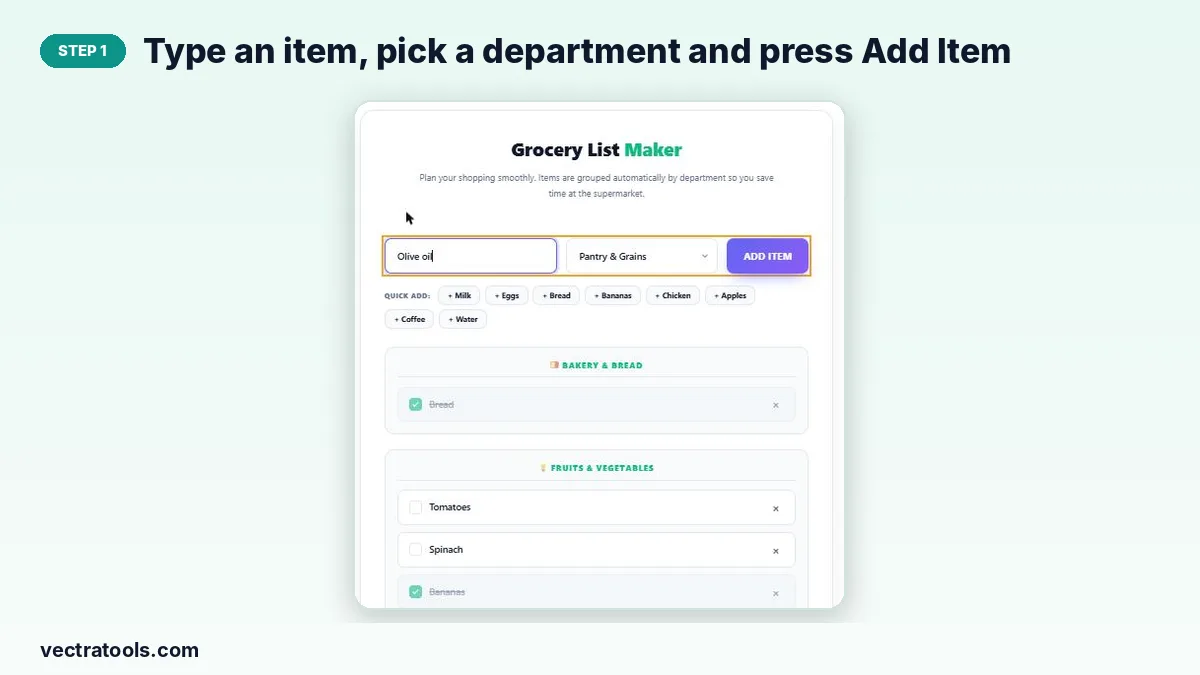
Step 1: Type an item, pick a department and press Add Item
Write the item name, choose its department from the menu and click Add Item. It appears under that department heading.
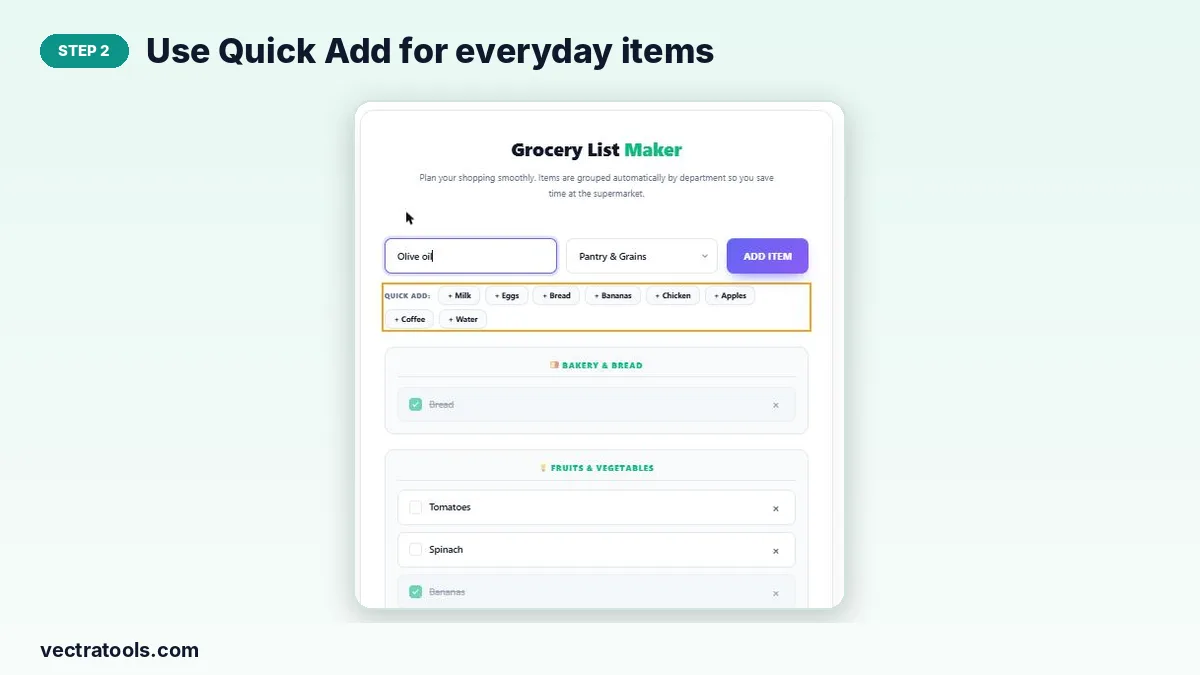
Step 2: Use Quick Add for everyday items
Tap a quick-add button such as + Milk or + Bananas to add a common item in one click, already in the right group.
Step 3: Tick items off as you shop, grouped by aisle
Items are grouped by department, so you can shop aisle by aisle. Tick the box when an item is in your trolley; it is greyed out and crossed through.

Step 4: Clear checked items or print the list
Clear Checked removes items you have bought and keeps the rest for next time. Print Shopping List gives a clean paper copy, and Delete List removes everything.

Tips for Smarter Grocery Shopping
- Plan meals for the week first, then add their ingredients.
- Check the fridge and cupboards before you leave to avoid buying duplicates.
- Keep the list running all week and add items the moment you run out.
- Stick to the list to cut impulse buys.
Why Use an Online Grocery List Maker
Scraps of paper get lost and phone notes do not sort themselves. A grocery list maker organises items by aisle as you add them, so the list is ready to shop from. This grocery list maker also remembers your list between visits, which makes it easy to add things through the week.
Frequently Asked Questions
Is this grocery list maker free?
Yes. It is free, with no app download or account.
Is my list saved?
Yes. The list is stored in your browser and is still there when you reopen the page on the same device.
Can I use it on my phone in the shop?
Yes. Open the page on your phone and tick items off as you go. Lists are saved per device, so build it on the phone you will take shopping, or print it.
How do I remove items I have bought?
Tick them, then press Clear Checked. Unticked items stay on the list.
Can I share my list?
There is no share link. Print it, save it as a PDF from the print dialog, or take a screenshot.
Which department should I choose for an unusual item?
Pick the closest match or use Other Essentials.