

Free To-Do List App – Add, Tick Off and Filter Your Tasks
Premium To-Do List
Organize your day efficiently with this free todo list app. Your tasks are securely saved in your browser, so you can pick up exactly where you left off.

Quick answer
Type a task, choose Personal, Work or Urgent and press Add Task (or Enter). Tick the box when it is done, use All, Active and Completed to filter the list, and remove a task with ×. The todo list app saves everything in your browser, so your list is still there when you come back.
A to-do list is the simplest productivity system there is: write it down, do it, tick it off. Getting tasks out of your head frees attention for the work itself.
This todo list app keeps that simplicity but adds three useful extras: colour-coded categories, a daily progress bar and quick filters. There is no sign-up, and your tasks never leave your device.
Features at a Glance
| Feature | What it does |
|---|---|
| Categories | Tag each task as Personal, Work or Urgent; each tag has its own colour |
| Daily progress | Shows “2 / 6 Completed” and a progress bar that fills as you tick tasks off |
| Filters | All shows everything, Active hides finished tasks, Completed shows only finished ones |
| Delete | The × on a task removes it |
| Auto-save | Tasks are stored in your browser’s local storage and reload automatically |
| Keyboard | Press Enter in the task box to add a task without clicking |
How to Use the To-Do List App
Open the page, add your tasks for the day, and keep the tab open or come back to it later.
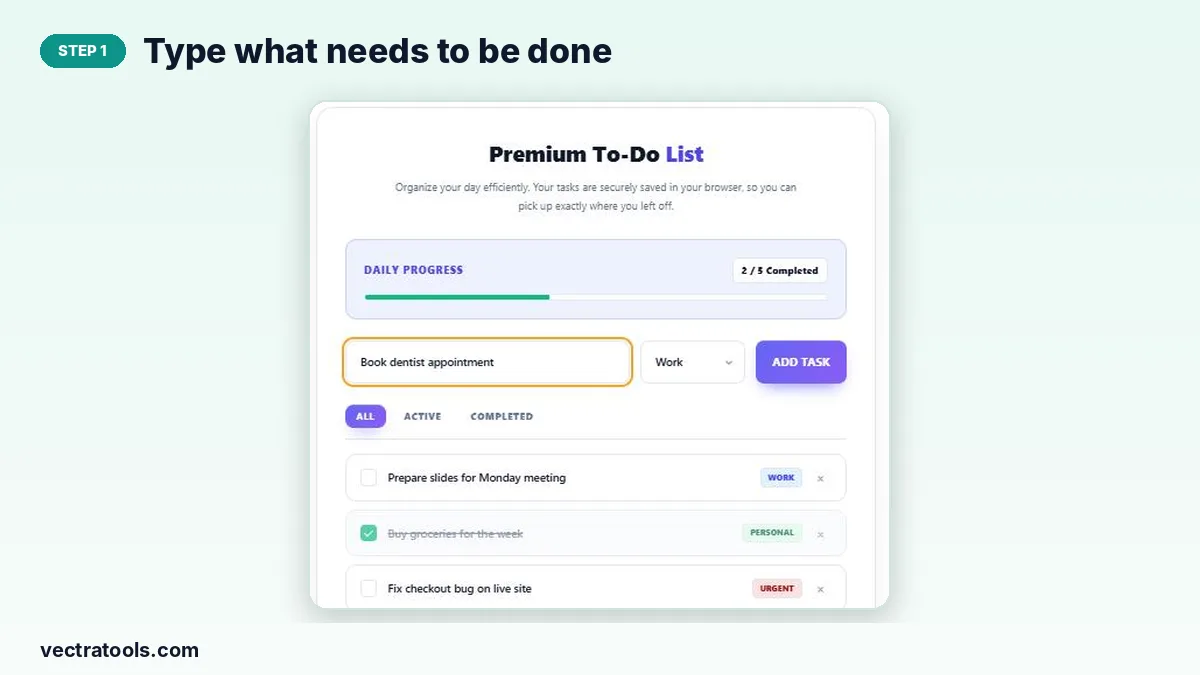
Step 1: Type what needs to be done
Click the “What needs to be done?” box and write the task. Keep it short and start with a verb, for example “Book dentist appointment”.
Step 2: Pick a category and press Add Task
Choose Personal, Work or Urgent from the menu, then press Add Task or hit Enter. The new task appears at the top of the list.

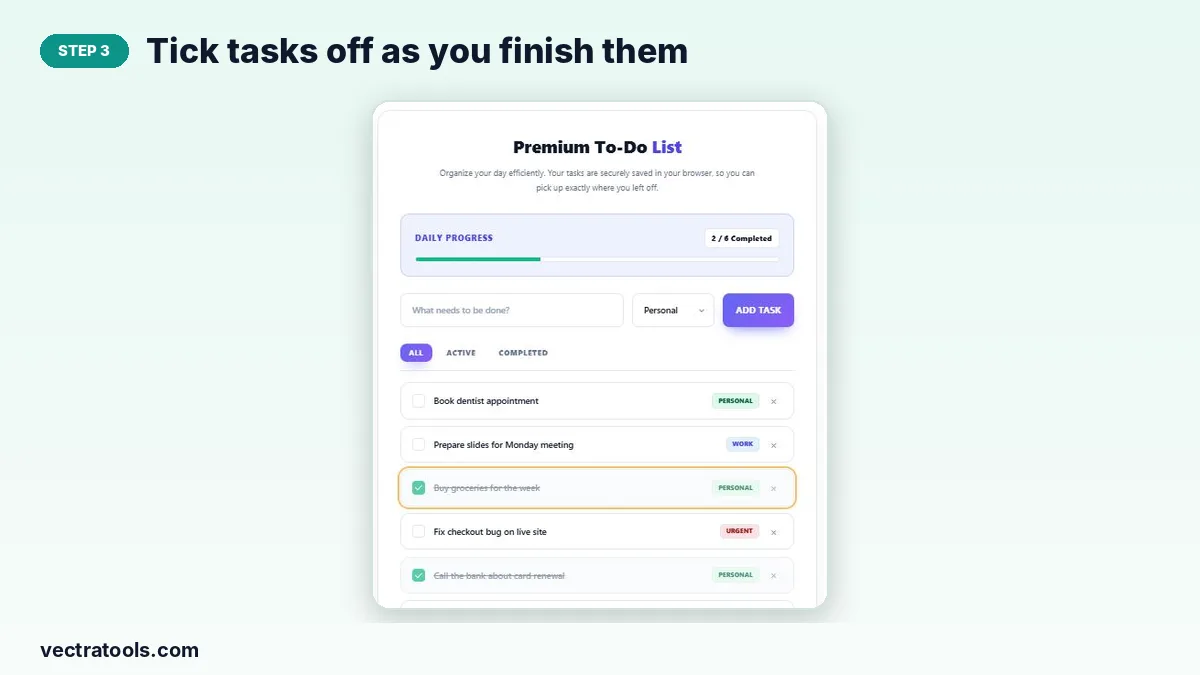
Step 3: Tick tasks off as you finish them
Click the checkbox next to a task when it is done. It is crossed out and the Daily Progress bar moves forward.
Step 4: Filter by All, Active or Completed
Use Active to see only what is left, Completed to review what you finished, and All to see everything. Remove a task with its × button.

Tips for a To-Do List That Works
- Write tomorrow’s list at the end of today, so you start the morning knowing what to do.
- Limit Urgent to two or three tasks; if everything is urgent, nothing is.
- Break big jobs into steps you can finish in under an hour.
- Clear completed tasks regularly so the list stays focused.
Is My Data Private?
Yes. The todo list app uses your browser’s local storage only. Tasks are not sent to any server, so nobody else can see them. The flip side is that they stay on that one browser: they will not appear on your phone if you added them on your laptop, and clearing your browser data deletes them.
Why Use an Online Todo List App
Paper lists get lost and many task apps ask for an account before you can write a single line. This todo list app opens instantly, saves automatically and stays private. Keep the todo list app pinned in a browser tab and add tasks the moment they come up, so nothing slips through the day.
For bigger projects with several stages, a Kanban board may suit you better; for daily routines, try a habit tracker alongside this todo list app.
Frequently Asked Questions
Is this todo list app free?
Yes. It is completely free with no account, ads inside the tool or task limits.
Will my tasks be saved if I close the browser?
Yes. Tasks are saved in local storage and reload next time you open the page in the same browser.
Can I use it on my phone?
Yes, it works in mobile browsers. Tasks are saved separately on each device and browser.
How do I delete a task?
Click the × at the right of the task.
Can I edit a task after adding it?
Delete the task and add it again with the new wording.
What happens if I clear my browser data?
Your tasks are deleted, because they are stored only in your browser. Copy anything important elsewhere first.