

Simple Kanban Board Online – To Do, In Progress and Done
Simple Kanban Board
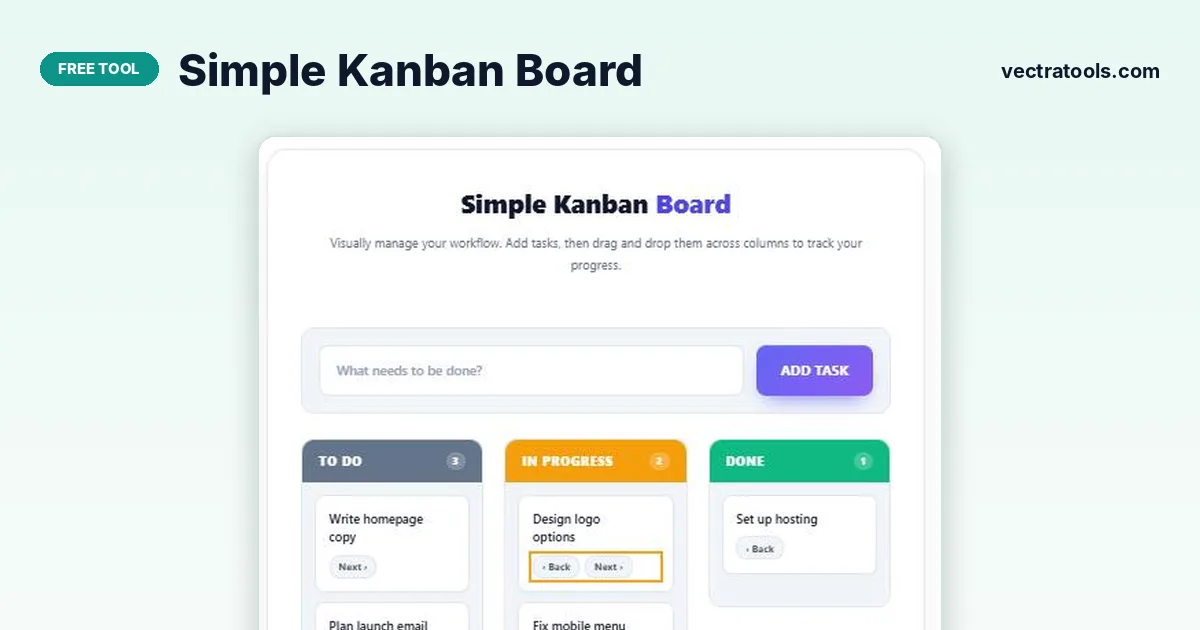
Visually manage your workflow with this free kanban board online. Add tasks, then drag and drop them across columns to track your progress.
Quick answer
Type a task and press Add Task to put it in the To Do column. Drag the card to In Progress or Done, or use the Next › and ‹ Back buttons on the card, which also work on phones. Delete a card with ×. The kanban board online saves your board in your browser automatically.
Kanban is a visual way to manage work. Every task is a card, and cards move from left to right through columns as the work progresses. One look at the board tells you what is waiting, what is being worked on and what is finished.
This simple kanban board online gives you the three classic columns with live counters, drag and drop, and one-click move buttons. There is nothing to set up and nobody else can see your board.
The Three Columns
| Column | Meaning |
|---|---|
| To Do | Tasks you have planned but not started |
| In Progress | Tasks you are working on right now |
| Done | Finished tasks |
The number in each column header shows how many cards it holds. A common kanban rule is to limit In Progress to two or three cards so you finish work before starting more.
How to Use the Simple Kanban Board
Start by adding everything on your plate to To Do, then move cards across as you work.
Step 1: Type a task in the input box
Click “What needs to be done?” and write a short task name, such as “Test contact form”.

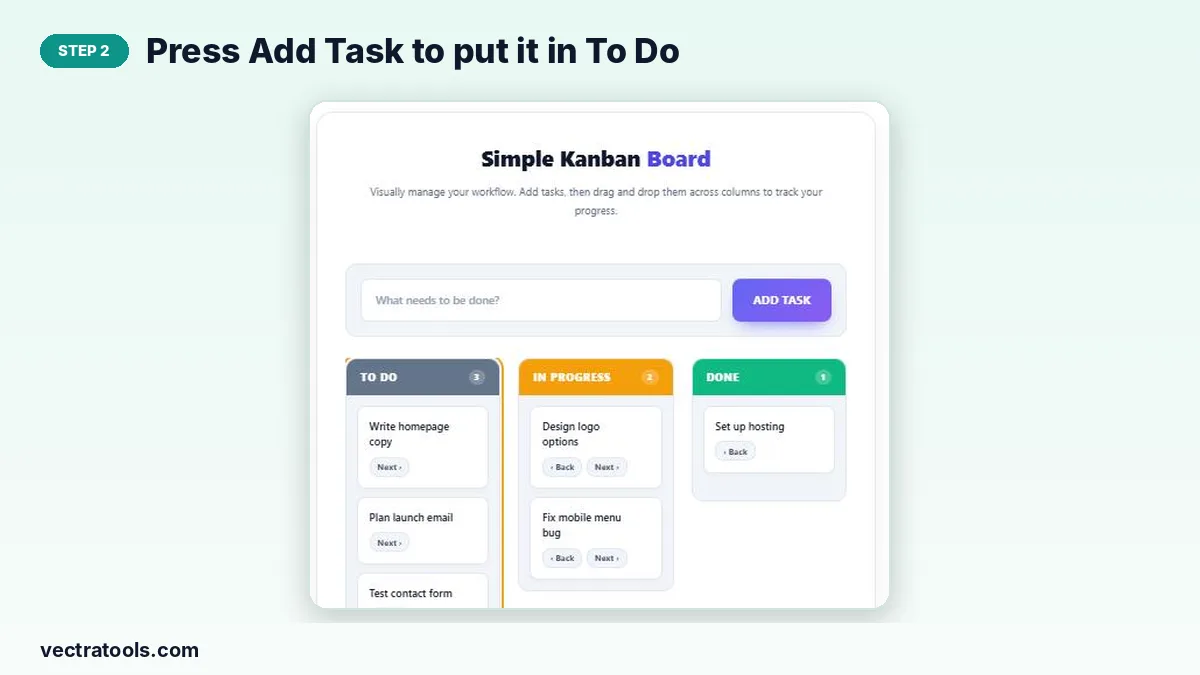
Step 2: Press Add Task to put it in To Do
Click Add Task or press Enter. The card appears in the To Do column and the column counter goes up.
Step 3: Drag the card or use Next and Back to move it
Drag a card into another column with your mouse, or press Next › to move it one column to the right and ‹ Back to move it left. The buttons are handy on touch screens where dragging is awkward.

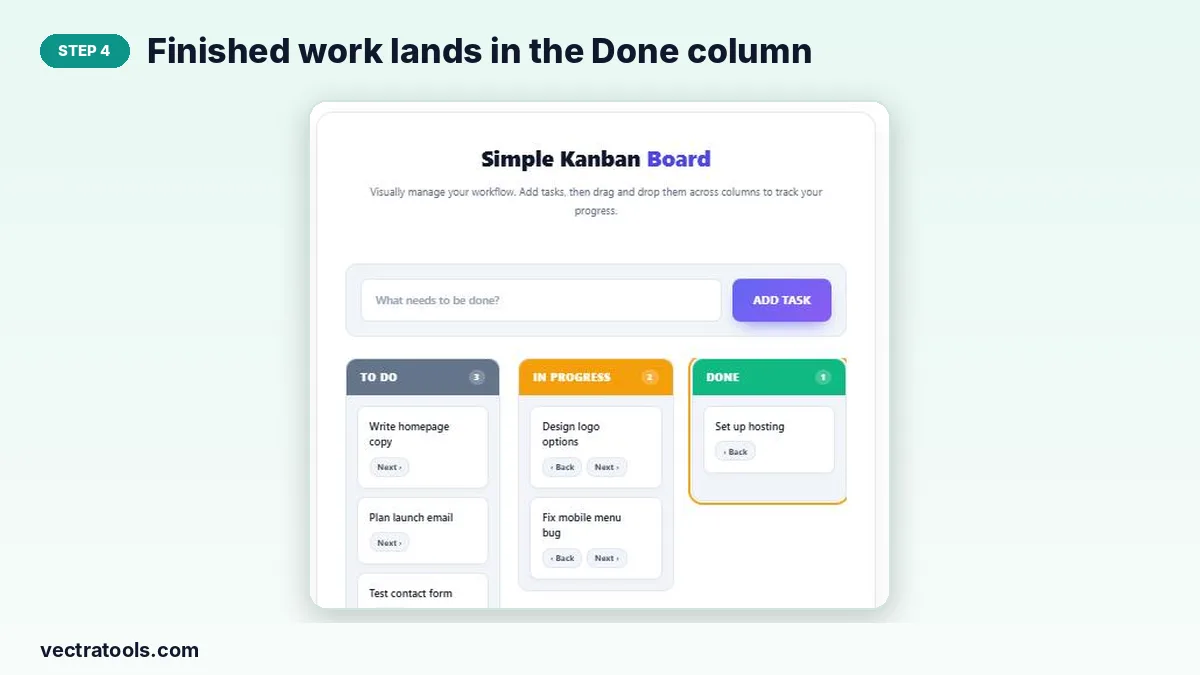
Step 4: Finished work lands in the Done column
When a task is complete, move it to Done. Hover a card and click × to delete it when you no longer need it.
Kanban Tips
- Keep cards small: one clear action each.
- Limit work in progress; finish before you start something new.
- Review Done at the end of the week to see what you achieved, then clear it.
- Use one board per project if you juggle several.
Kanban vs To-Do List
A to-do list only knows “done” or “not done”. A kanban board adds the middle step, so you can see work that has started but not finished. Use the To-Do List App for quick daily errands and the kanban board for projects with several stages.
Why Use a Kanban Board Online
Sticky notes on a wall work in an office, but a kanban board online is with you wherever you open a browser. This kanban board online needs no account and no installation, opens in a second and remembers your cards. It is ideal for freelancers, students and anyone running a small personal project who wants the clarity of kanban without the setup of a full project tool.
Pin the kanban board online in a browser tab and update it each time you start or finish a task.
Frequently Asked Questions
Is this kanban board online free?
Yes. It is free, with no sign-up and no limit on cards.
Is my board saved?
Yes. Cards and their columns are saved in your browser’s local storage and reload automatically.
Can I use it on a phone?
Yes. Use the Next › and ‹ Back buttons to move cards, since drag and drop is designed for a mouse.
Can I add more columns?
The board has three fixed columns: To Do, In Progress and Done.
Can I share the board with my team?
No. The board lives in your own browser and is private to you.
How do I delete a card?
Hover over the card and click the × in its corner.