

Pomodoro Timer Online – 25-Minute Focus Sessions and Breaks
Pomodoro Timer
Boost your productivity with the Pomodoro technique. Work in highly focused sprints, followed by refreshing breaks.

Quick answer
Choose Pomodoro (25 minutes), Short Break (5 minutes) or Long Break (15 minutes), write the task you are working on, and press Start Focus. The Pomodoro timer online counts down in the page and in your browser tab title, beeps when time is up, and can be paused, resumed or reset with ↺.
The Pomodoro Technique, created by Francesco Cirillo in the late 1980s, splits work into short, focused sprints separated by breaks. Knowing a break is coming makes it easier to start, and the timer protects you from distractions in between.
This Pomodoro timer online keeps it simple: three modes, one big countdown, a box for your current task and a sound when the session ends. The countdown also appears in the browser tab, so you can keep an eye on it while working in other tabs.
Timer Modes
| Mode | Length | Use it for |
|---|---|---|
| Pomodoro | 25:00 | One focused work session on a single task |
| Short Break | 05:00 | Stand up, stretch, get water |
| Long Break | 15:00 | A proper rest after four Pomodoros |
The classic cycle is four Pomodoros with short breaks between them, followed by one long break, which adds up to about two and a quarter hours of structured work.
How to Use the Pomodoro Timer
Close distracting tabs, put your phone away, and keep this page open in a tab.
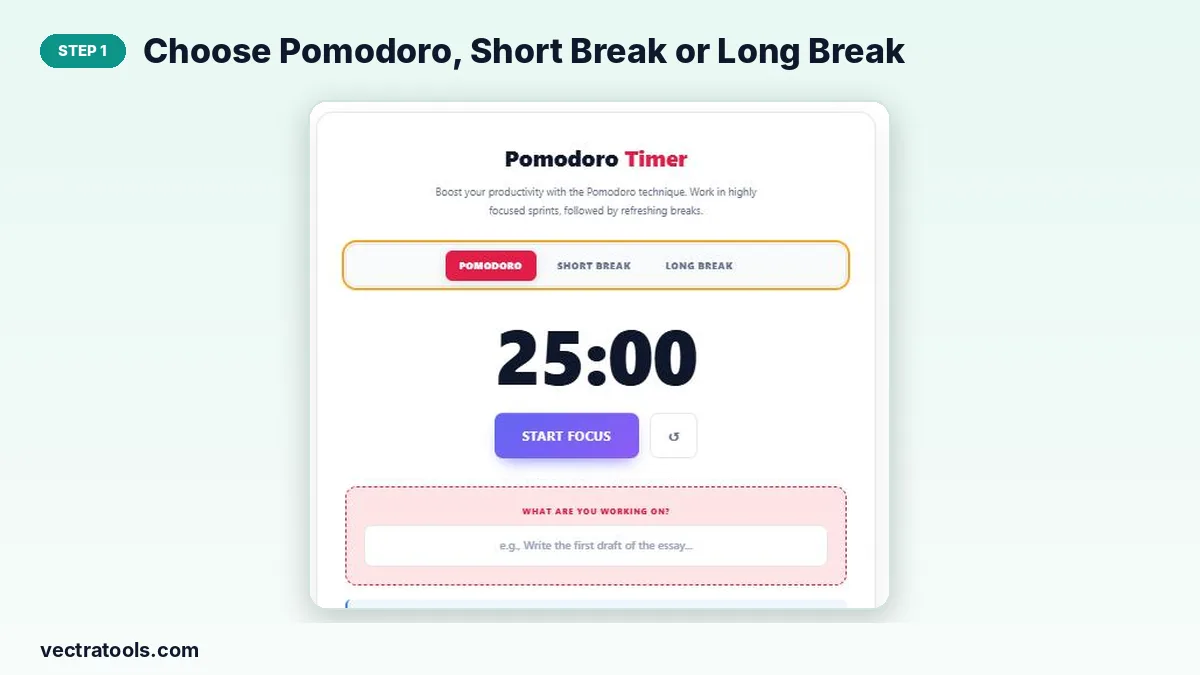
Step 1: Choose Pomodoro, Short Break or Long Break
Click a mode at the top. The display jumps to 25:00, 05:00 or 15:00, and the colour theme changes so you can tell work from rest at a glance.
Step 2: Write down the one task you will focus on
Type your task in “What are you working on?”. Naming one task helps you stay on it for the whole session.

Step 3: Press Start Focus and work until the timer ends
Click Start Focus. The countdown runs on the page and in the tab title. Press Pause if you are interrupted and Resume to continue; ↺ resets the current mode.

Step 4: Take a short break, then start the next round
When the timer reaches zero you hear a beep and see a message. Switch to Short Break, press Start Break and rest. After four Pomodoros, take a Long Break.

Tips for Better Pomodoros
- If a distraction pops up, write it down and deal with it in the break.
- Do not check messages during a Pomodoro; that is what breaks are for.
- If a task takes less than one Pomodoro, group a few small tasks together.
- Track how many Pomodoros a task takes to plan future work more accurately.
Does It Keep Time in a Background Tab?
Yes. The timer calculates the remaining time from the clock rather than counting ticks, so it stays accurate even when your browser slows down timers in background tabs. You still need to keep the tab open for the alarm to sound.
Who Uses a Pomodoro Timer Online
Students use a Pomodoro timer online for revision sessions, writers use it to beat a blank page, and developers use it to protect deep-work time from meetings and messages. Because this Pomodoro timer online runs in any browser with no setup, it is easy to start a session the moment you sit down to work.
Keep the Pomodoro timer online open in a pinned tab so your next focus session is always one click away.
Frequently Asked Questions
Is this Pomodoro timer online free?
Yes. It is free with no account or download.
How long is a Pomodoro?
A standard Pomodoro is 25 minutes of focus, followed by a 5-minute break. After four Pomodoros you take a 15–30 minute break; this timer uses 15 minutes.
Will I hear an alarm?
Yes. A beep plays and a message appears when the session ends. Keep your volume on and the tab open.
Can I pause the timer?
Yes. Press Pause to stop the countdown and Resume to continue from where you left off.
Can I change the session length?
The timer uses the classic 25/5/15 minute lengths.
Why does the tab title show the time?
So you can see how much time is left while working in another tab.