

Quiz Maker Online – Build and Play Multiple-Choice Quizzes Free
Pro Quiz Maker
Build your own custom quiz deck, then instantly play it in an interactive environment. Perfect for testing knowledge and engaging your audience.
Here is your final score:
Quick answer
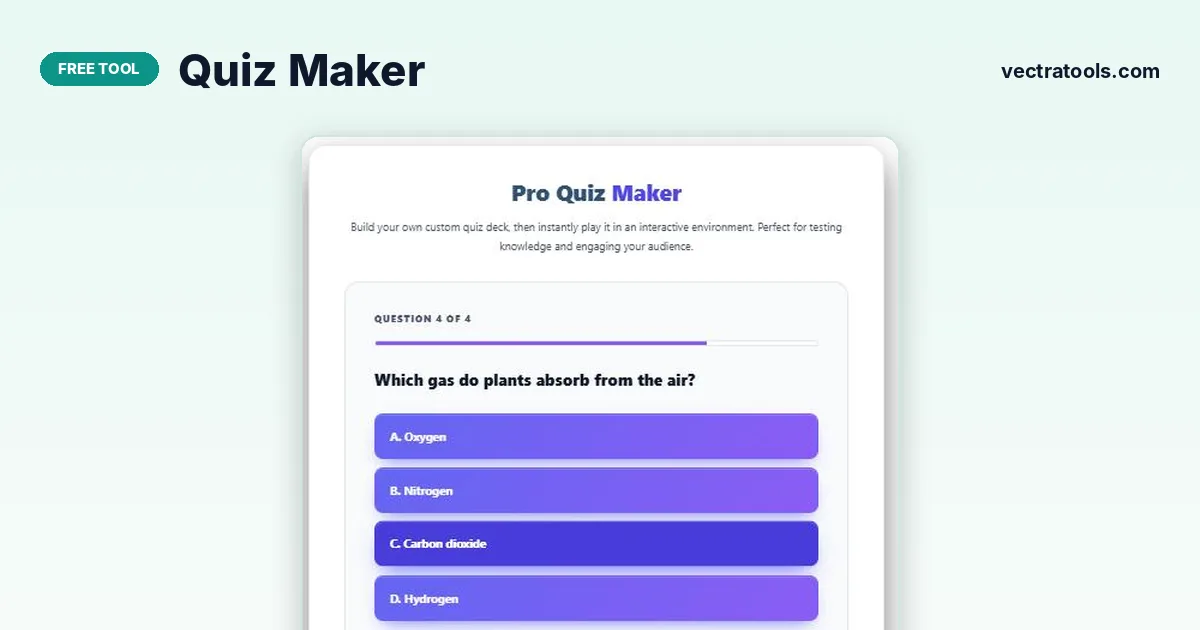
A quiz maker lets you create your own multiple-choice quiz and play it straight away. Type a question, fill in options A to D, choose the correct answer and click Add to Quiz Deck. Repeat for each question, then press Play Quiz Now to answer them one by one and see your final score.
Our free quiz maker is ideal for teachers running a quick class check, trainers testing a team, students revising for exams, or friends hosting a trivia night. There is no account, no limit on questions and nothing to install.
Questions are kept only while the page is open, so finish and play your quiz in one session. For a printable version, write the questions in a document as you build them.
Quiz Maker Features
| Feature | What it does |
|---|---|
| Question builder | Write a question with four answer options |
| Correct answer | Choose A, B, C or D as the right answer |
| Quiz deck | Lists every question with its answer; remove any with × |
| Play mode | Shows one question at a time with a progress bar |
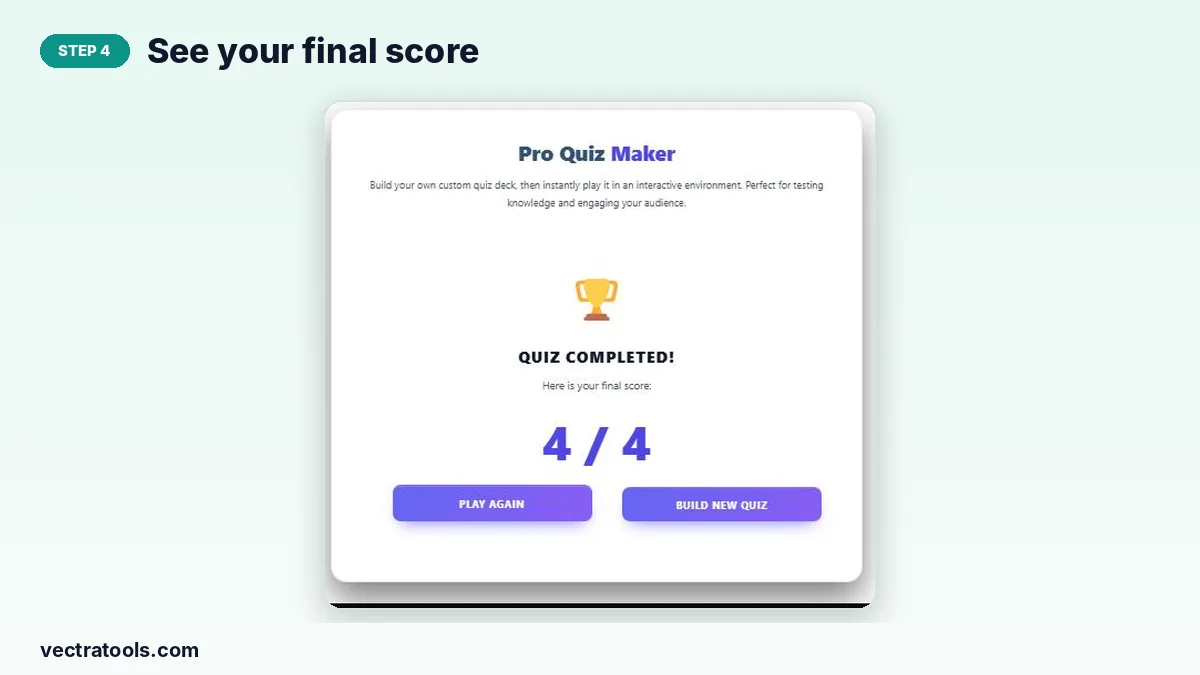
| Final score | Displays your result, such as 4 / 4, with Play Again |
How to Use the Quiz Maker
Make your first quiz with the quiz maker in four steps.
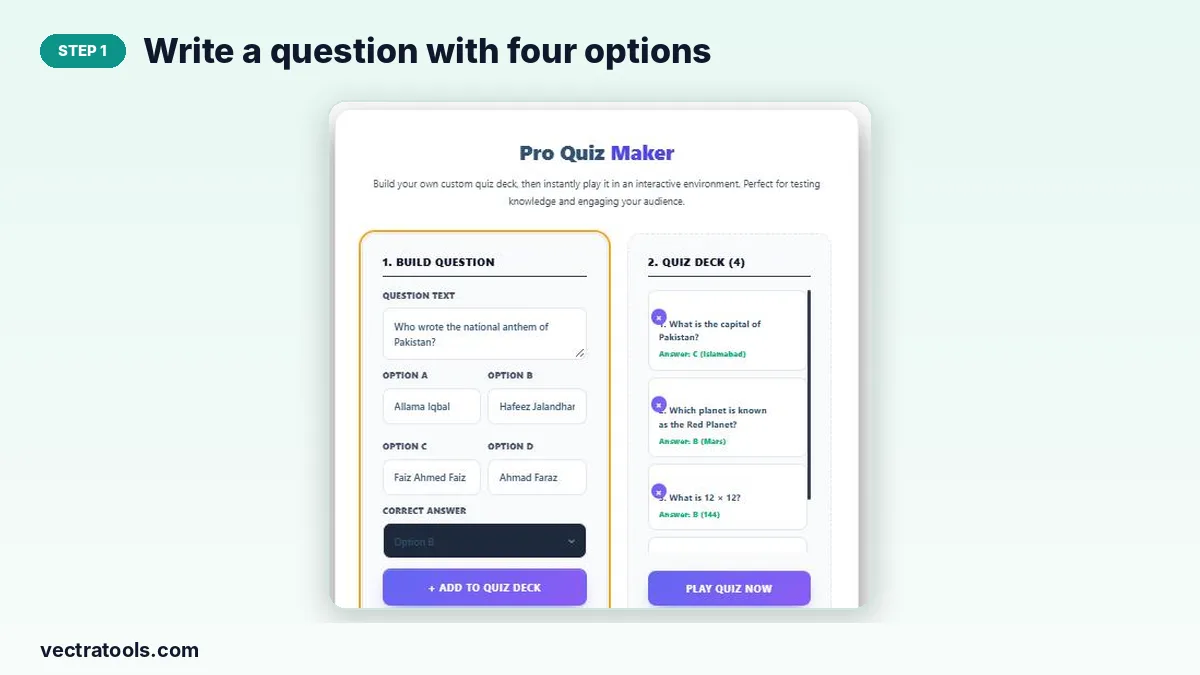
Step 1: Write a Question With Four Options
Type your question in Question Text, enter four answers in Options A to D, and pick the correct one from Correct Answer.
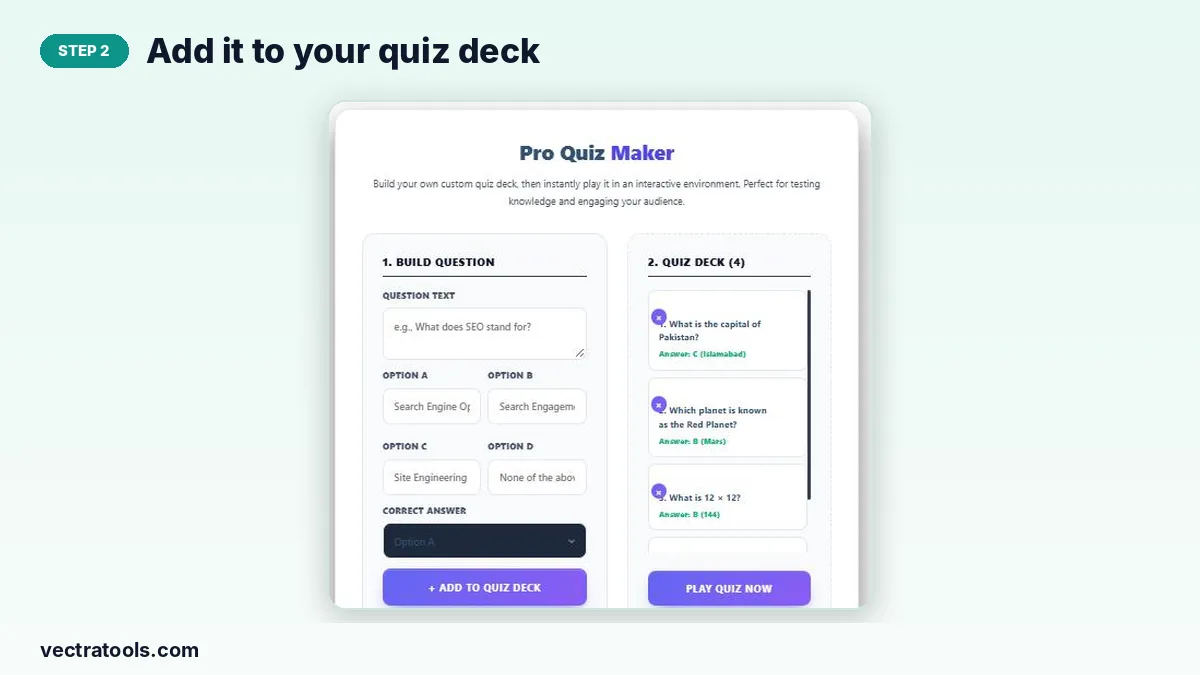
Step 2: Add It to Your Quiz Deck
Click Add to Quiz Deck. The question appears in the deck with its answer. Repeat until your quiz is ready.
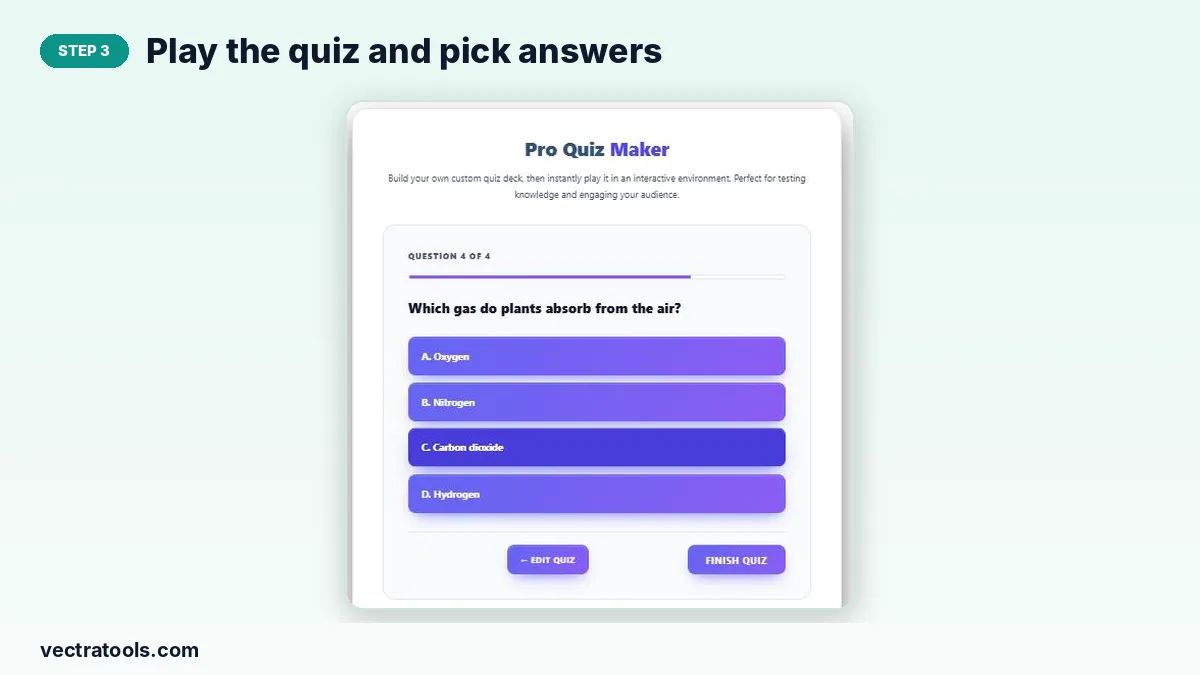
Step 3: Play the Quiz and Pick Answers
Press Play Quiz Now. Questions appear one at a time; click an answer, then Next Question.
Step 4: See Your Final Score
After the last question, click Finish Quiz to see your score. Choose Play Again or Build New Quiz.
Tips for Writing Good Quiz Questions
- Keep each question about one idea only.
- Make wrong options believable so the quiz is a fair test.
- Avoid “all of the above” unless you really need it.
- Mix easy and hard questions to keep players motivated.
- Check spelling of answers so the right option is obvious only to people who know it.
Ways to Use This Quiz Maker
- Classroom exit tickets and revision quizzes.
- Employee training and onboarding checks.
- Family game nights and trivia contests.
- Self-testing before exams or job interviews.
Why Use an Online Quiz Maker?
Paper quizzes need printing and marking. An online quiz maker scores answers automatically and lets you edit questions in seconds, so you spend more time teaching or playing and less time on admin.
Frequently Asked Questions
Is this quiz maker free?
Yes. It is free with no sign-up and no question limit.
How many options can each question have?
Each question has four options, A to D, with one correct answer.
Can I remove a question?
Yes. Click the × next to the question in the quiz deck.
Is my quiz saved?
Questions stay while the page is open. Refreshing or closing the page clears them.
Can students use it on phones?
Yes. The quiz maker works on phones, tablets and computers.
Does it show the score at the end?
Yes. After Finish Quiz you see your total score, such as 4 / 4.