

Flashcard Maker Online – Create, Flip and Print Study Cards
Flashcard Maker
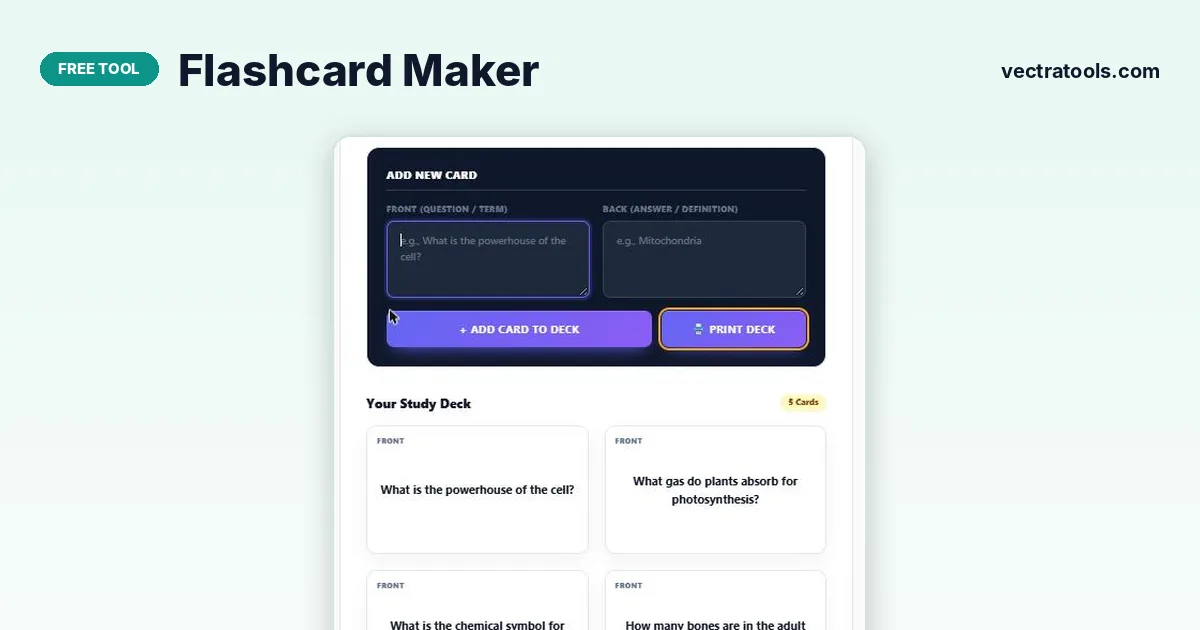
Type your questions and answers below to build your study deck. Click on any card to flip it, or print them out for offline studying.
Quick answer
Type a question or term in the Front box and the answer in the Back box, then press “+ Add Card to Deck”. Repeat for each card. Click any card in Your Study Deck to flip it and check your answer, and press Print Deck to get paper flashcards. The flashcard maker is free and needs no account.
Flashcards work because they make you recall an answer before you see it. This “active recall” is one of the most effective ways to memorise vocabulary, formulas, dates and definitions.
This flashcard maker lets you build a deck in minutes. Each card has a front and a back, the deck shows as a grid of cards you can flip with a click, and the whole set prints for offline revision.
What You Can Do with the Flashcard Maker
| Feature | How it works |
|---|---|
| Add a card | Type the front and back, then press + Add Card to Deck |
| Flip a card | Click the card to turn it over and see the answer |
| Remove a card | Use the × on the card |
| Card count | The badge beside Your Study Deck shows how many cards you have |
| Print Deck opens a print-ready layout of all cards |
How to Use the Flashcard Maker
Keep each card to one fact. Short questions and short answers are easier to remember.
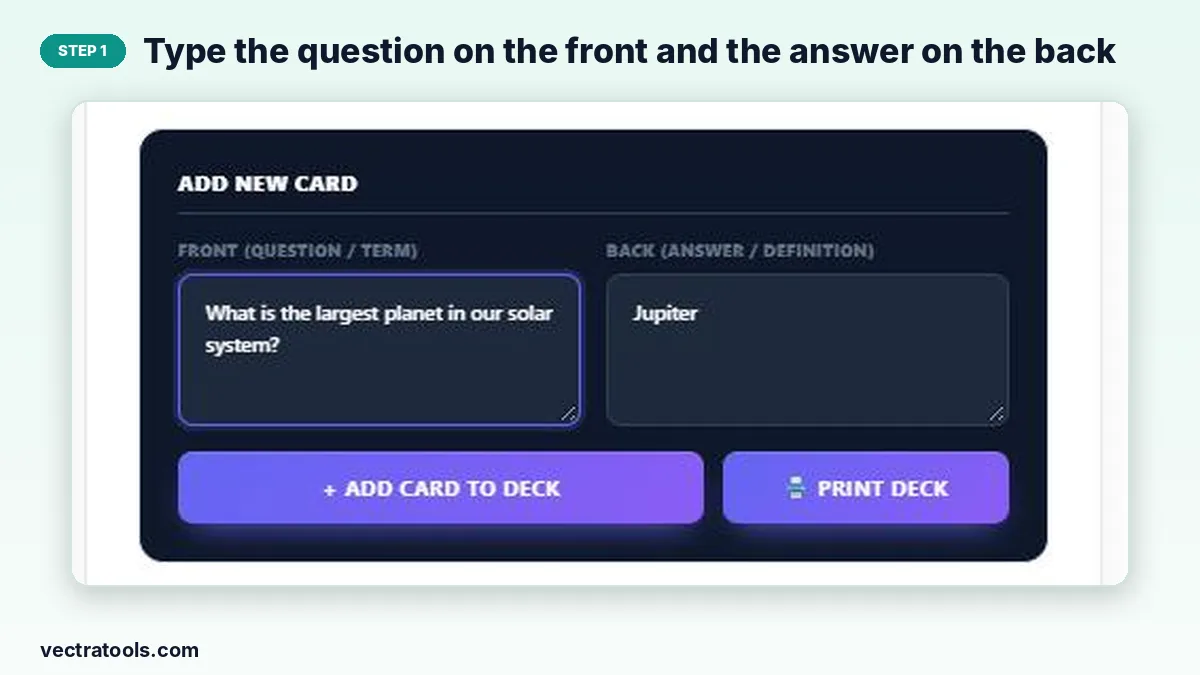
Step 1: Type the question on the front and the answer on the back
In Add New Card, write the question or term in Front (Question / Term) and the answer or definition in Back (Answer / Definition).
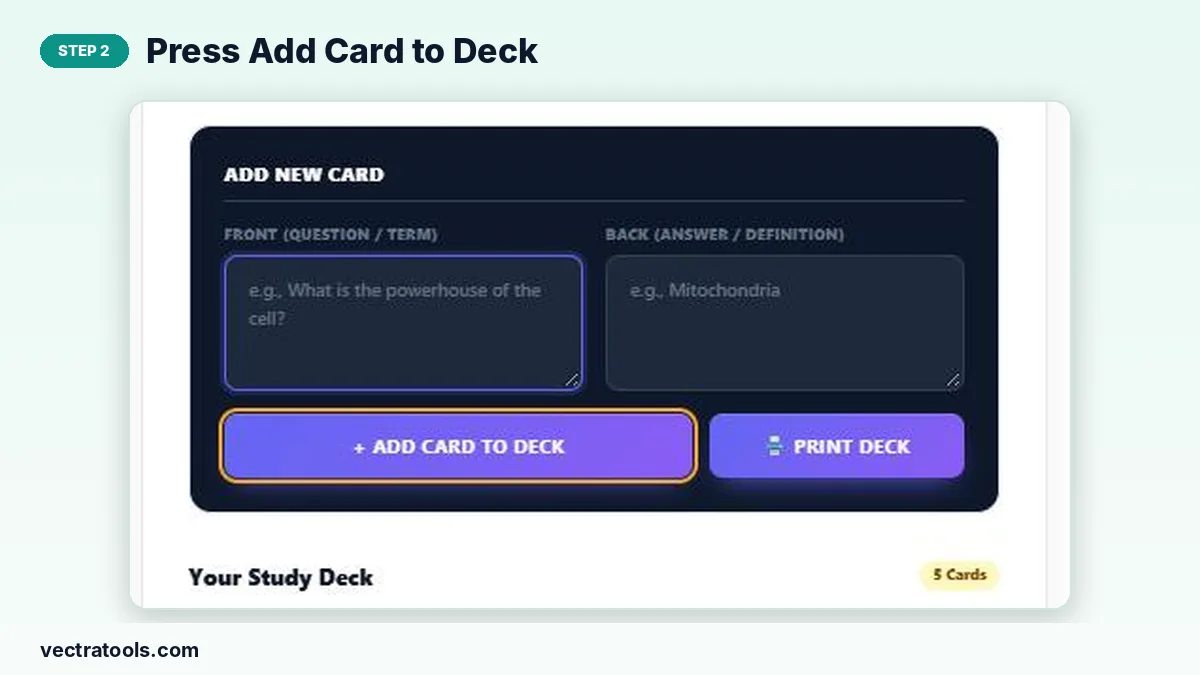
Step 2: Press Add Card to Deck
Click “+ Add Card to Deck”. The card joins the deck below, the boxes clear and the card counter goes up, so you can type the next card straight away.
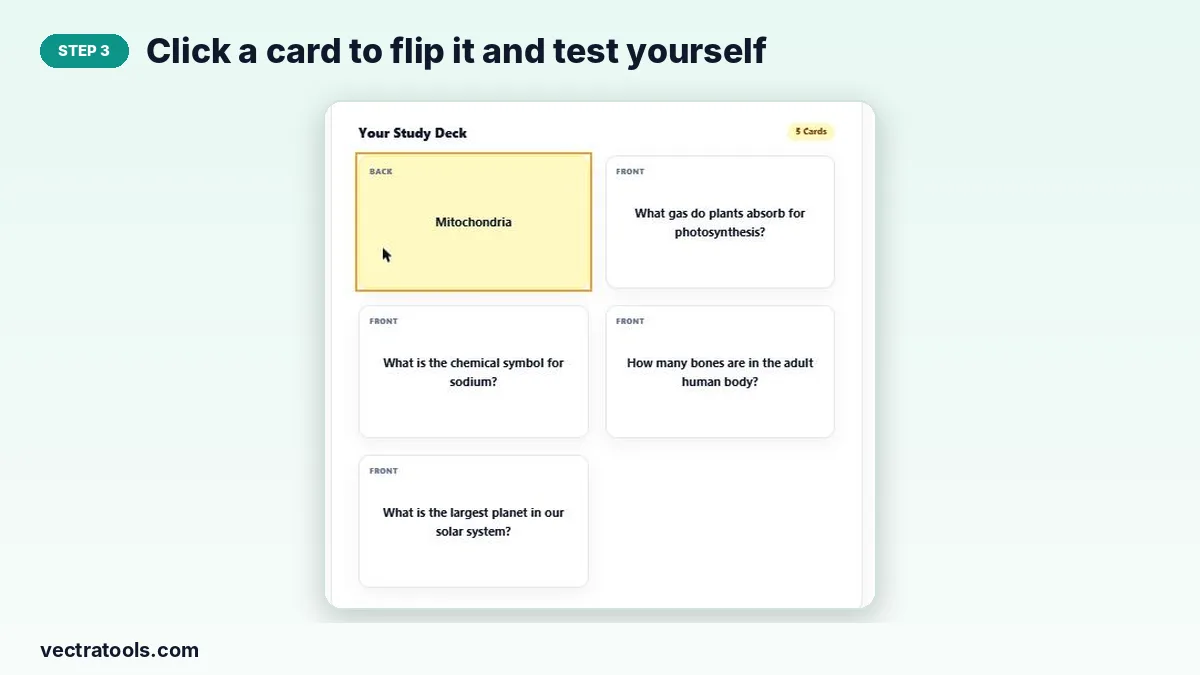
Step 3: Click a card to flip it and test yourself
Read the question, say your answer out loud, then click the card. It flips over to show the back so you can check yourself. Click again to turn it back.
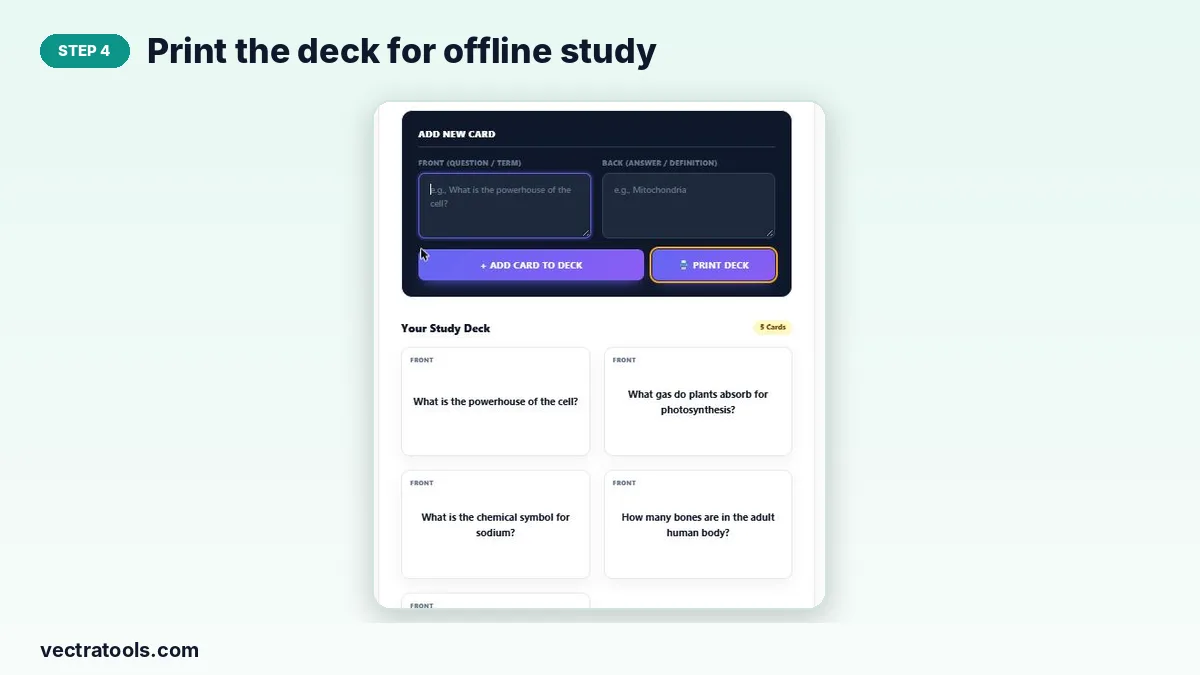
Step 4: Print the deck for offline study
Press Print Deck to print the cards or save them as a PDF from the print dialog. Cut them out or fold the page to study away from the screen.
How to Study with Flashcards
- Go through the deck and sort cards into “know it” and “not yet”.
- Repeat the “not yet” pile until every card is correct.
- Review the full deck again after one day, then three days, then a week. Spacing reviews out makes memories last longer.
- Mix the order each time so you do not memorise the sequence instead of the facts.
Good Flashcard Ideas
- Languages: a word on the front, the translation on the back.
- Science: a term on the front, its definition or formula on the back.
- History: an event on the front, the date and key facts on the back.
- Exams: a past-paper question on the front, the model answer on the back.
Why Use an Online Flashcard Maker
Writing cards by hand is slow, and messy handwriting makes them harder to read. An online flashcard maker gives you neat, consistent cards in a fraction of the time. Use this flashcard maker the evening after each lesson to turn your notes into cards while the topic is fresh.
Frequently Asked Questions
Is this flashcard maker free?
Yes. It is free to use with no account or download.
Are my flashcards saved?
No. The deck exists only while the page is open. Print it or save it as a PDF before closing the tab.
How do I flip a card?
Click or tap the card. Click it again to return to the front.
How many cards can I make?
There is no fixed limit, but decks of 20–40 cards are easiest to study in one session.
Can I delete a card?
Yes. Use the × on the card you want to remove.
Can I print double-sided flashcards?
Print Deck lays out the cards for printing. For true double-sided cards, print the fronts and backs and line them up, or simply fold the page.