

Mind Map Tool Online – Brainstorm and Organise Ideas Visually
Mind Map Maker
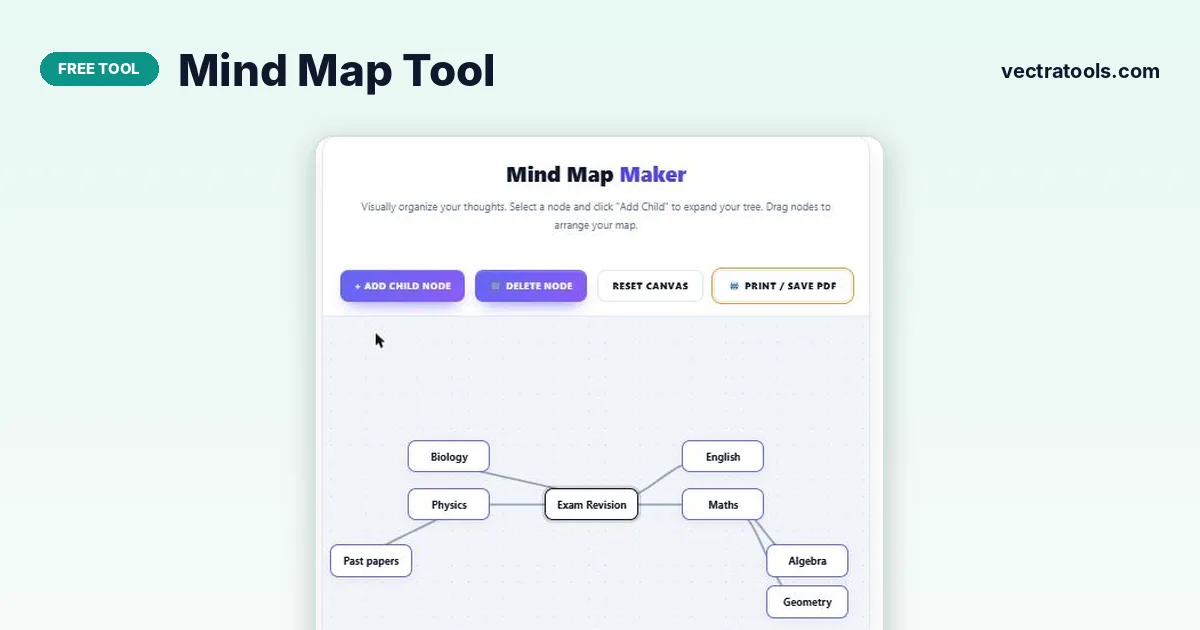
Visually organize your thoughts. Select a node and click "Add Child" to expand your tree. Drag nodes to arrange your map.
Quick answer
To make a mind map online, type your main topic in the central box, select it and press “+ Add Child Node” for each branch, then select a branch to add sub-ideas. Drag any box to rearrange the map and use “Print / Save PDF” to keep a copy. The mind map tool runs in your browser with no account.
A mind map puts one idea in the middle and branches related ideas out from it. Seeing the whole topic on one page makes it easier to plan an essay, revise for an exam, brainstorm a project or take meeting notes.
This mind map tool gives you a clean canvas with curved connecting lines. You type straight into the boxes, add as many branches as you need and move them around until the layout makes sense.
What You Can Do with the Mind Map Tool
| Action | How |
|---|---|
| Edit text | Click inside any box and type |
| Select a node | Click the box (or its text); the selected box gets a dark outline |
| Add a branch | Select a node, then press + Add Child Node |
| Move a node | Drag the box by its edge |
| Delete a branch | Select it and press Delete Node (its sub-branches go too) |
| Start over | Reset Canvas clears everything except the main idea |
| Keep a copy | Print / Save PDF opens your browser’s print dialog |
New branches from the main idea are placed alternately on the right and left, and sub-branches are placed beside their parent without overlapping existing boxes.
How to Use the Mind Map Tool
Plan the main topic first. Then work outwards: main branches for the big themes, sub-branches for details.
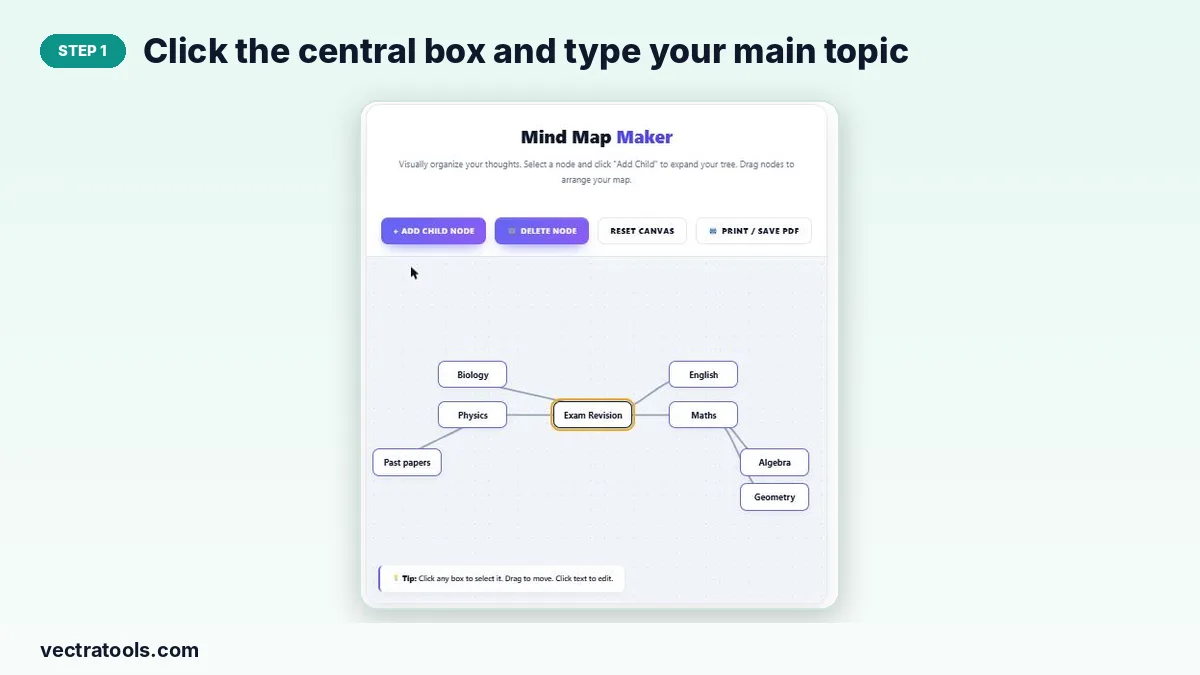
Step 1: Click the central box and type your main topic
The map starts with a “Main Idea” box. Click it and replace the text with your topic, for example “Exam Revision”.
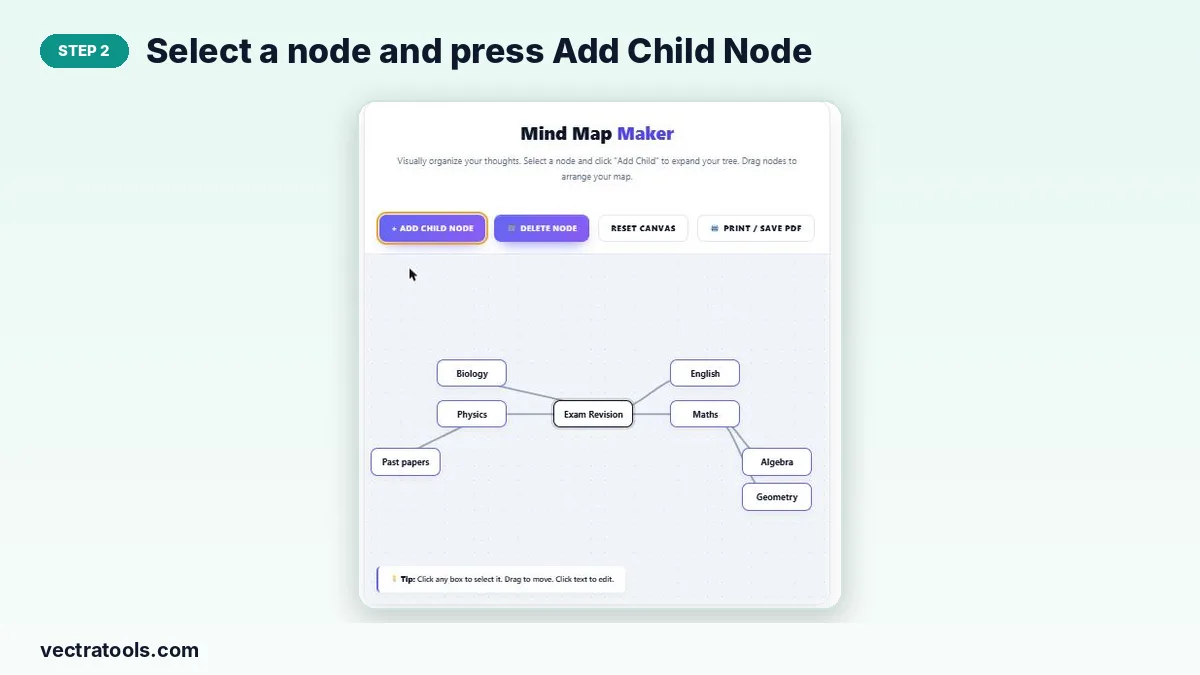
Step 2: Select a node and press Add Child Node
With the main box selected, press “+ Add Child Node”. A new box appears, already selected, so you can type its name straight away. Repeat for each main branch.
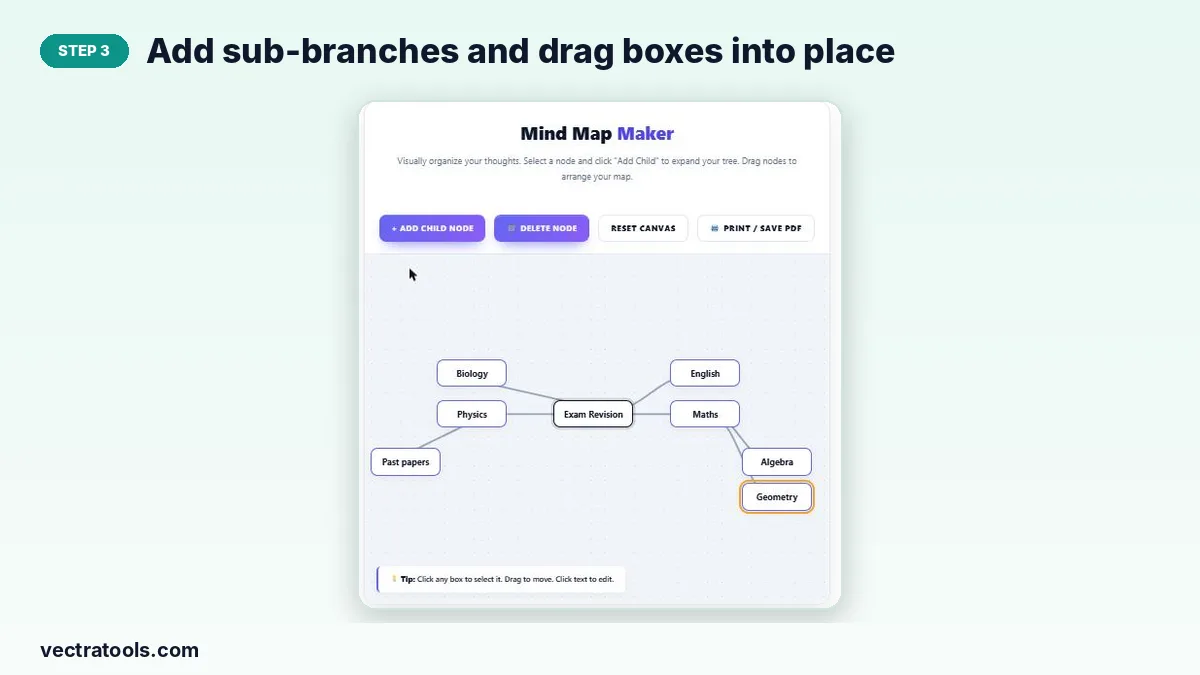
Step 3: Add sub-branches and drag boxes into place
Select any branch and add children to it to go deeper, for example Algebra and Geometry under Maths. Drag boxes to tidy the layout; the connecting lines follow automatically.
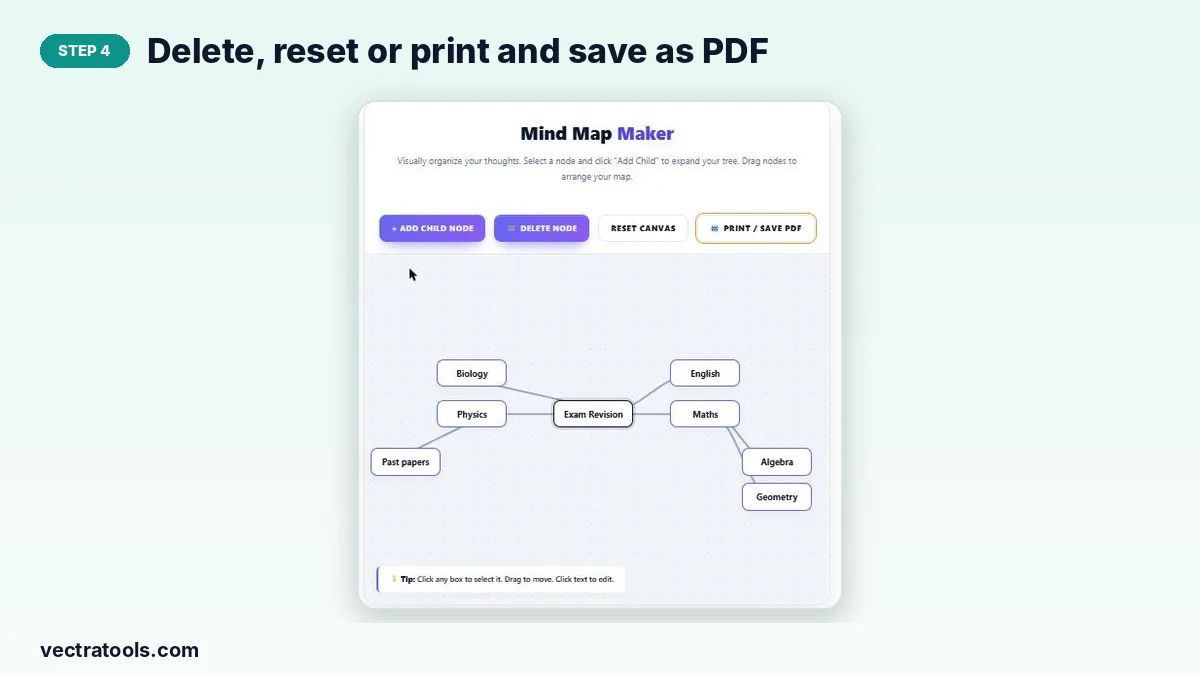
Step 4: Delete, reset or print and save as PDF
Delete Node removes the selected branch and everything under it. Reset Canvas starts a new map. Print / Save PDF opens the print dialog, where you can choose “Save as PDF”.
Mind Mapping Tips
- Use one or two words per box. Short labels keep the map readable.
- Limit the first ring to 4–7 main branches, then go deeper.
- Put related branches next to each other so you can see connections.
- For revision, turn each sub-branch into a question you can test yourself on.
Ways to Use a Mind Map
- Essay planning: thesis in the middle, arguments as branches, evidence as sub-branches.
- Exam revision: one map per subject or chapter.
- Project planning: goals, tasks, people and deadlines as branches.
- Meetings and lectures: capture points as they come and arrange them afterwards.
Why Use an Online Mind Map Tool
Paper mind maps run out of space and are hard to rearrange. An online mind map tool lets you move a branch, rename it or delete it in a second, and the lines redraw for you. This mind map tool also needs no install or login, so you can open it on any computer at school, work or home and start brainstorming straight away.
Frequently Asked Questions
Is this mind map tool free?
Yes. It is free to use without an account or download.
Is my mind map saved?
No. The map lives in your browser tab only. Use Print / Save PDF to keep a copy before you close or refresh the page.
How do I delete a branch?
Click the box to select it and press Delete Node. Its sub-branches are removed too. The central topic cannot be deleted.
Can I move the boxes?
Yes. Drag any box by its edge and the lines redraw automatically.
Does it work on phones and tablets?
You can view the tool and edit text on touch screens, but dragging boxes works best with a mouse or trackpad on a computer.
How many branches can I add?
There is no set limit. For a readable printout, keep it to a few dozen boxes.