

On-Page SEO HTML Analyzer – Audit Any Page in 3 Easy Steps
On-Page SEO Analyzer
Paste HTML into this on-page SEO HTML analyzer to instantly audit Title tags, Meta Descriptions, Headings, and Image ALTs without API limits.
Use this free on-page SEO HTML analyzer to audit the most important on-page elements of any page in seconds. Paste the HTML source, press Audit HTML, and the tool checks the title tag, meta description, H1, subheadings, image alt attributes and canonical tag, marking each one as Optimal or Needs Improvement with the exact length or count.
Quick answer
A well-optimised page usually has a 50–60 character title tag with the main keyword near the start, a 120–160 character meta description, exactly one H1, H2 and H3 subheadings in a logical order, alt text on every meaningful image, and a self-referencing canonical tag. This analyzer checks all six from your HTML.
Table of Contents
On-page SEO is the part of ranking you fully control. Small mistakes, like a missing meta description or two H1 tags from a theme, are easy to miss when you only look at the page in a browser.
This on-page SEO HTML analyzer reads the code itself, so it shows exactly what search engines see, with no API limits and no sign-up.
What the Analyzer Checks
| Element | Target | Why it matters |
|---|---|---|
| Title tag | 50–60 characters | The main headline in search results. |
| Meta description | 120–160 characters | The snippet text that earns the click. |
| H1 heading | Exactly 1 | States the main topic of the page. |
| Subheadings | H2–H6 in order | Organise content for readers and crawlers. |
| Image alt attributes | On every meaningful image | Accessibility and image search. |
| Canonical tag | Present, absolute URL | Prevents duplicate content issues. |
How to Use the On-Page SEO HTML Analyzer
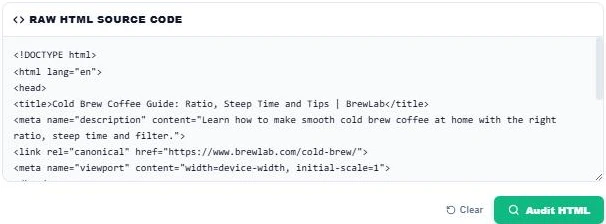
Step 1: Paste Your HTML Source Code
Open the page, right-click and choose View Page Source, then copy everything into Raw HTML Source Code. You can also paste a template or draft before it goes live.
Step 2: Review Title, Meta Description and H1
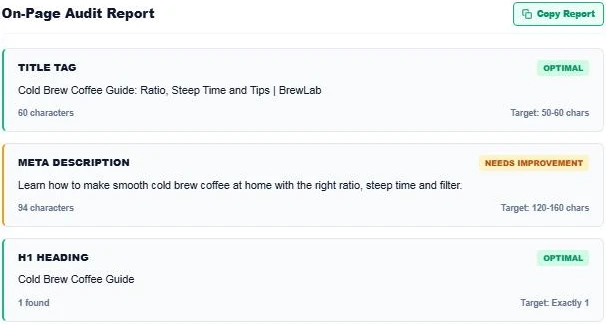
Press Audit HTML. In our test page the title is 60 characters and marked Optimal. The meta description is only 94 characters, so it is marked Needs Improvement against the 120–160 target. One H1, "Cold Brew Coffee Guide", passes.
Step 3: Check Headings, Image Alts and Canonical
Scroll down the report. Two H2 subheadings pass, but 1 of 2 images is missing an ALT attribute. The canonical tag points to https://www.brewlab.com/cold-brew/ and passes. Fix the orange items, paste the updated HTML and audit again. Use Copy Report to save the checklist.

How to Fix Common Issues
- Short meta description: add a clear benefit and a reason to click until it reaches about 140 characters.
- Long title: cut filler words and move the brand name to the end.
- Missing or multiple H1: check the theme header, which sometimes wraps the logo in an H1.
- Missing alt text: describe what each image shows. Use alt="" only for decorative images.
- No canonical: most SEO plugins add a self-referencing canonical automatically once enabled.
On-Page SEO Checklist
- Main keyword in the title, H1 and first paragraph.
- A unique title and meta description for every page.
- One H1 and logical H2 and H3 sections.
- Short, readable URL slug.
- Descriptive alt text on images.
- Internal links to related pages.
- Fast loading and mobile-friendly layout.
- Structured data where it fits, such as FAQ or Product schema.
What This Tool Does Not Check
The analyzer focuses on HTML elements. It does not measure page speed, backlinks, content quality or search intent. Combine it with a keyword density check and a manual read of the page for a complete audit.
When to Run an On-Page Audit
- Before publishing a new post or landing page.
- After changing themes, page builders or SEO plugins.
- When a page drops in rankings without an obvious reason.
- When Search Console shows low click-through rate for a page that ranks well.
Running the on-page SEO HTML analyzer at these moments catches template problems early, before they spread across hundreds of pages.
Auditing WordPress Pages
In WordPress, the title and meta description usually come from your SEO plugin, while the H1 comes from the post title. Paste the live page source, not the editor content, into the on-page SEO HTML analyzer so you see the final output after the theme and plugins have added their tags.
If the report shows a different title from the one you set, another plugin or the theme may be overriding it.
Dig deeper with the HTML Heading Tags Extractor, the Image Alt Tag Checker and the Keyword Density Analyzer.
Frequently Asked Questions
How long should a title tag be?
About 50 to 60 characters, so it is less likely to be cut off in Google results.
How long should a meta description be?
About 120 to 160 characters. The analyzer flags anything outside that range.
Can a page have more than one H1?
HTML allows it, but one H1 is clearer for readers and search engines, so the analyzer recommends exactly one.
Does the analyzer fetch my live page?
No. Paste the page source. This avoids API limits and keeps your code private.
Why is my image alt check failing?
At least one img tag has no alt attribute. Add a short description, or alt="" for purely decorative images.
Is my HTML stored?
No. The on-page SEO HTML analyzer runs in your browser and nothing is uploaded.