

Image to Text Extractor – Free OCR to Copy Text from Pictures in 3 Easy Steps
🔥 Image to Text Converter (OCR)
A simple and fast web tool to extract text from your images. No data is sent to the server.
Use this free image to text extractor to turn screenshots, scanned pages and photos of documents into editable text in seconds.
Quick answer
An image to text extractor uses OCR (optical character recognition) to find letters in a picture and convert them into text you can edit. Choose a PNG, JPG or WEBP image, pick the language, click Extract Text, then copy the result or download it as a .txt or .doc file. This tool runs the OCR engine in your browser, so the image itself is not uploaded to our server.
Table of Contents
Retyping text from a screenshot, a receipt, a slide or a scanned letter is slow and full of typos. OCR does the reading for you and gives you plain text you can paste into an email, a document or a spreadsheet.
Our image to text extractor supports six languages, including Urdu, shows a preview of your image, and gives you the result in a text box with copy and download buttons.
What You Can Use It For
| Use case | Example |
|---|---|
| Screenshots | Copy text from an error message, chat or app screen |
| Scanned documents | Turn a scanned letter or form into editable text |
| Photos of printed pages | Grab a quote or paragraph from a book or handout |
| Slides and posters | Reuse text from a presentation slide or flyer |
| Receipts and invoices | Copy totals and item names into a spreadsheet |
| Urdu text | Extract printed Urdu text with the Urdu language option |
How OCR Works
OCR software first cleans the image and finds lines of text. It then splits each line into words and characters and compares their shapes with patterns learned for the chosen language. Finally, it uses the language’s word list to fix likely mistakes and outputs plain text. Choosing the correct language matters, because it decides which letters and words the engine expects.
How to Use the Image to Text Extractor
Step 1: Select Your Image and Language
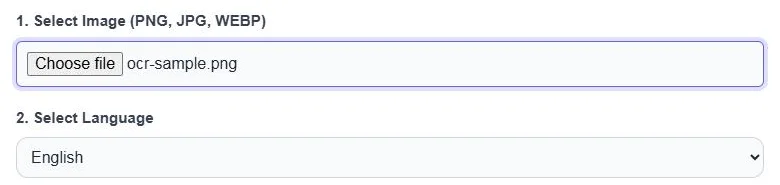
Click Choose file under 1. Select Image and pick a PNG, JPG or WEBP file. Then choose the text language in 2. Select Language: English, Spanish, French, German, Italian or Urdu.
Step 2: Check the Preview and Click Extract Text
Your image appears in the preview box so you can confirm it is the right file. Click Extract Text. The first run takes a few seconds while the language data loads; later runs are faster. Click Clear to start again.

Step 3: Copy or Download the Extracted Text
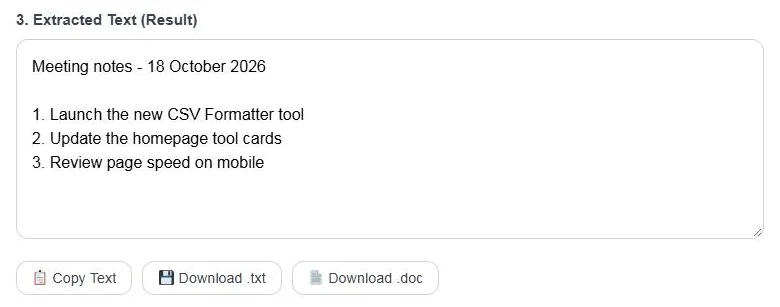
The recognised text appears in 3. Extracted Text (Result). Correct any small errors directly in the box, then click Copy Text, Download .txt or Download .doc.
Tips for Better OCR Accuracy
- Use a sharp image: blurry or very small text causes most errors. Aim for text at least 20 pixels tall.
- Keep it straight: crop and rotate the image so lines are level.
- Good contrast: dark text on a plain light background works best.
- Crop out clutter: remove logos, photos and borders around the text.
- Pick the right language: mixed-language images may need two passes.
- Printed text is easiest: handwriting is recognised far less reliably.
Accuracy Test
We tested the extractor with a 900 × 320 px PNG of four lines of printed English, including a date and a numbered list. With English selected, it returned all four lines word for word, including numbers and punctuation, in a few seconds.
Privacy
The OCR engine runs inside your browser. Your image is read on your own device and is not sent to the VectraTools server, which makes the tool suitable for personal documents and screenshots. The browser downloads the OCR engine and language data the first time you use a language.
Limitations
- Handwriting, stylised fonts and text over busy photos are often misread.
- Tables come out as plain lines of text, not cells.
- PDF files are not supported directly; take a screenshot or export the page as an image first.
- Very large images can be slow on older phones.
Frequently Asked Questions
What is an image to text extractor?
It is an OCR tool that reads the letters in a picture and converts them into editable text you can copy or download.
Is my image uploaded to a server?
No. The OCR runs in your browser, so the image stays on your device.
Which image formats are supported?
PNG, JPG and WEBP images are supported.
Can it extract Urdu text from an image?
Yes. Choose Urdu in the language list before clicking Extract Text. Clear printed Urdu gives the best results.
Why is my extracted text wrong?
The image may be blurry, tilted, low contrast or in a different language than the one selected. Crop, straighten and use a sharper image, then try again.
Is this image to text extractor free?
Yes. It is free with no sign-up and no daily limit.