

Advanced Online Notepad – Write, Format and Export Notes in Your Browser
Quick answer
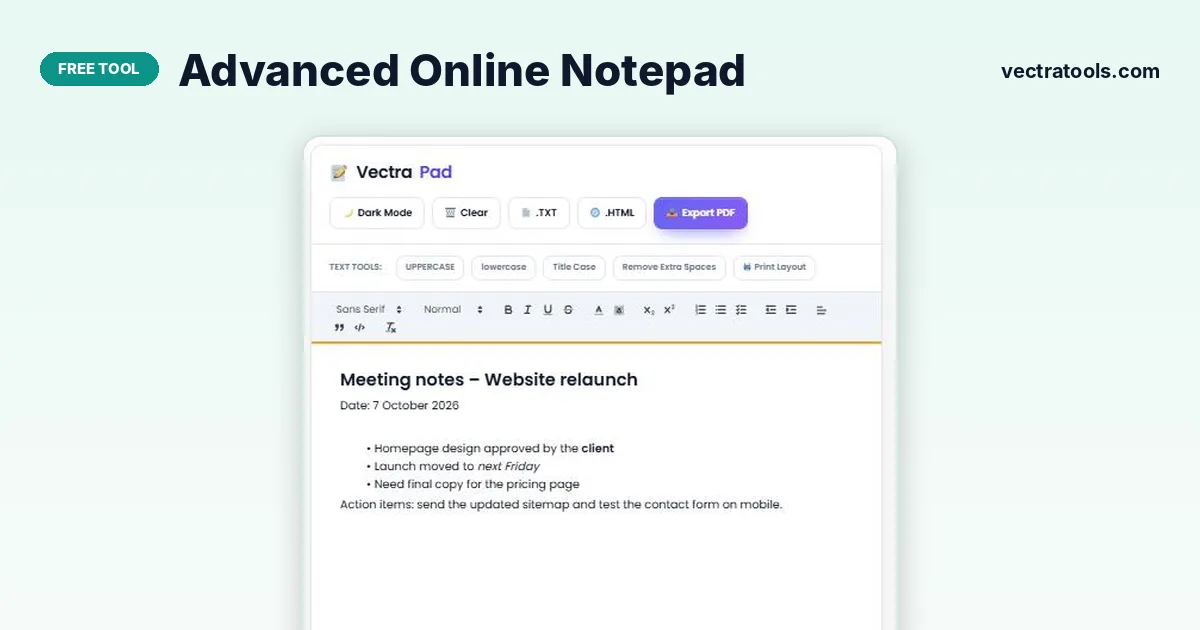
Open the page and start typing; the online notepad saves your text in your browser automatically. Use the toolbar for headings, bold, lists and links, select text and press UPPERCASE, lowercase, Title Case or Remove Extra Spaces to clean it up, and download your note as .TXT, .HTML or a PDF.
Sometimes you just need somewhere to write, without opening a full word processor or signing in to an app. An online notepad is exactly that: a blank page in a browser tab.
VectraPad goes further than a plain text box. It has a rich text toolbar, a live word and character count, handy case tools, a dark mode for late-night writing and one-click exports, while still saving everything privately on your device.
What the Online Notepad Can Do
| Area | Features |
|---|---|
| Formatting | Font, heading size, bold, italic, underline, strikethrough, text and highlight colour, sub/superscript, lists, checklists, indents, alignment, quotes and code blocks |
| Text tools | UPPERCASE, lowercase, Title Case and Remove Extra Spaces for selected text |
| Counters | Live words, characters and reading time (about 225 words per minute) |
| Saving | Auto-saves to your browser’s local storage a moment after you stop typing |
| Export | .TXT (plain text), .HTML (formatted web page) and PDF |
| Display | Dark Mode / Light Mode toggle and a Print Layout view |
How to Use the Online Notepad
Nothing to install. Your note is restored automatically next time you open the page in the same browser.
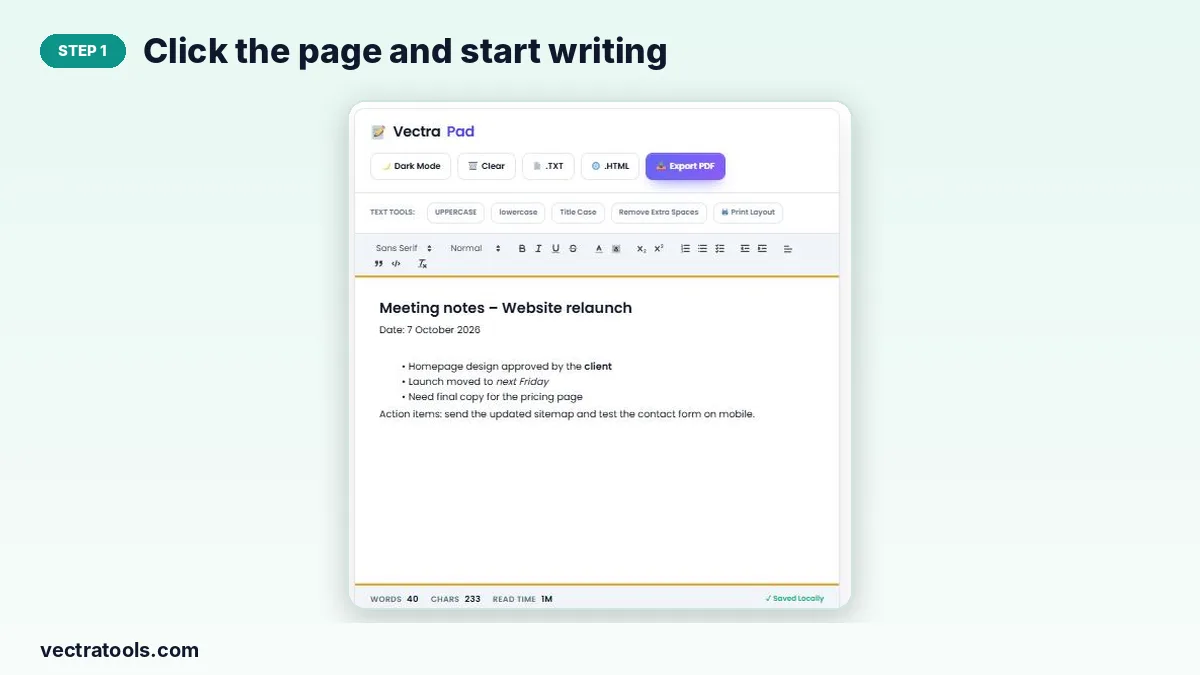
Step 1: Click the page and start writing
Click inside the white writing area and type or paste your text. The status bar shows words, characters and reading time, and “Saved Locally” confirms the auto-save.
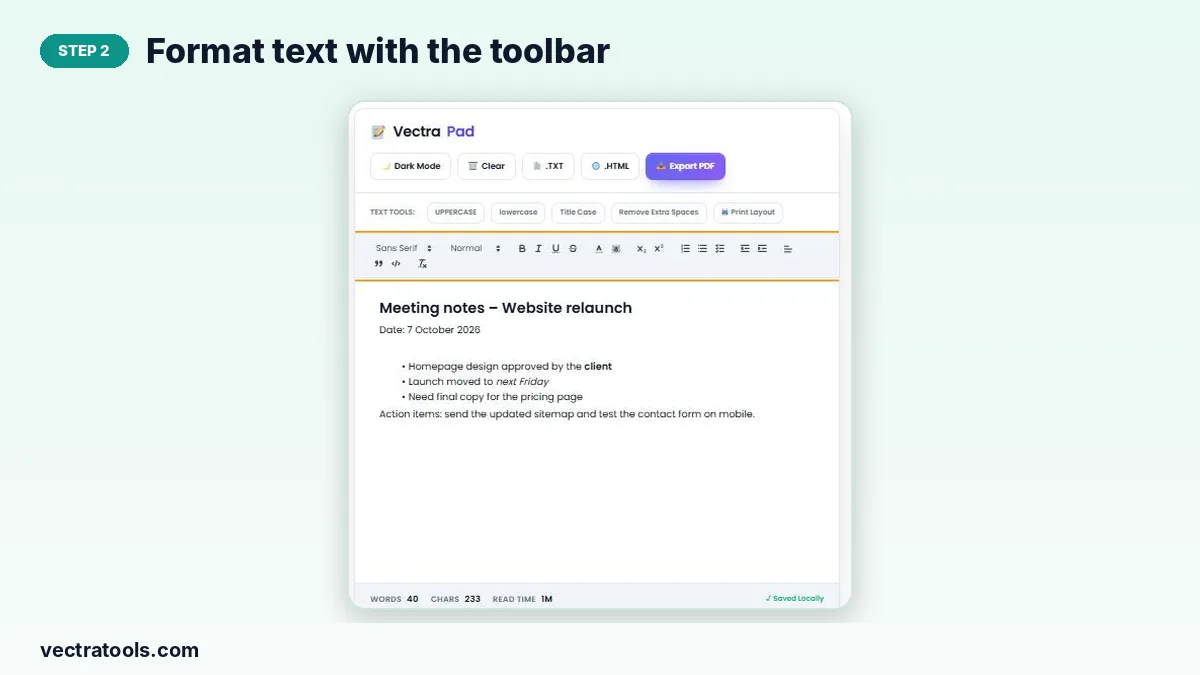
Step 2: Format text with the toolbar
Use the toolbar above the page for headings, bold, italics, colours, bullet or numbered lists, checklists, indents, quotes and code blocks. The eraser icon clears formatting.
Step 3: Select text and use the text tools
Highlight some text, then press UPPERCASE, lowercase, Title Case or Remove Extra Spaces in the Text Tools row. Print Layout opens a clean view for printing.

Step 4: Save as TXT, HTML or PDF, or switch to dark mode
Download your note as .TXT for plain text, .HTML to keep formatting, or Export PDF for a shareable document. Dark Mode switches the editor to a darker theme; Clear empties the page.

Which Export Format to Choose
| Format | Best for |
|---|---|
| .TXT | Code snippets, plain lists, pasting into any app |
| .HTML | Keeping headings, bold and lists to open in a browser or import elsewhere |
| Sharing or printing a finished note that should not be edited |
Privacy and Storage
Your notes are stored only in your browser’s local storage and are never uploaded. That keeps them private, but it also means they live on one browser on one device. Export important notes, because clearing browser data or using a private window will remove them.
Frequently Asked Questions
Is this online notepad free?
Yes. It is free with no account or download.
Are my notes saved automatically?
Yes. The online notepad saves to your browser a moment after you stop typing, and restores the note when you return.
Can other people see my notes?
No. Notes stay on your device and are never sent to a server.
Why does the case tool ask me to select text?
UPPERCASE, lowercase, Title Case and Remove Extra Spaces only change the text you highlight, so the rest of your note stays as it is.
Can I keep several notes?
The notepad holds one note at a time. Export a note as TXT, HTML or PDF before starting a new one.
Does it work offline?
Once the page is loaded you can keep writing without a connection, and the note is saved locally.