

Seating Chart Maker Online – Plan Event Tables and Download PNG
Seating Chart Maker
Design visual seating layouts for events, weddings, or classrooms. Drag and drop tables, assign names, and download your layout as an image.
Add Tables / Desks
Quick answer
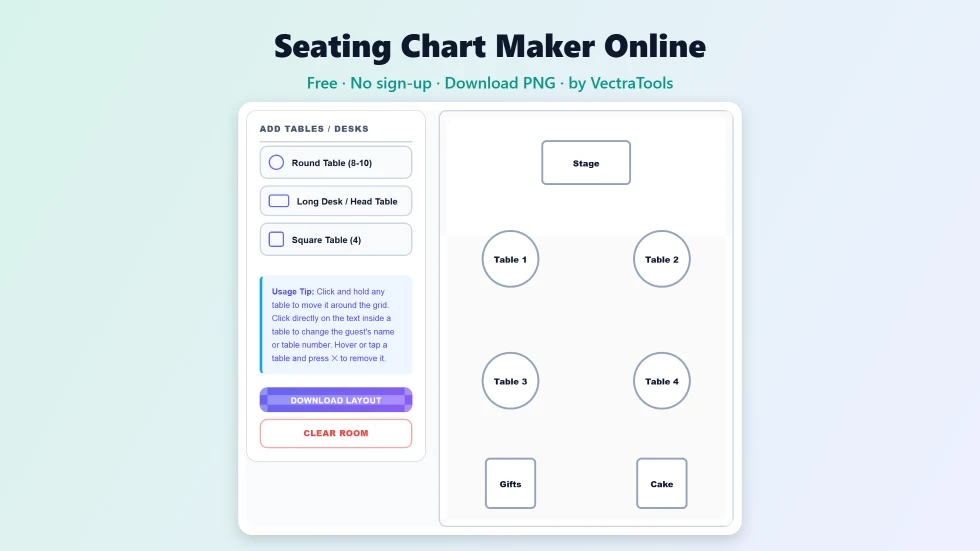
To use this seating chart maker online, add round, long or square tables with the buttons on the left, then drag each table to its place in the room. Click the text on a table to type its number or guest names, and press ✕ to remove one. When the layout is ready, press Download Layout to save it as a PNG. It is free, needs no account and works on desktop and mobile.
Planning who sits where is one of the most fiddly parts of any event. This free seating chart maker online turns it into a simple drag-and-drop job. You place tables on a dotted room grid, name each one, move things around until the layout feels right and then download a clean image to print or share. There is nothing to install, no account to create and no guest data sent anywhere.
I made this tool after seeing how often people sketch seating plans on paper and redraw them every time a guest changes. Here you can move a table in a second, try a few arrangements and keep the version that works.
Seating Chart Maker Online Features
| Feature | How it works |
|---|---|
| Three table shapes | Round tables for 8 to 10, long head tables or desks, and square tables for four |
| Drag and drop | Move any table with a mouse or a finger, with no snapping or setup |
| Stays in the room | Tables are kept inside the room area while you drag |
| Editable labels | Click a table and type a table number, family name or guest name |
| Quick removal | The ✕ button removes a single table |
| Clean PNG export | Downloads the room at 2× resolution on white, with edit buttons hidden |
| Mobile friendly | Touch dragging works and the remove button stays visible on touch screens |
| Private | Runs entirely in your browser with no upload and no sign-up |
How to Use the Seating Chart Maker Online
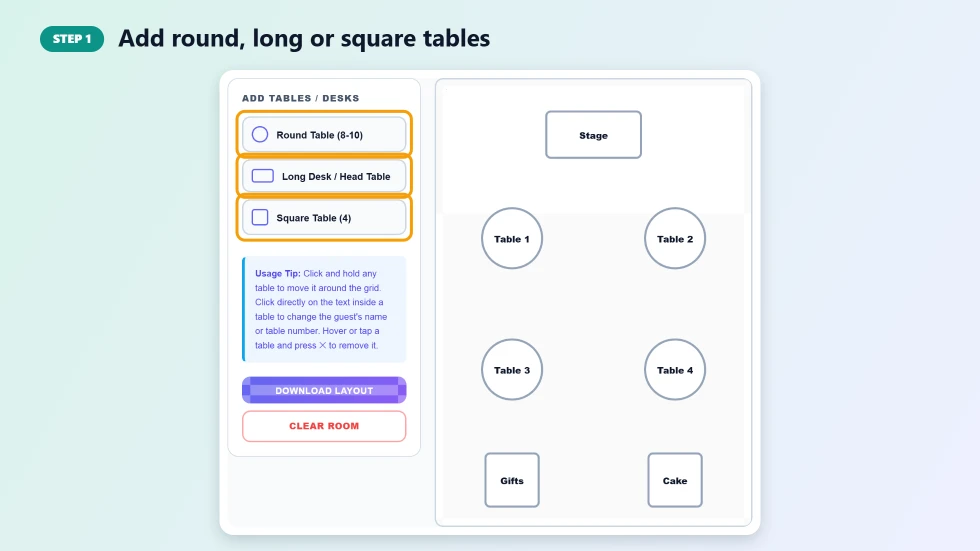
Step 1: Add round, long or square tables
Use the three buttons under Add Tables / Desks. Round Table suits groups of 8 to 10 guests, Long Desk / Head Table works for a top table, stage or classroom desk row, and Square Table fits groups of four. Each new table appears near the middle of the room, slightly offset from the last one so they never stack on top of each other.
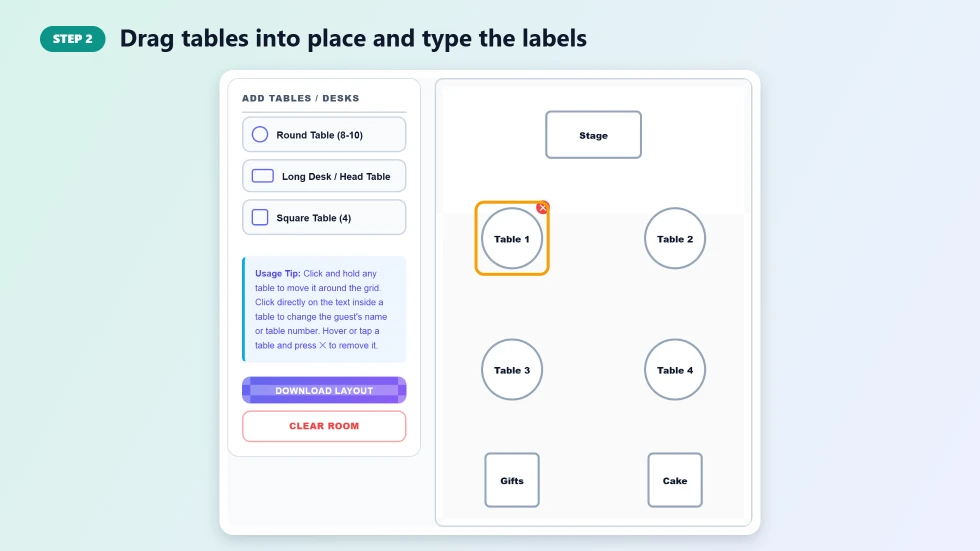
Step 2: Drag tables into place and type the labels
Click and hold a table, then drag it to where it belongs. On a phone or tablet, press and drag with your finger. Tables stay inside the room so none get lost off the edge. Click the text inside a table to type a table number, a family name or a guest name. To remove a table, hover over it (or tap it on a touch screen) and press the red ✕.
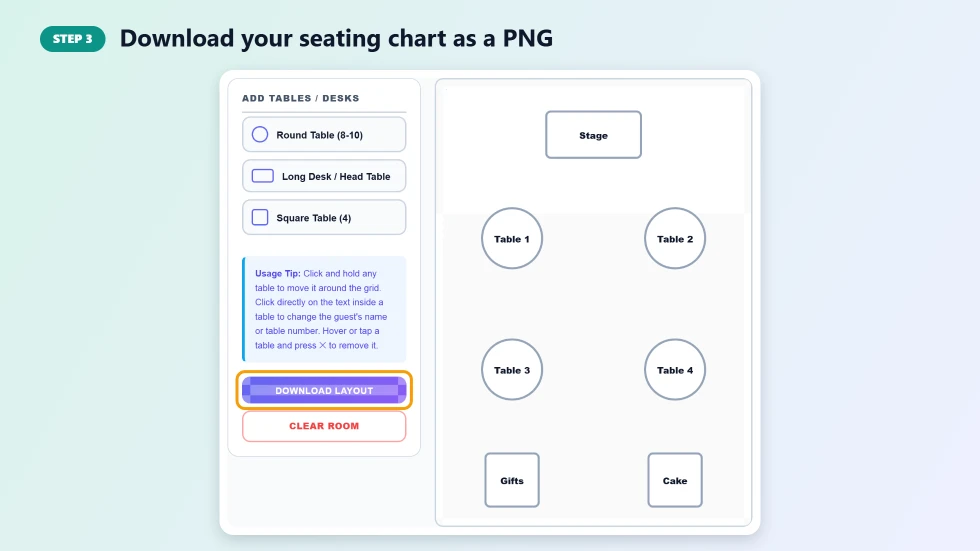
Step 3: Download your seating chart as a PNG
Press Download Layout to save the room as a PNG with a white background at twice screen resolution. The ✕ buttons are hidden in the export, so the image is clean enough to print, email or put on a welcome board. Clear Room empties the whole layout if you want to start again.
Where to Use a Seating Chart Maker Online
- Weddings: place the head table, family tables and guest tables, then print the chart for the welcome board.
- Birthday and dinner parties: mix groups of friends so everyone has someone to talk to.
- Classrooms: arrange desks and see at a glance where each student sits.
- Office meetings and workshops: set up round tables for group work or long desks facing a presenter.
- Restaurants and banquet halls: sketch a floor plan for a booking before the day.
Tips for a Better Seating Plan
- Place fixed items first, such as the stage, head table, dance floor or doors, then fit guest tables around them.
- Leave clear walkways between tables so guests and staff can move easily.
- Seat older guests and families with small children away from loud speakers and close to exits.
- Use short labels like Table 1 or Bride Family so the text stays readable in the download.
- Keep a separate guest list for each table number and share it with the venue along with the chart.
Seating Chart Maker or a Spreadsheet?
A spreadsheet is useful for tracking RSVPs, meal choices and the full name of every guest. What it cannot show is the room itself. This seating chart maker online gives you the picture: where each table stands, how close it is to the stage and how people will move through the space. Many planners use both, with the guest list in a sheet and the layout made here.
Frequently Asked Questions
Is this seating chart maker online free?
Yes. It is free to use, with no sign-up, no watermark and no limit on how many layouts you make.
What table shapes can I use?
There are three shapes: a round table for 8 to 10 guests, a long desk or head table, and a square table for four. Together they cover most weddings, parties, meetings and classrooms.
How many tables can I add?
There is no fixed limit. Add as many tables as your room needs and drag each one into position.
Does it work on a phone?
Yes. You can drag tables with your finger, and the remove button stays visible on touch screens. A larger screen is easier for big rooms with many tables.
Can I list every guest at each table?
Each table has one label. Use it for a table number or a group name, such as Table 3 or Bride Family, and keep the full guest list beside the chart.
Is my seating plan saved?
No. The layout lives only in your browser and is not uploaded or stored. It disappears when you refresh or close the page, so download the PNG when you finish.