

Org Chart Maker Online – Build a Team Structure and Download PNG
Org Chart Maker
Build your company's organizational structure easily. Click the + icon to add subordinates, edit names and roles, and download a high-quality image.
Chart Controls
- Hover over any card to reveal buttons.
- Click [+] to add a team member.
- Click [✕] to remove a member.
- Click directly on Name or Role to edit text.

Quick answer
The org chart maker opens with a sample team. Click any name or job title to type over it, hover a card and press + to add someone who reports to that person, or press ✕ to remove them and their team. When the structure is right, click Download Image to save the chart as a high-resolution PNG. It is free, needs no sign-up and runs in your browser.
An organisation chart shows who reports to whom. New hires use it to find the right person, managers use it to plan headcount, and small business owners use it to show investors or clients how the team is set up. Drawing one by hand in a slide app takes a long time, and every change means moving boxes and lines again.
This org chart maker online builds the tree for you. Cards line up automatically and the connecting lines redraw whenever you add or remove a person, so you only need to type names and roles.
What You Can Do
| Action | How |
|---|---|
| Edit a name or role | Click the text on the card and type |
| Add a team member | Hover a card and press +; the new card appears below that person |
| Remove a member | Hover a card and press ✕, then confirm; their whole sub-team is removed too |
| Start over | Reset Chart brings back the sample structure after you confirm |
| Save the chart | Download Image exports a PNG at double resolution on a white background |
How to Use the Org Chart Maker
The starting chart has a CEO, two managers and two staff members. Replace them with your own team, as in the example below.
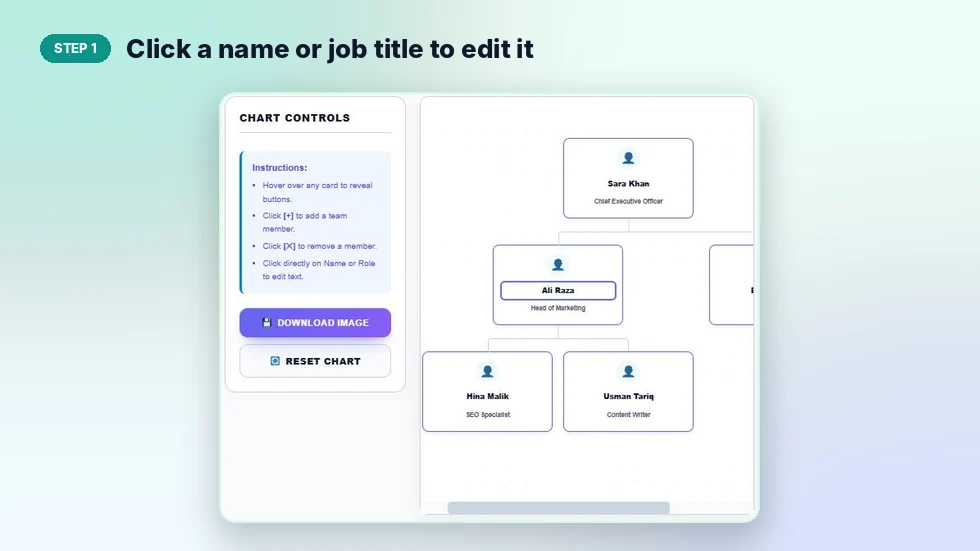
Step 1: Click a name or job title to edit it
Each card has two lines: the name on top and the job title below. Click either one and type. Start with the person at the top, then work down each branch.
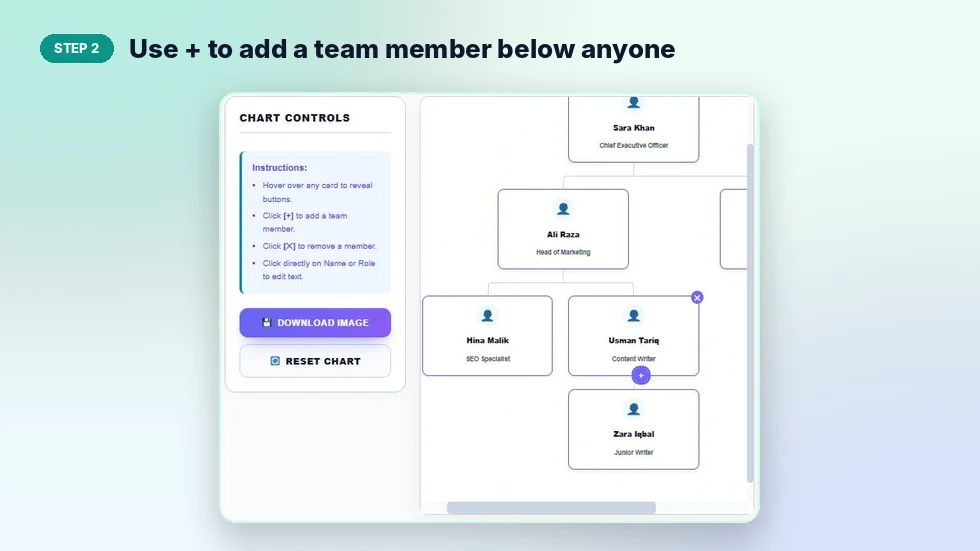
Step 2: Use + to add a team member below anyone
Move your mouse over a card to show its buttons. Press + and a New Member card appears directly under that person, already connected with a line. Rename it straight away. In the example, Zara Iqbal was added under Usman Tariq.
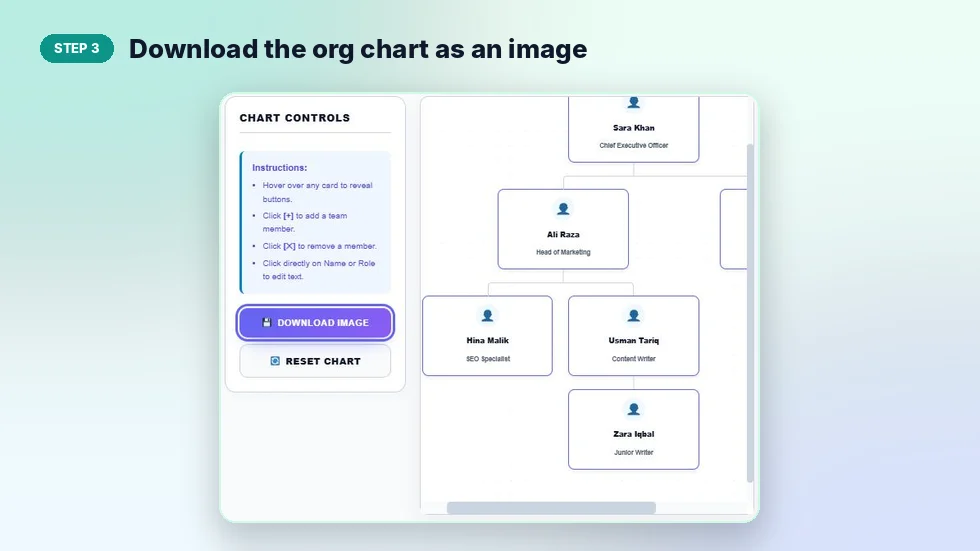
Step 3: Download the org chart as an image
Click Download Image. The tool hides the + and ✕ buttons, captures the whole chart, even parts you need to scroll to see, and saves a PNG named VectraTools-OrgChart with a number.
Types of Organisation Structure
| Structure | What it looks like | Common in |
|---|---|---|
| Hierarchical | A tall tree with several management levels | Large companies, government |
| Flat | A wide tree with few levels | Startups, small agencies |
| Functional | Branches grouped by department, such as marketing and tech | Most growing businesses |
| Divisional | Branches grouped by product, region or client type | Companies with several product lines |
The tree layout in this tool suits hierarchical, flat and functional charts best.
Tips for a Clear Org Chart
- Keep job titles short so they fit on one line.
- Use the same title style everywhere, such as "Head of Marketing" and "Head of Tech".
- For large companies, make one chart for the leadership team and separate charts for each department.
- Show open roles as cards named "Hiring" so the team can see planned growth.
- Download a fresh copy whenever someone joins or leaves, because the chart is not saved after you close the page.
Wide charts scroll sideways inside the canvas, and the export still includes every card. Nothing is uploaded, so names stay on your own device.
Frequently Asked Questions
Is this org chart maker free?
Yes. It is free with no sign-up and no watermark.
How do I add an employee?
Hover the manager's card and press +. A new card appears under them, ready to rename.
What happens when I delete a card?
That person and everyone below them are removed after you confirm. The top card cannot be deleted.
Can I download my org chart?
Yes. Download Image saves a high-resolution PNG with a white background.
Is there a limit on team size?
No fixed limit. Large charts scroll inside the canvas, and the export captures the full chart.
Is my chart saved online?
No. It stays in your browser only, so download it before closing the page.