

DNS Record Lookup Online – Check A, MX, TXT, CNAME and NS Records
DNS Record Lookup
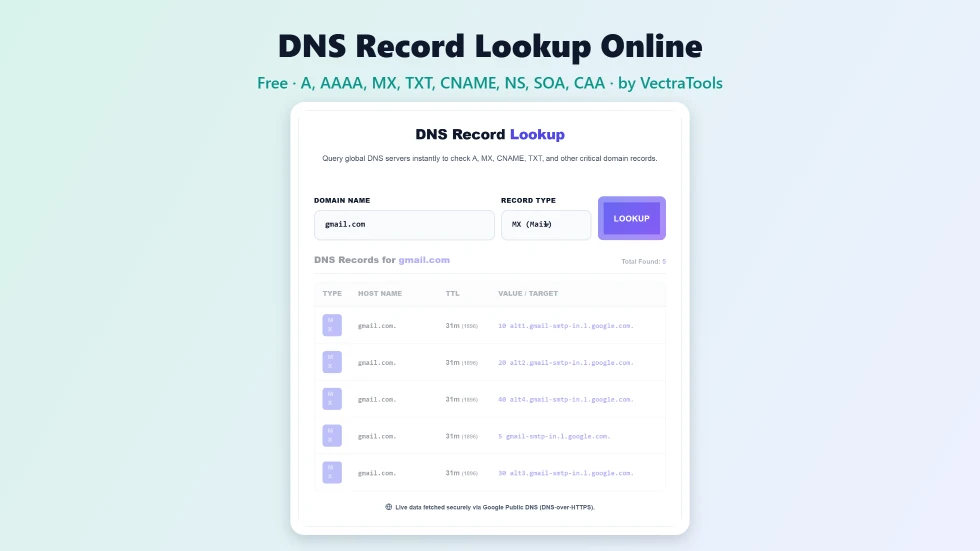
Use this free DNS record lookup online to check A, MX, CNAME, TXT and other records for any domain.
| Type | Host Name | TTL | Value / Target |
|---|
Quick answer
To use this DNS record lookup online, type a domain such as example.com (you can paste a full URL and it will be cleaned up), choose a record type or ALL (ANY), and press Lookup. The tool queries Google Public DNS over HTTPS and shows each record's type, host name, TTL and value. If no records of that type exist you will see a clear message, and misspelled domains are reported as NXDOMAIN.
DNS records tell the internet where a domain's website, email and services live. When a site will not load, email bounces or a verification fails, the first thing to check is the DNS. This free DNS record lookup online shows the live records for any domain in a couple of seconds, without command-line tools like dig or nslookup.
Results come straight from Google Public DNS using DNS-over-HTTPS, so you see what most of the internet sees. I fixed a confusing case where a non-existent domain showed the parent .com zone record as a result; it now clearly says the domain does not exist.
DNS Record Lookup Online Features
| Feature | How it works |
|---|---|
| Nine record types | A, AAAA, MX, TXT, CNAME, NS, SOA, CAA or all at once |
| Live results | Queries Google Public DNS over HTTPS in real time |
| TTL shown | Time to live in minutes and seconds for each record |
| Clean input | Paste a full URL and the domain is extracted automatically |
| Clear errors | NXDOMAIN and empty results are explained in plain words |
| Readable TXT records | Quotes are stripped so SPF and verification strings are easy to read |
| Record count | Shows the total number of records found |
| No sign-up | Free to use with no limits for normal checks |
How to Use the DNS Record Lookup Online
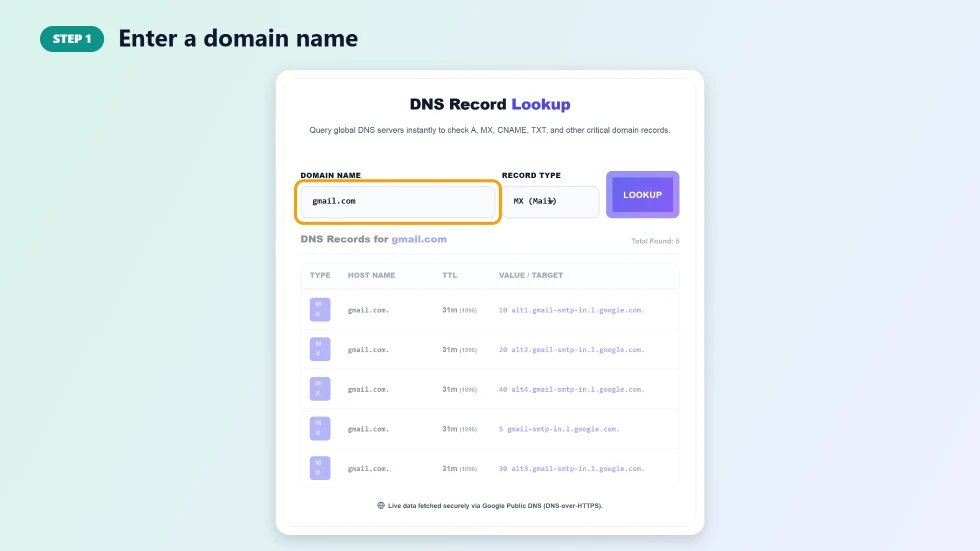
Step 1: Enter a domain name
Type the domain you want to check, for example vectratools.com or mail.example.org. You can also paste a full URL such as https://www.example.com/page; the tool keeps only the host name.
Step 2: Pick a record type and press Lookup
Choose a record type from the menu, such as MX for email servers or TXT for SPF, DKIM and verification records, or keep ALL (ANY) to see everything. Press Lookup to query the DNS.

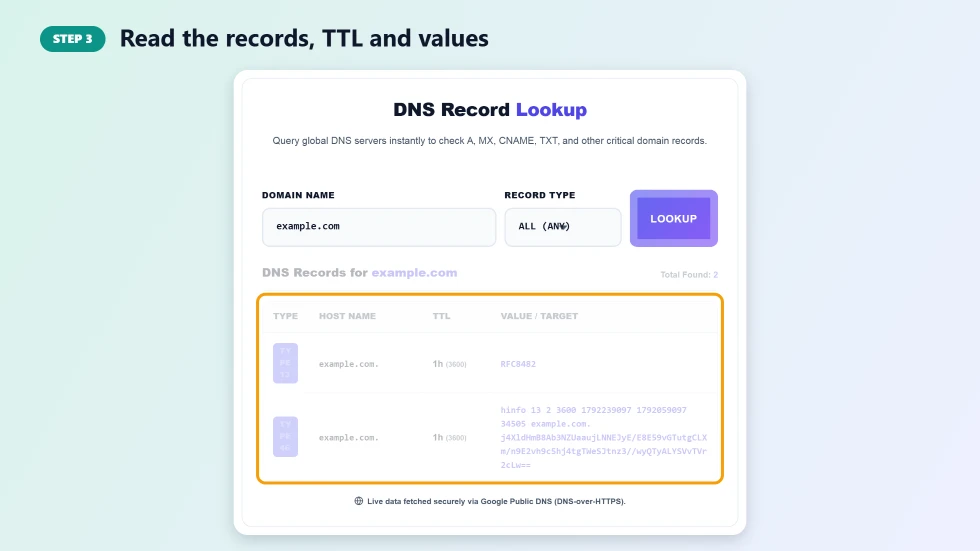
Step 3: Read the records, TTL and values
The results table lists each record's type, host name, TTL and value. MX records show their priority number first, and lower numbers are tried first. Compare the values with what your hosting or email provider told you to set.
DNS Record Types Explained
- A: points a domain to an IPv4 address.
- AAAA: points a domain to an IPv6 address.
- MX: lists the mail servers that receive email, with priorities.
- TXT: holds text such as SPF, DKIM, DMARC and site verification codes.
- CNAME: makes one name an alias of another.
- NS: shows which name servers are authoritative for the domain.
- SOA: the zone's start of authority, with serial number and timers.
- CAA: lists which certificate authorities may issue SSL certificates.
DNS Record Lookup Online Tips
- After changing DNS, wait at least the old TTL before expecting everyone to see the new value.
- If email is not arriving, check MX records first, then the SPF TXT record.
- Check NS records to confirm a domain is using the DNS provider you expect.
- A CNAME cannot sit on the root domain alongside other records; use your provider's ALIAS or flattening feature instead.
- Use the IP tracker to see who hosts the address an A record points to.
Why Results Can Differ From Other Tools
DNS answers are cached around the world. Right after a change, some resolvers may still show the old value until the TTL expires. This tool shows what Google Public DNS currently returns, which is a good indicator of what most users see.
Frequently Asked Questions
Is this DNS record lookup online free?
Yes. It is free with no sign-up and no daily limit for normal use.
Where do the results come from?
The tool queries Google Public DNS (dns.google) over HTTPS and shows the live answer.
Why does it say NXDOMAIN?
NXDOMAIN means the domain does not exist in DNS. Check the spelling, or the domain may have expired or not be registered.
How do I check my email DNS settings?
Look up MX records to see your mail servers, then TXT records to check SPF, DKIM and DMARC entries.
What is TTL?
TTL (time to live) is how long resolvers may cache a record, shown in seconds. A TTL of 300 means 5 minutes.
How long do DNS changes take to show?
Usually from a few minutes up to the old record's TTL, and occasionally up to 48 hours for name server changes.